Install OAS 7.6 Client Tools: Version, Paths and JDK
Choose matching Windows Client Tools for OAS 7.6, check release-specific JDK certification, and locate Linux utilities in the BI domain.
This is a version-specific reference for readers maintaining OAS 7.6 (2024). Official documentation was reviewed on October 17, 2026. The download page now presents OAS 2026; this is not a new-installation guide for that release. Commands below are examples, not results from a live OAS execution during this revision.
Match the release before downloading
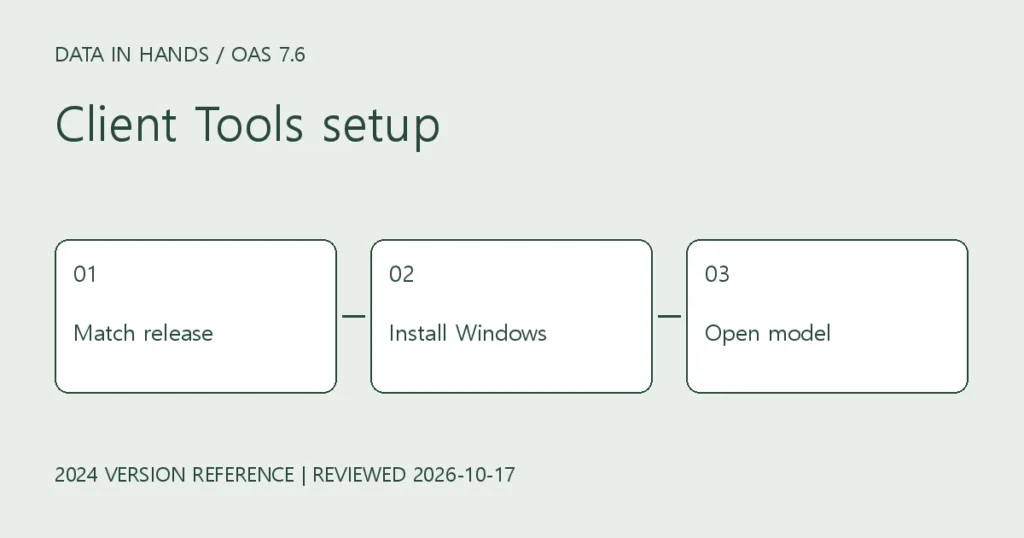
OAS 7.6 corresponds to the 2024 release. Client Tools must match the server release. The public download page currently lists 2026 and 2025 installers, so the old instruction to click 2024 under Optional is no longer reliable. Locate the matching release in Oracle Software Delivery Cloud, or check availability through your support entitlement.
Oracle Analytics Server downloads
1. Record three prerequisites
- Compare the server release and patch with the selected Client Tools release.
- Check the Windows version and architecture against that release’s certification.
- Use the chosen client release’s certification and installer README for JDK requirements. Do not treat 8u411+ in the current documentation as a universal requirement for every 7.6 installation.
Oracle: current client certification
2. Install and launch on Windows
Select the Windows x64 client package in Software Delivery Cloud and review its license. Run the downloaded installer as Administrator, then open Model Administration Tool from Oracle Analytics Client Tools in the Start menu. The package also includes the Catalog Manager command-line interface.
Oracle: Client Tools installation
3. Use the BI domain path on Linux
This checks CLI utilities on an already configured Linux OAS server. Do not substitute a Windows GUI installation path or an arbitrary client_install_folder/bi/bitools/bin for the BI domain.
cd "$DOMAIN_HOME/bitools/bin"
ls -l runcat.sh datamodel.sh
./datamodel.sh downloadrpd -H
4. Verify the installation
- Record the tool version and confirm it matches the server release.
- Open a copy of the RPD offline and check its password, model tree and consistency. Save only the test copy.
- Validate online connectivity separately: network, DSN, TLS trust and privileges. Opening an offline file does not prove server access.
If the tool does not start
Check the installed release, certified JDK, startup logs and endpoint-security events in that order. Do not blindly replace Java with the newest release or disable certificate validation. Retain the original configuration and installer details so the issue remains reproducible.