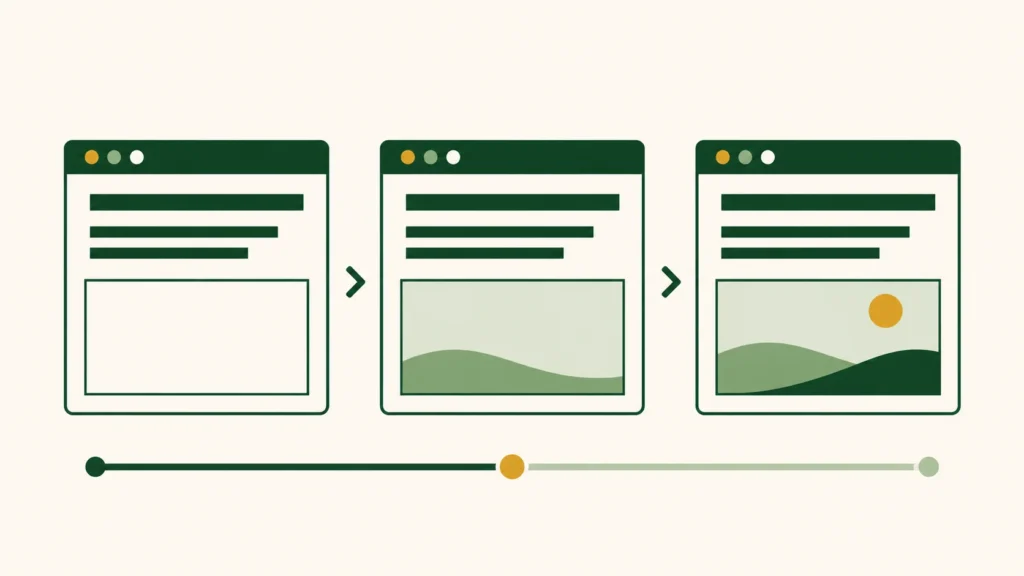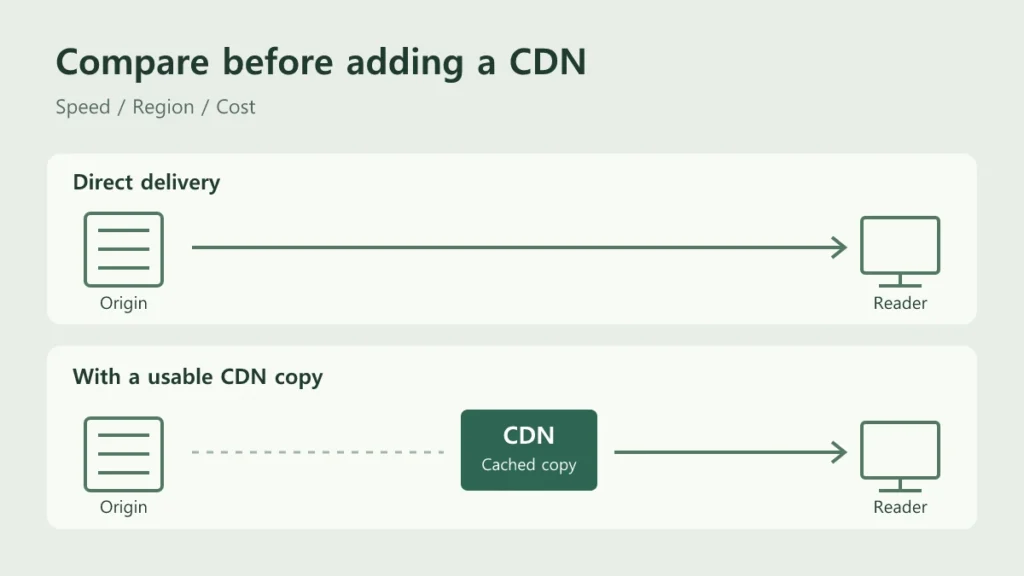
A late-loading image is not enough reason to add a CDN. First, check whether downloading the file is the delay. If that delay persists in the regions your readers use, a CDN trial is worth considering.
The post opens, but its main image takes much longer to appear. You have heard that a CDN can help. Before filling in origin addresses and cache settings, there is a more useful question to answer.
“Is file delivery actually the problem?”
Start with one slow image. Find where it is waiting, then decide whether to compare delivery paths. The cost calculation comes after that.
A CDN delivers content through servers in multiple locations. This article focuses on deciding whether to use one. The Bunny CDN setup guide covers the connection steps.
1. Find a delay a CDN can help reduce
When you open a post, the browser first receives its HTML. It uses the addresses in that document to request images and stylesheets. It then renders the page. The right fix depends on which step is slow.
For example, an image may finish downloading while its space on the page stays blank. That points to a rendering problem. Delivering the same file faster will not resolve that delay on its own. If the image request starts early but the download takes a long time, its delivery path is worth comparing. Check for an unnecessarily large file first.
| What you observe | What to check first |
|---|---|
| A long wait for HTML | Server processing and page caching. An asset-only CDN does not make WordPress generate HTML faster. |
| Slow public image or font downloads | File size and delivery time in your readers’ regions. These files are candidates for a CDN trial. |
| Files arrive, but the page appears late | CSS, JavaScript, and image rendering. Follow the checks in Part 3. |
A CDN can also serve HTML. That requires decisions about personalized pages and cache updates. Keep that work separate from this initial test of public files.
2. Test where your readers are
Review the countries and regions in your recent traffic reports. Prioritize local performance if most readers are nearby. Include overseas locations that account for regular readership. A visitor count does not tell you how fast the page loads there.
Use a testing service with regional locations, or ask someone in the region to open the same post. Keep the test location and device conditions consistent. Comparing a desktop test in Korea with a slow mobile connection in the United States mixes two different factors.
Start with one frequently read post and one image-heavy post. Run each test several times and compare the median. The median is the middle value when results are sorted. It makes a single unusually fast or slow run less influential.
3. Start with one slow image
A whole page can be a lot to investigate at once. Pick the main image that appears late and follow its request.
What to do
- Open the post in Chrome and press
F12to open DevTools. - Select
Networkand reload the page. - Select the
Imgfilter. Find the main image in the list. Use Preview to identify it if the filename is unfamiliar. - Open the request’s
Timingtab. Compare the response wait with the download time.

This capture shows a public image request from this site. Size shows 24.2 kB. Time shows 751 ms. Even a small file can spend time waiting for a response. Open Timing to see where that time went.
How to read the result
A long Waiting for server response interval means the delay happens before the response arrives. It includes network round trips and server processing. That number alone does not identify a server performance problem.
A long Content Download interval means receiving the file takes time. Check its size first. If delays persist in your main regions after reducing unnecessary bytes, compare the CDN delivery path.
Record the file address, size, and response status with each result. If the CDN creates a smaller image, the comparison includes an image optimization change. Compare identical files first to isolate the delivery difference.
Disable cache turns off the browser cache. It does not purge the CDN. Keep this setting consistent during comparisons. Test with the browser cache enabled separately to check return visits. Chrome Network reference
On a narrow screen, scroll the capture sideways. View full size opens the original image.
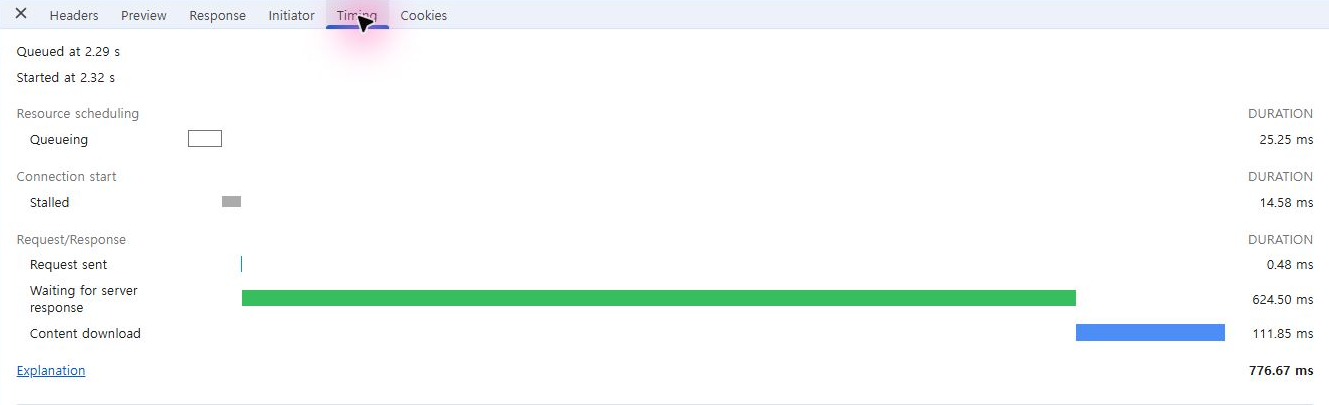
The response wait took 624.50 ms in this request. The download took 111.85 ms. Repeat the check under the same conditions. If the wait stays long, investigate the response path and server processing. This single request does not establish a need for another CDN.
Captured November 13, 2026, in Chrome’s English UI. The public image was inspected in a signed-in browser. Disable cache was enabled, with no throttling. This is not a page-load measurement for a typical visitor.
4. Separate initial requests from repeat requests
The origin is the server that supplies the original file. A CDN can serve a usable stored copy without fetching that file from the origin. This is a cache hit, or HIT. When it needs to fetch the file because no usable copy is available, the request is a cache miss, or MISS.
One HIT does not mean every visitor gets the same result. Another CDN location may not have a copy yet. An infrequently requested file may also be evicted. Record initial and repeat requests separately. Check the CDN’s response headers or dashboard for cache status. Header names and values vary by service. How CDN caching works
You might find that repeat requests improve while initial requests do not. Check how often real traffic produces hits before drawing a conclusion. Repeatedly requesting one test file can produce a hit rate that is unrepresentative of normal visits.
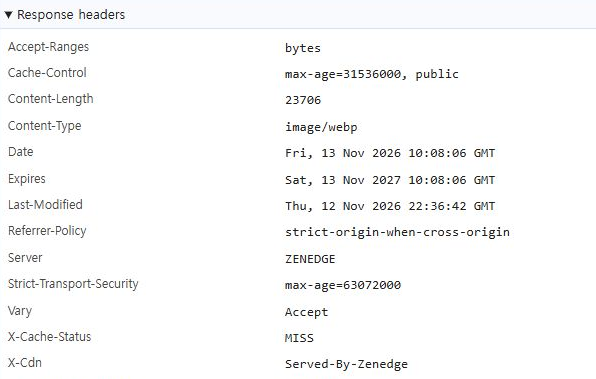
Cache-Control describes the storage policy. Here, public allows storage in a shared cache. It does not prove that this response came from a cached copy.
This response shows X-Cache-Status: MISS. It also shows Server: ZENEDGE and X-Cdn: Served-By-Zenedge. Do not record that value as a Bunny cache result. Identify the request address and the responding service first.
5. Check whether files can safely be shared
Public blog images are useful first candidates because every visitor receives the same content. Account details and shopping carts must not share a cached response across users. Do not apply public-file rules to the entire site.
Cache-Control: private tells shared caches not to store the response. no-store tells caches not to store it at all. Do not remove these protections to improve a hit rate. Private and shared HTTP caches
Your hosting or optimization service may already include a CDN. Check the addresses serving your files before adding another service. If the existing CDN performs well in your readers’ regions, there may be little reason to add one.
6. Compare the full cost of delivery
A CDN adds a bill but may reduce origin bandwidth charges. Origin fetches still occur. The amount delivered to readers by the CDN is not automatically the amount saved at the origin.
Start with the transfer charges on your current bill. If your hosting plan includes the bandwidth you use, there may be no immediate saving. Add the expected CDN bill to the remaining origin charges. Check regional rates, minimum charges, and paid extras. Recheck Bunny’s current pricing when you are ready to run a trial.
Compare the combined bill
CDN delivery + remaining origin transfer + paid extras

Track separately
Time spent checking updates, handling errors, and maintaining settings
A modest speed improvement may still be worthwhile if origin load or costs fall enough. A small saving may be less attractive if every image update requires substantial extra work.
7. The same symptom can need a different fix
Consider two examples of a main image appearing late. These illustrate the decision process; they are not new measurements.
The download has already finished
Network shows a completed image request, but the page still has a blank space. Check when the image is displayed before buying a CDN service. Lazy loading or JavaScript may be delaying it. Continue with the rendering checks in Part 3.
The file consistently downloads slowly overseas
The same image downloads quickly near the origin. Repeated tests from a fixed overseas environment remain slow. There is little room to reduce the file size further. That is a reasonable case for trying a CDN with a few public images.
If the trial makes no difference, do not expand it yet. Investigate the connection and other possible bottlenecks.
8. Run a limited trial before expanding
- Record a baseline. Choose the pages, files, locations, and device conditions. Keep HTML timing separate from file delivery timing.
- Try a few public files. Use CDN addresses on a test page. Keep the originals available so you can switch back.
- Repeat the same measurements. Separate initial and repeat requests. Check that images and fonts display correctly on desktop and mobile.
- Change a file. Verify that readers receive the new content. Follow the content and media cache refresh guide for the update procedure.
- Decide using speed and cost together. Expand the trial if improvements are consistent in your main regions. If results are unchanged or errors appear, restore the original addresses and investigate.
If the evidence supports a trial, continue with the Bunny CDN setup guide. Start by identifying where each file’s original is stored.