
Start by separating a slow HTML response from slow rendering after that response begins. If generating HTML is the bottleneck, investigate page caching. If an image or text appears late, inspect its files and the browser’s rendering work. Decide whether a CDN is worthwhile after considering visitor locations, repeat requests, and cost.
For a first pass, test the logged-out homepage and one representative article on desktop and mobile, then choose one change to test. Use the decision table below to find the relevant measurement steps.
Separate response time from display time
Before changing a setting, I want to answer two questions: Is the browser waiting a long time for the response to start? Or does the important content appear late after the response has begun?
Time to First Byte (TTFB) measures the time from the start of navigation until the first byte arrives. It can include redirects, DNS lookups, and connection setup as well as server processing. A long TTFB alone doesn't identify the database or server hardware as the problem. How TTFB works
Largest Contentful Paint (LCP) tracks when the largest eligible image or text block in the initial viewport is rendered. That could be a featured image, a heading, or a block of text. Find out which element is being measured before deciding what to optimize. How LCP works
| What to inspect | What it tells you | What it doesn't establish |
|---|---|---|
| Time until the HTML response starts | Whether there's a delay before the response begins | Whether PHP, the database, or the network caused it |
| LCP and its target element | When a large image or text block appears | Whether changing that element will solve the whole problem |
| Actual requests and transfer sizes | Which files and outside services the browser requested | How much each download delayed rendering |
- Time until the HTML response starts
- What it tells youWhether there's a delay before the response begins
- What it doesn't establishWhether PHP, the database, or the network caused it
- LCP and its target element
- What it tells youWhen a large image or text block appears
- What it doesn't establishWhether changing that element will solve the whole problem
- Actual requests and transfer sizes
- What it tells youWhich files and outside services the browser requested
- What it doesn't establishHow much each download delayed rendering
This first pass focuses on the initial page load. Slow button responses and choppy scrolling need separate interaction tests.
Choose the next change from the evidence
The table below is a decision guide, not a set of measured results. Pick one likely bottleneck to investigate first.
| What you observe | What to investigate | What to do next |
|---|---|---|
| The HTML response repeatedly takes a long time to start | Redirects, connection delays, server load, PHP, the database, and page caching | Investigate HTML delivery. If server processing is the bottleneck, test page caching or improve that processing before adding a CDN. |
| HTML arrives quickly, but the LCP image appears late | Image size, format, discovery time, and unnecessary lazy loading | Improve delivery and rendering of that image, then compare results. |
| A large text block appears late | Font requests, render-blocking CSS, and text rendering | Investigate the relevant fonts and CSS. Fewer files alone aren't proof of a faster page. |
| Downloads finish, but rendering or interaction is still slow | Long JavaScript tasks and rendering delays | Use a Performance recording to narrow down work on the browser's main thread, which handles script execution and much of the rendering work. |
| Only a repeat visit is fast | Browser and server cache states | Compare first and repeat visits separately and identify which cache is helping before changing the setup. |
| Response and display times meet your needs, and repeated runs are stable | Reading, menus, search, and app behavior on a real phone | Keeping the current setup may be the right decision. More settings aren't a goal in themselves. |
- The HTML response repeatedly takes a long time to start
- What to investigateRedirects, connection delays, server load, PHP, the database, and page caching
- What to do nextInvestigate HTML delivery. If server processing is the bottleneck, test page caching or improve that processing before adding a CDN.
- HTML arrives quickly, but the LCP image appears late
- What to investigateImage size, format, discovery time, and unnecessary lazy loading
- What to do nextImprove delivery and rendering of that image, then compare results.
- A large text block appears late
- What to investigateFont requests, render-blocking CSS, and text rendering
- What to do nextInvestigate the relevant fonts and CSS. Fewer files alone aren't proof of a faster page.
- Downloads finish, but rendering or interaction is still slow
- What to investigateLong JavaScript tasks and rendering delays
- What to do nextUse a Performance recording to narrow down work on the browser's main thread, which handles script execution and much of the rendering work.
- Only a repeat visit is fast
- What to investigateBrowser and server cache states
- What to do nextCompare first and repeat visits separately and identify which cache is helping before changing the setup.
- Response and display times meet your needs, and repeated runs are stable
- What to investigateReading, menus, search, and app behavior on a real phone
- What to do nextKeeping the current setup may be the right decision. More settings aren't a goal in themselves.
Start in a test environment with a backup and a way to roll back. Change one thing at a time so the comparison is easier to interpret. A result obtained by disabling ads, login, or app features on the live page doesn't represent the experience readers normally get.
Set up a comparison you can trust
A page viewed while logged in as an administrator may behave differently from the page a reader sees. Start with the public, logged-out version of your homepage and one representative article. Test pages with different behavior, such as a store or an app, separately.
Use each page's canonical URL, its preferred public address, and record the conditions below.
| Item | What to record |
|---|---|
| Page | Canonical URL and page type, such as homepage or article |
| Test conditions | Login state, desktop or mobile, tool, and test time |
| Delivery setup | Hosting, server, page cache, CDN, and any proxy |
| Browser conditions | Browser version, browser cache state, network and CPU throttling |
| Outside services | Whether ads, analytics, video embeds, or external fonts loaded |
- Page
- What to recordCanonical URL and page type, such as homepage or article
- Test conditions
- What to recordLogin state, desktop or mobile, tool, and test time
- Delivery setup
- What to recordHosting, server, page cache, CDN, and any proxy
- Browser conditions
- What to recordBrowser version, browser cache state, network and CPU throttling
- Outside services
- What to recordWhether ads, analytics, video embeds, or external fonts loaded
Keep desktop and mobile results separate. Results from different tools also belong in separate records. Save your baseline before testing a change so you have something meaningful to compare it with.
Use PageSpeed to find what appears late
Enter the canonical URL in PageSpeed Insights and save both the mobile and desktop reports. Along with the performance score, look at the LCP time, the element associated with it, and the relevant diagnostics.
The report may include both real-user data and lab data generated by Lighthouse under test conditions. Missing real-user data doesn't mean the site is fast, and a single lab run doesn't describe every visitor's experience. Understanding PageSpeed data
Run the test more than once with the same options to see how much the results vary. With three runs, you can record the median, or middle value, along with the minimum and maximum. Three runs aren't enough to establish a statistically reliable result, but they help you avoid reporting only the best run. Ads, server load, and test location can affect the numbers. Why Lighthouse scores vary
You can also identify the LCP element in your own browser. Treat this as a separate measurement from the PageSpeed report.
- Open the page in Chrome. Press Ctrl+Shift+I on Windows or Linux, or Command+Option+I on a Mac, and select the Performance panel in DevTools.
- Reload the page with the panel open. Find the LCP element listed under Live metrics.
- Hover over the element reference to see which image or text block is highlighted on the page, then record it. The element can change with the browser version, viewport size, and test conditions. Finding the LCP element
If a report flags large images but the LCP element is a heading, fonts and CSS deserve a closer look too. Choose a candidate based on the element and its request timing instead of applying every diagnostic in order.
Inspect HTML and file requests separately
Once you have a candidate, open the Network panel in Chrome or Edge DevTools and reload the page. First record the browser cache and network throttling settings.
- Select the Document request for the page URL. Check for redirects along the way.
- Open Timing and look at connection setup and response waiting time. A long Waiting for server response interval is a reason to investigate further. It still includes network effects, so don't read it as PHP execution time.
- Inspect CSS, JavaScript, images, and fonts separately. Note their URLs, sizes, start times, and how long they take to load.
- For an image, check whether the file the browser actually selected is unnecessarily large. For late text, look at when the relevant fonts and CSS arrive. Connect these observations to rendering with a Performance recording before calling them the cause.
The Network panel's Waiting interval and navigation TTFB cover different parts of the request. PageSpeed also uses different test conditions from your computer. Subtracting a local waiting time from PageSpeed's LCP doesn't give you a valid processing time. Network timing and cache indicators
To examine the effect of the browser cache, record a separate run with Disable cache enabled. While DevTools is open, that option disables the browser's HTTP cache. It doesn't purge a server-side page cache or a CDN cache. Keep those results separate from runs that use the browser cache normally.
How WordPress builds a page
When you open a homepage, your browser requests an HTML document containing the page's content and structure. Page caching stores a finished copy of that HTML for reuse. For now, consider a setup without that cache. The web server hands the request to PHP, which runs the WordPress code. WordPress retrieves the information it needs from the database and builds the HTML. The web server sends that HTML back to the browser.
The HTML request and server-side processing
Request / queryResponse: data / HTML
- BrowserRequests the page
- Web serverPasses work to PHP
- WordPressQueries for information
- DatabaseRetrieves data
Response: Data returns to WordPress, which builds the HTML. The web server sends it to the browser.
Your host may already provide page caching that skips some of this work. Record what's already in place before changing anything.
As the browser reads the HTML, it discovers and requests the files needed to display the page: CSS for styling, JavaScript (JS) for behavior, and images and fonts. These are typically static files: stored files that can be served without rebuilding their contents for every request. A web server usually serves them directly, without running PHP or querying the database. Ads and analytics can also trigger requests to outside services.
Downloading those files is only part of the work. The browser still has to apply CSS, run JavaScript, and draw the page. That process, called rendering, takes time too.
Static file requests and responses
RequestResponse: files
- BrowserRequests CSS, JS, images, and fonts
- Web serverServes stored files
Response: Files return to the browser. Serving ordinary static files generally requires no PHP or database query.
Work inside the browser
Apply CSS, run JavaScript, lay out content, and draw the page.
These diagrams explain a basic setup without a CDN. I did not remove the CDN from my live site to produce a baseline. If you already use a CDN, a proxy that forwards requests, or a cache, leave it in place and record it. You don't need to dismantle a working setup just to start measuring.
What I missed in my font optimization tests
My site already used a CDN and optimization tools. Its results aren't a baseline for a site without a CDN. I include the case here because it shows why I now check download size and rendering separately.
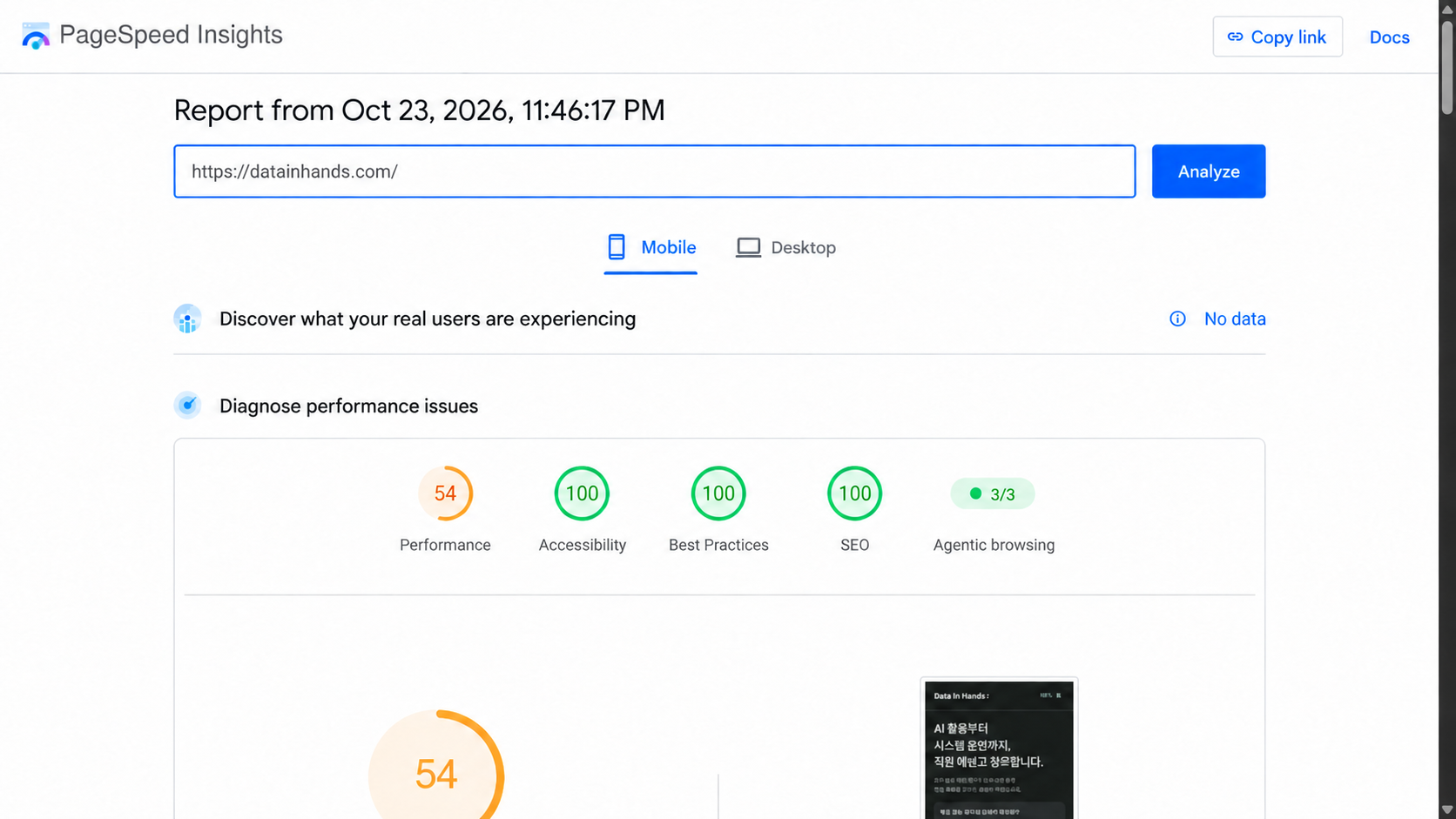
After I reduced the font bundles, the public HTML still contained 24 preload hints for the old fonts. A single mobile Lighthouse run before removing those hints scored 54, with an LCP of 19.582 seconds. A single run after the fix scored 91, with an LCP of 2.853 seconds. I didn't collect repeated before-and-after runs under matched conditions, and I had no PageSpeed baseline from before the original font optimization. Those results don't establish a sustained improvement of that size. The original font and preload case study, in Korean
Before the fix: mobile score of 54
After the fix: mobile score of 91
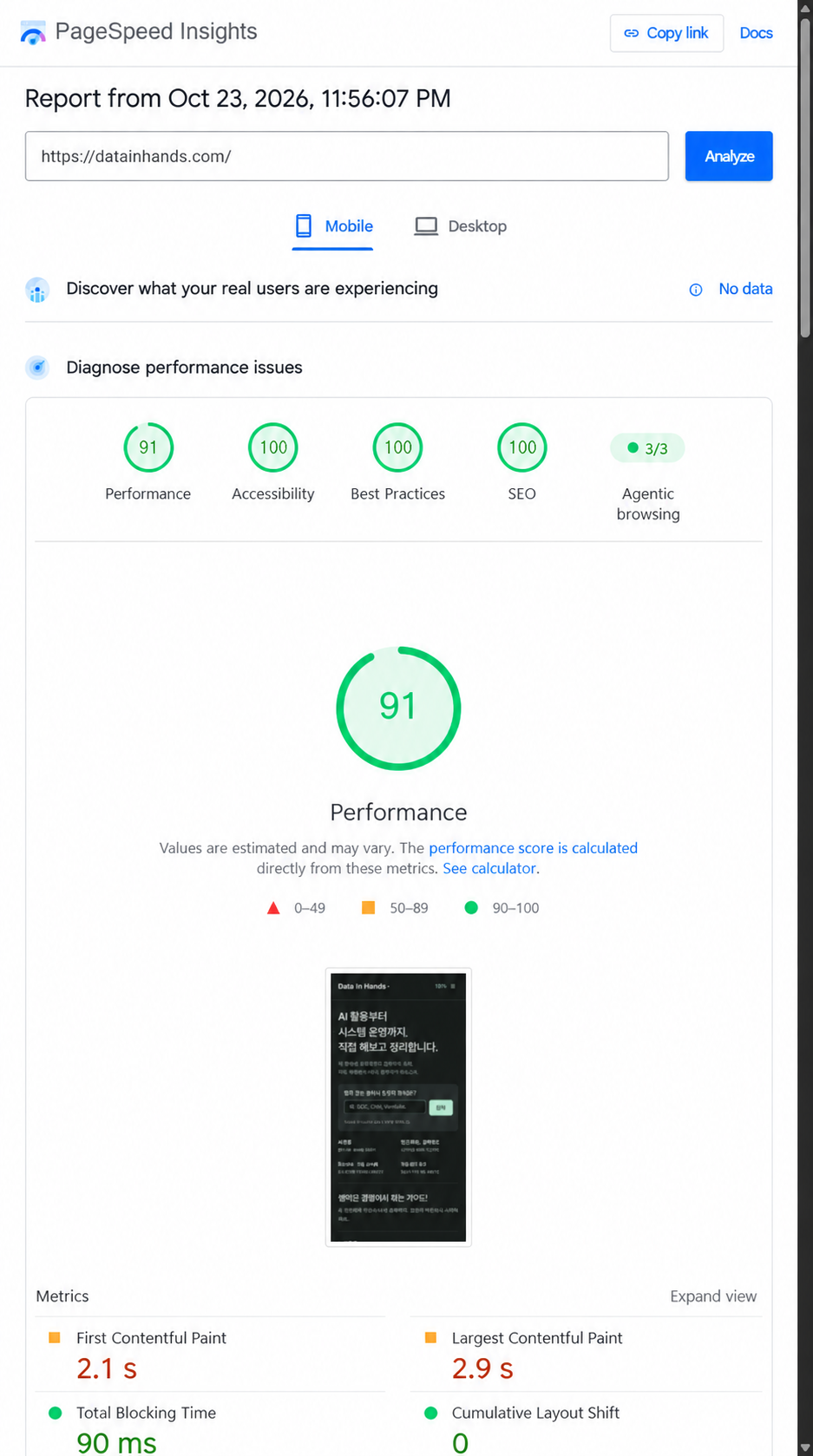
These are historical single-run results from a live site that already used a CDN and optimization tools. They are not a CDN-free baseline or repeated before-and-after tests under matched conditions. The English interface labels are localized; the original Korean screenshots remain available above. The matching frames show the summary areas; open an image to view the full capture. Original case study and limitations (Korean)
After that, I checked the browser's actual requests as well as whether a page cache had been generated. If I were starting a new performance project today, I'd save that evidence first.
Keep a record you can use for the next test
Save the homepage and article URLs, desktop and mobile reports, test conditions, and screenshots of the slow part. Use a separate copy of the worksheet for each page, tool, and device profile.
Page URL:
Test date and time:
Tool and version / desktop or mobile:
Login state / browser cache / server cache and CDN state:
Network and CPU throttling / ads and other external services:
Results and report links for each run:
TTFB (tool and measurement scope):
Network Waiting (record separately if measured locally):
LCP time and element (from the same run):
Median, minimum, and maximum (matched repeated runs):
Observed bottleneck and supporting evidence:
One change to test next:
Success criteria and functional checks:
Rollback procedure:
If HTML waiting time is the issue, check whether that interval improves under the same conditions and whether the page still works. For fonts or images, check what the browser actually downloads and when the LCP element appears. If a change breaks menus, search, text, code, or images, stop and roll it back even if the score improves.
The next article will look at what page caching can save when generating HTML is expensive. If your measurements point elsewhere, investigate file delivery or rendering first. A CDN decision can follow once you know more about visitor locations, repeat requests, and costs.