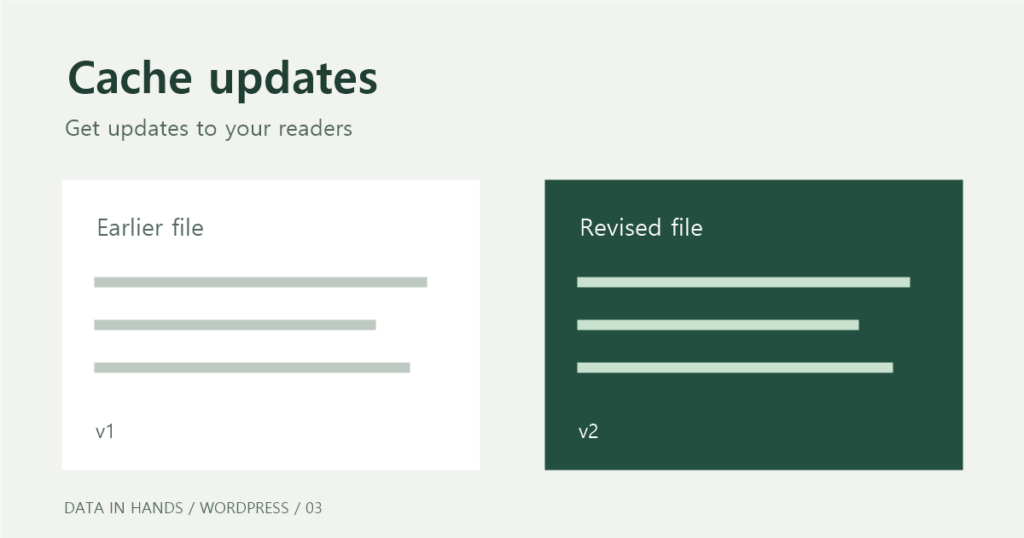
Start with public files when connecting Bunny CDN. Then check how visitors will receive updated files. FlyingPress handles the HTML page cache on the origin server. Bunny delivers CSS, JavaScript, images, and fonts.
The connections are already in place. The setting that needs more attention is file versioning: the site-file Bunny zone’s URL Query String option was unselected when checked on November 9, 2026. Before changing cache lifetimes, verify that an updated file can reliably reach the browser.
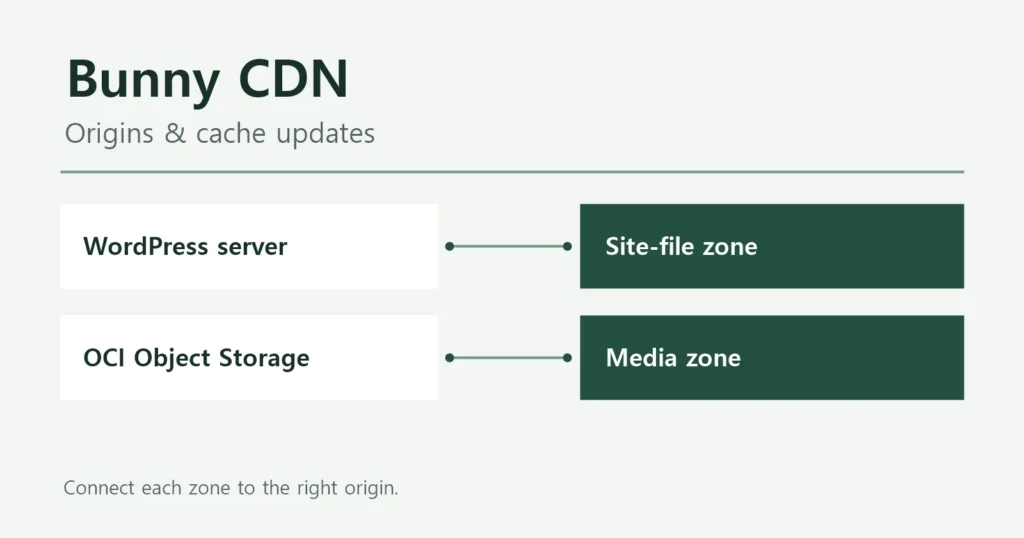
Choose an origin for each type of content
A CDN needs to know where to retrieve a file when it has no usable cached copy. That location is the origin. A Pull Zone groups an origin address with the caching settings for files retrieved from it.
Some files are stored on the WordPress server. Others are in OCI Object Storage. Each origin has its own zone. Posts belonging to different blog categories do not need separate zones just because their topics differ.
- Page HTML: keep the existing path.Requests to datainhands.com pass through OCI WAAS to the origin server. The server can return an available FlyingPress HTML cache file. Adding HTML caching at Bunny would be a separate decision based on measured response delays.
- Public site files: keep the CDN connection and test updates.cdn.datainhands.com is a hostname served by Bunny. A cache hit (HIT) returns a usable stored copy. On a cache miss (MISS), Bunny requests the original through datainhands.com and WAAS.
- Offloaded media: keep its separate zone.Files served through datainhandsoci.b-cdn.net use OCI Object Storage as their origin. A MISS on this route goes to the storage service, without passing through the site’s WAAS or WordPress server. Images still stored on the WordPress server follow the site-file route above.
- Private files and account pages: exclude them from this public-file setup.They need their own authentication and access controls. A file extension alone does not tell you whether a file is safe to make public.

Does Object Storage need a CDN?
A CDN can help when readers in different regions repeatedly request the same media. Moving files to Object Storage reduces the WordPress server’s delivery workload. Readers far from the storage region may still have to wait for files. Bunny can keep copies closer to visitors and retrieve the original when needed.
That benefit depends on traffic. For readers near the storage region, compare direct delivery with CDN delivery. With little traffic or mostly unique file requests, there may be few cache hits. Check regional response times, hit rates, and total cost before deciding that the extra service is worthwhile.
OCI includes the first 10 TB of monthly outbound internet traffic at no charge. Bunny charges for CDN delivery. If OCI traffic stays within that allowance, adding Bunny can increase total cost even when it reduces storage requests. Storage, request, and CDN charges all belong in the comparison. See OCI network pricing and Bunny CDN pricing.
Keep the existing media connection while comparing regional response times, hit rates, and cost. Direct storage delivery has not yet been compared with CDN delivery in a performance test. OCI Object Storage overview.
Connect the origin, hostname, and WordPress
First save the existing origin, hostname, cache-expiration, rule, and CDN settings. Keep the original files available so you can restore delivery if the new configuration fails.
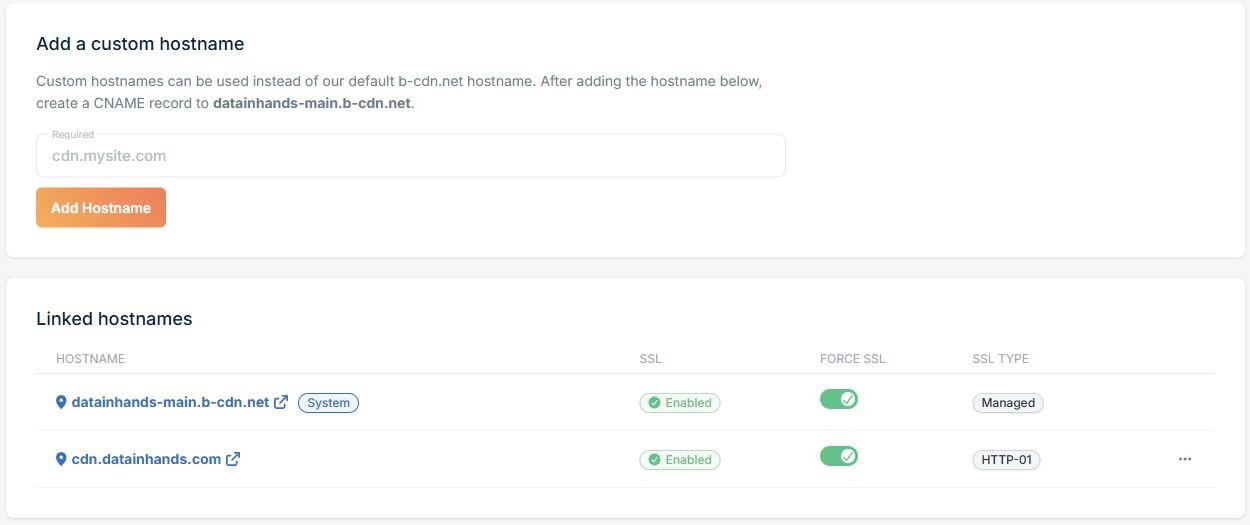
For a new setup, open Add → Add Pull Zone in Bunny and choose an Origin URL. Use the HTTPS address of the site that holds the files. The configured origin is https://datainhands.com. Entering the zone’s own CDN address here can create a request loop.
The Host header tells a server hosting multiple sites which site you want. Bunny uses the origin hostname when this field is blank. This zone explicitly uses datainhands.com. Bunny setup documentation.
1. Set the origin address
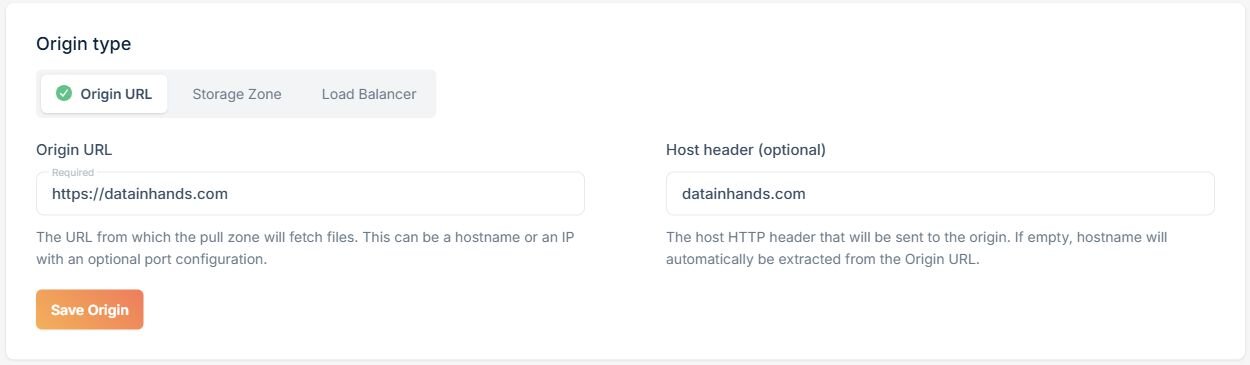
Next, open General → Hostnames and add the hostname visitors will use, such as cdn.datainhands.com. In your DNS provider, create a CNAME pointing that name to the zone hostname shown by Bunny. Use your own zone’s value.
Once DNS resolves correctly, activate SSL. Then open an actual file over HTTPS and check for certificate errors. Do this before changing the file URLs in WordPress. The screenshot shows Bunny’s connection status. The CNAME record is managed with the DNS provider. Custom hostnames · SSL setup.
2. Connect the public hostname and enable HTTPS
In WordPress, open FlyingPress → CDN. Enable CDN delivery. Select Custom URL as the provider. Enter the HTTPS CDN address. Then choose the file types to serve through it. The selection confirmed in FlyingPress 5.6.7 on November 9 is All Files. This setting rewrites file addresses. HTML page caching at Bunny remains a separate feature.
3. Connect FlyingPress to Bunny
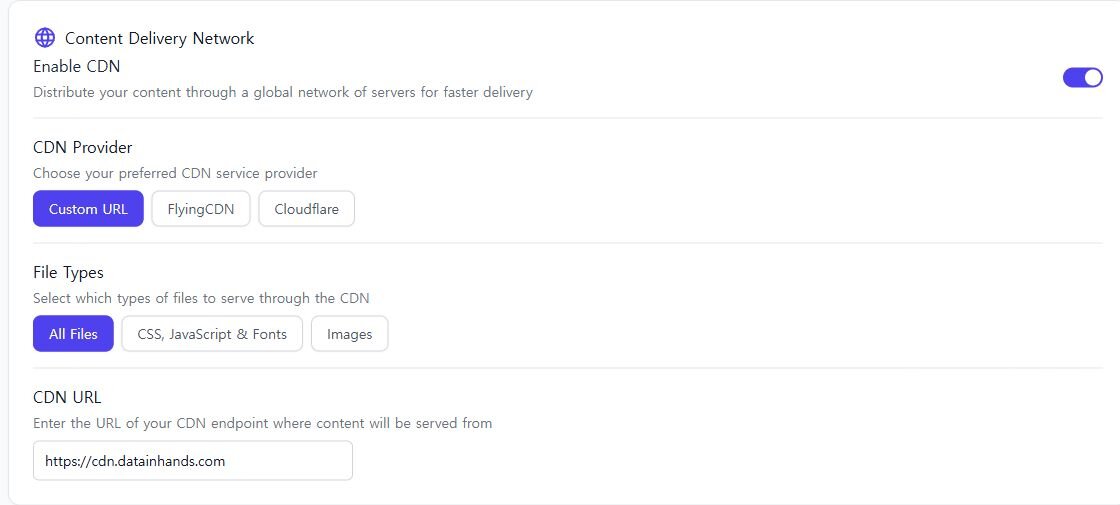
For Object Storage, check the bucket’s object paths and access requirements separately. The media zone uses the storage origin with an Origin Override rule to target the object path. This is different from selecting Bunny’s own Storage product. Only connect files intended for public access.
The site domain remains the site-file origin. Switching to a server IP could bypass WAAS. Before making that change, review certificates, the Host header, and origin access restrictions.
Make updated files distinguishable
For files you maintain yourself, use a new filename when the contents change. For example, upload the revised site.a81f.css as site.c92b.css. Then update the HTML reference. A content hash in the name makes the new version a different URL. Keep the old file available for older cached pages and rollback.
Do not manually rename CSS or JavaScript files managed by a theme or plugin. An update may recreate them or break their references. Use the product’s supported versioning mechanism.
WordPress also uses version parameters such as style.css?ver=2. For that approach to work, the cache must distinguish the query string, the part after the question mark. In Caching → General → Vary Cache, review URL Query String. The current dashboard uses the button label Save Vary Cache.
4. Check whether query strings distinguish cached files
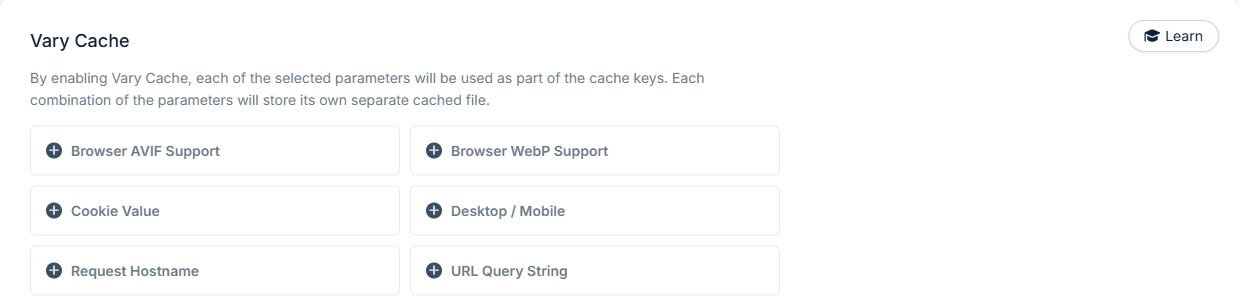
Test versioned URLs before changing this setting in production. Unnecessary query parameters can create extra cache copies. The WAAS layer also needs to return the correct version: if it supplies an old file on a Bunny MISS, changing Bunny alone will not solve the problem. WAAS query-string separation has not been tested. Bunny Vary Cache documentation.
Changing ?ver=2 does not change the file itself. The origin must contain the updated file. The page must also reference the new URL. Requesting identical contents with two different version numbers does not prove that updates reach visitors.
Choose cache lifetimes after deciding how files change
On November 9, Smart Cache was enabled for the site-file zone. The CDN expiration override was one year. Browser expiration was set to match the server. Keep the connection. Review long cache lifetimes for files overwritten at the same URL.
5. Review CDN and browser expiration separately

Smart Cache uses the file extension and response type to decide whether content is eligible for caching. Limit rules to public files. Avoid broad rules that force HTML or JSON into the cache. An Override Cache Time rule can take precedence over Smart Cache, so inspect existing rules as well. Smart Cache documentation.
- Files overwritten at the same URLTry 3,600 seconds at Bunny and 300 seconds in the browser on a limited public CSS test path. Compare update visibility and request volume.
- Files that get a new name whenever they changeConsider a longer lifetime, such as one year, after verifying new HTML references, display, and rollback.
- Private or authenticated responsesExclude these responses from public-file rewrites and forced-cache rules. Verify their access policy separately.
Match server cache expiration tells Bunny to send its server-side cache duration to the browser. It does not necessarily mean the original WordPress server’s duration. With a one-year CDN override, inspect the actual Cache-Control response too.
These are starting values for a test, not measured optimums. The CDN and browser hold separate copies. Both cache lifetimes affect how quickly visitors receive a replacement at the same URL. Purging Bunny does not clear a visitor’s browser cache. A one-year TTL also does not guarantee that every edge location keeps a physical copy for a full year.
6. Add narrowly scoped exceptions only after testing
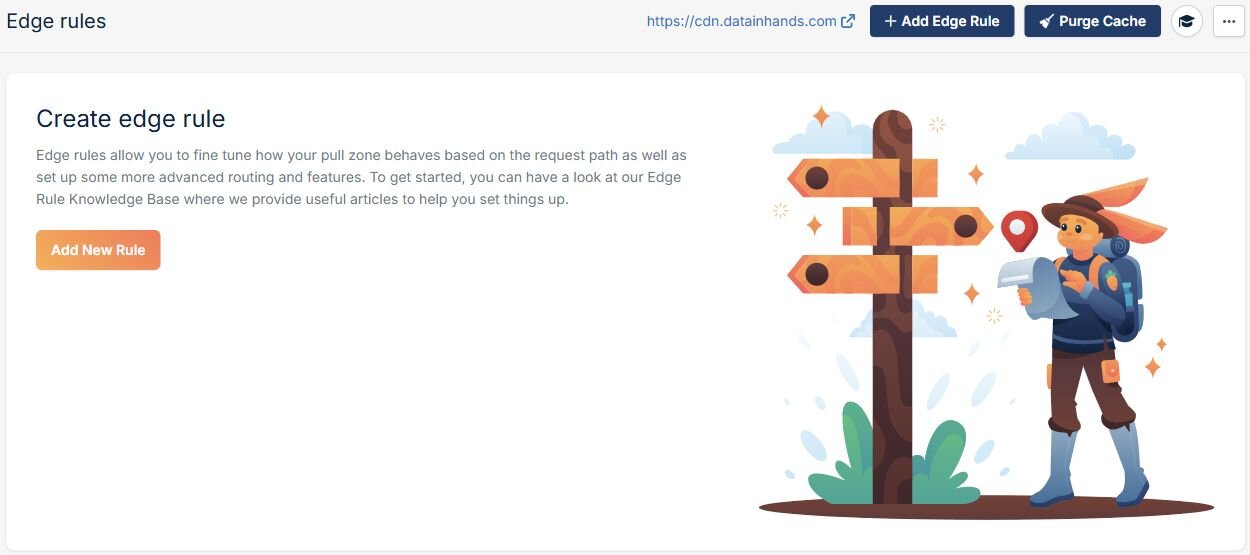
For a limited test, use an Override Cache Time action with 3600. Restrict it to the test path and the css extension, without the dot. Require both conditions to match. An “any” match can make the rule apply too broadly. Review a separate Override Browser Cache Time action with 300. Confirm the resulting headers and file contents before extending the rule.
A path condition does not distinguish ?ver=; that is handled by Vary Cache. See cache-time rules and path matching.
Verify actual delivery and prepare a rollback
Open the browser’s developer tools, select Network, and reload the page. Choose a CSS request and check its Request URL and Content-Type under Headers. Open Response and look for the changed CSS declaration. A successful status code or a HIT header alone does not tell you whether the contents are current.
Repeat the check for images, JavaScript, and fonts on both language versions. Check HTTPS errors, font cross-origin permissions (CORS), and Korean, English, and code text. A narrow screen may select a different image source. Inspect the file the browser actually uses.
Check menus, search, and app links. Authentication and calendar requests should remain outside the public-file rewrite. Keep logged-in and logged-out results separate.
If delivery breaks, restore the previous CDN rewrite settings and regenerate HTML that refers to the original files. Keep the zone, DNS record, and old files available while cached pages may still reference them.
The isolated file tests below compare same-URL replacements, query versions, and new filenames. Proposed cache-lifetime changes have not been applied.
Check a same-URL update in this order
- Make a recognizable change to a test file and confirm it at the origin URL.
- Check the CDN URL. If only the CDN is outdated, inspect that zone’s cache and origin path.
- If the CDN response is current but an existing browser still shows old content, compare a cache-disabled developer-tools request with a normal visit.
- If the page requests the old filename, check its HTML reference and page cache before clearing file caches.
Check the current WAAS cache rule
The OCI console was checked on November 9, 2026. The site’s WAAS policy was Active and had one caching rule, nv-static-1d, with the action Cache and a duration of 1 day. The unpublished-changes list was empty.
The rule lists URL endings .css, .js, .png, .jpg, .jpeg, .gif, .webp, .svg, .ico, .woff, and .woff2. If Bunny needs to fetch a CSS file from the site, WAAS may return its cached copy. Checking Bunny alone therefore does not establish that a changed file has reached visitors.
The Client caching duration cell was blank. A blank cell does not establish a zero lifetime or disabled browser caching. Check the actual response headers as well. The condition list also does not establish whether different ?ver= values receive separate cached copies. The file-update test below did not observe a WAAS HIT, so separation of cached versions at WAAS remains unverified.
What the live file responses showed
On November 9, 2026, one CSS file and one JavaScript file referenced by the home page were requested through both the site hostname and Bunny. All responses returned HTTP 200. For each file, the decompressed contents had the same SHA-256 hash across both routes. A hash lets us compare file contents. The site hostname also passes through WAAS, so this does not independently verify the file stored on the WordPress server.
On repeat requests, both Bunny responses changed from CDN-Cache: MISS to HIT. This confirms delivery and cache reuse for these two files. Neither file was modified, so it does not establish how quickly a replacement reaches visitors.
Read cache headers by layer. A Bunny response contained both CDN-Cache: HIT and x-cache-status: EXPIRED. The latter alone does not mean Bunny’s cached copy has expired. An upstream header may have been retained in the cached response, but these requests did not establish exactly where that header originated.
The actual Cache-Control values were max-age=31536000 through the site hostname and max-age=31919000 through Bunny, both in seconds. The dashboard label “1 year” should not substitute for checking the response. The reason for the difference remains unverified.
In the file-update test, only the new filename delivered the new contents through Bunny
On November 9, small CSS files were created in an isolated folder that the site does not use. Bunny first cached v1. After a HIT was confirmed, the server files were changed to v2. A fresh filesystem hash confirmed the change. Here, v1 means the old contents and v2 means the updated contents. Existing site files and cache settings were left unchanged. No cache was purged.
- Overwrite at the same URL: the site hostname returned v2, while Bunny returned the old v1 with a HIT on both subsequent requests.
- Change only the query version: after requesting
query.css?ver=1and updating the origin,?ver=2returned v2 through the site hostname. Bunny returned v1 with a HIT twice. - Use a new filename:
new-v2.cssreturned v2 through both routes. Bunny reported a MISS followed by a HIT. Both responses contained v2.
This reproduced stale delivery when only the query version changed under the current Bunny settings. For files you maintain yourself, consider a new filename and update the page reference. Do not rename theme or plugin files manually. Use the product’s supported update mechanism.
These observations apply to the test files and request location. The site-hostname responses continued to report X-Cache-Status: MISS, so the test did not establish how a previously cached WAAS copy behaves or whether WAAS separates query versions.
The browser also reused the old file at the same URL
An isolated page first loaded v1 in Chrome. After the server file was changed to v2, normal navigation to another page using the same URL still applied v1. The network record confirmed that the response came from the disk cache.
A third page requested the new filename, browser-v2.css. Chrome fetched it without using the disk cache and applied v2. Replacing the origin file alone may therefore leave returning visitors with the old contents. For files you manage yourself, upload a new filename and update the page reference as well.
This was verified in one Chrome environment without disabling the browser cache or purging Bunny.
What to verify before changing production settings
- A cached WAAS copy: the site hostname kept returning MISS. Test whether a new version reaches visitors when WAAS already holds the old file.
- Real pages and other visitors: verify updated references in production HTML and check other regions, browsers, and physical phones.
- Expiration and recovery: expiration timing, proposed lifetime changes, cache purges, and restoring previous files have not been tested. Complete those checks before deploying the proposed values.