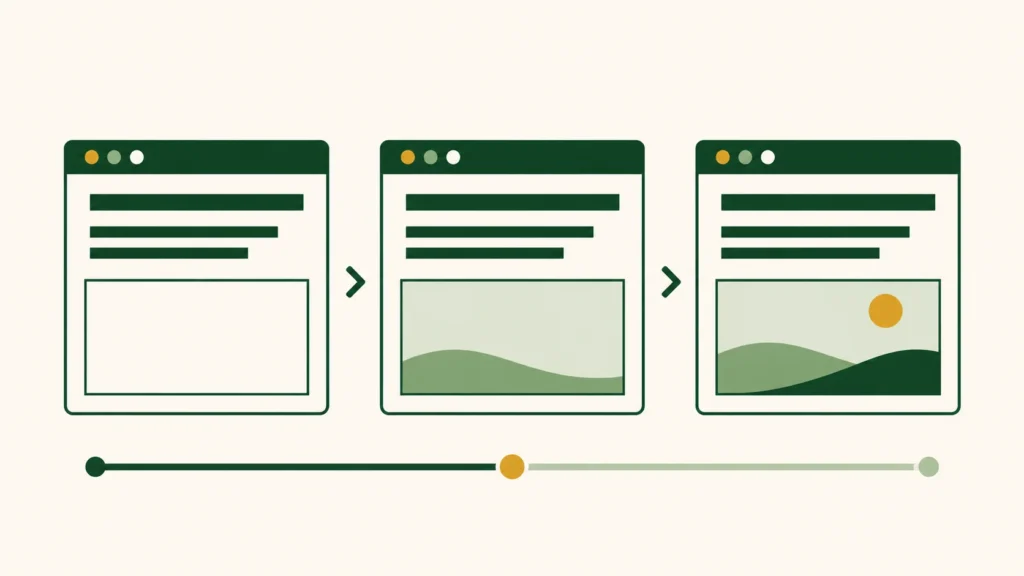
A fast HTML response can still lead to a slow first screen. Start with the image or text that appears late. Then find out whether the browser is waiting to request a file, download it, or display it.
HTML describes the page’s content and structure. The browser reads it and requests other resources, including images and fonts. CSS controls the layout and appearance. JavaScript runs features such as menus and slideshows. Parts of the page may remain blank while this work is underway.
If the HTML response itself is slow, start with Part 1: finding the bottleneck. This guide focuses on delays after the HTML starts arriving.
Find the image or text that appears late
Choose one public page where you can see the problem. Open it while logged out. Record whether the problem occurs on desktop or mobile. The page layout may differ between devices.
Enter that URL in PageSpeed Insights and open the mobile performance report. Look for the LCP element and the LCP breakdown. The labels may vary with the tool version and language.
Largest Contentful Paint (LCP) measures when the largest eligible image or text area in the viewport appears. On a blog, this might be a featured image, a heading, or a block of text. Locate the element identified in the report on the actual page. How LCP works
For example, the title might appear promptly while the space for a large photo stays empty. Investigate that photo first. If the photo appears but the title text does not, check fonts and text rendering. These are examples to guide diagnosis, not measurements from a new site test.
Separate a late request from a slow download
A late image does not automatically need more compression. The browser may have started its request late. Or the download may have finished while the page was still unable to display it.
| Report label | What it means | Check first |
|---|---|---|
| Resource load delay | Waiting to start the image request | Lazy loading, CSS backgrounds, images added by scripts |
| Resource load duration | Time spent fetching the file | The file actually delivered and its delivery route |
| Element render delay | Waiting to display the downloaded image | CSS, script execution, effects that hide the element |
Start with the largest delay in the report. More compression may have little effect when the download is already brief. A text LCP does not have the same image-download sequence. Diagnosing the parts of LCP
Check the image the browser actually receives
If the request starts late
Lazy loading postpones images that are not needed yet. It is useful for photos farther down a long post. Applied to an image needed on the first screen, it can delay its appearance.
If the LCP image is lazy-loaded, exclude that image first. Look for an exclusion setting in the theme or optimization plugin responsible for lazy loading. Keep lazy loading for images farther down the page. Lazy loading and visible images
A slideshow may also wait for a script before inserting its image. Compare it with a plain Image block on a test page. WordPress does not automatically optimize every CSS background or image inserted by JavaScript.
If fetching the file takes too long
A small image in the editor can still use a large file. Check the Image block’s resolution setting for an unnecessary full-size selection. Pixel dimensions and transfer size measure different things. A high-density screen may need more pixels than the image’s displayed width.
In Chrome DevTools, open Network and reload the page. Filter by Img. Select the image to inspect its request URL and transfer information. The Timing tab separates waiting from downloading. Network reference
Record memory-cache and disk-cache responses separately from new downloads. To compare download costs, you can enable Disable cache while DevTools is open. This affects the browser cache. It does not purge a CDN or the server’s cache.
Find the selected file when an image has several URLs
Right-click the image and choose Inspect. Make sure the selected element in Elements is an <img>. Run this read-only expression in Console:
$0.currentSrc$0 refers to the selected element. currentSrc gives the image URL chosen by the browser. The URL alone does not prove the download succeeded. Check its response in Network too. currentSrc reference
If the selected file is unnecessarily large, adjust the Image block’s size selection first. WordPress can supply responsive image candidates for media attachments. Themes and plugins can affect the final markup. WordPress image attributes
For replacing originals or checking generated sizes, use the existing image-update guide.
Check font requests when text appears late
A web font is a separate file the browser downloads. Font-display settings affect what happens before it arrives. The browser may briefly hide the text or show it in an available font. Displaying text before a web font arrives
Filter Network by Font and compare the requested files with the families and weights the page uses. Korean fonts may be split across multiple files. File count alone does not establish waste.
A preload hint tells the browser to fetch a resource early. Old hints can keep requesting earlier font files after a font change. The case study about 24 leftover font preloads covers the investigation and its results.
If text remains blank while waiting for a font, consider testing font-display: swap. It allows an available font to appear first, followed by the web font. The switch can change line breaks and move the layout. Check headings and body text before keeping it. Inspect existing requests and display behavior before adding more preloads. Font loading and display guidance
Look at rendering work after the files arrive
CSS determines sizes, positions, and appearance. Waiting for CSS needed by the first screen can hold up rendering. The Render-blocking requests insight is a starting point for finding those requests. Do not delete a file just because it appears there. The page may need its styles. Render-blocking requests
JavaScript takes time to execute after downloading. The browser’s main thread handles script execution as well as rendering work. A script that occupies it for too long can delay the screen or a response to input. Long tasks and the main thread
Network alone cannot explain all of this delay. Record a reload in Chrome’s Performance panel. Screenshots and the work recorded alongside them can help you investigate what happened after a download finished. Start with the late element and the long work immediately before it. Recording with Performance
If a plugin loads files on a page that does not use its feature, consider its page-specific exclusion options. Disable one feature in a test environment and measure the same page again. Check whether the request disappeared. Then compare the display timing.
Suppose a script-delay option makes the mobile menu stop opening. Revert that option and restore the menu first. Then check the product documentation for excluding the scripts the menu needs.
Coverage can report unused code, but that is not a deletion list. If you never opened a menu during the recording, its code might appear unused. Exercise menus, search, and forms before deciding what to remove. What Coverage records
Change one thing and repeat the comparison
Change one setting tied to the evidence you found. Changing images, fonts, and script settings together makes the result harder to explain.
- Record the URL and late element. Include the device, network, and browser-cache conditions.
- Change one setting. Confirm that the public page receives the update.
- Compare several runs under the same conditions. Check whether the LCP element changed too.
- Test menus, search, forms, and images on desktop and mobile.
- Keep the change if the improvement repeats and the features still work. Revert it if the benefit is unclear or a feature breaks.
If an image request starts sooner but LCP stays the same, investigate the delay after the download. Keep a short record for the next comparison:
Page / device / test conditions:
Element that appeared late:
One setting changed:
Before and after results:
Menu / search / form checks:
Keep or revert:
If the public page still serves an old file, continue with the cache-refresh guide. If the HTML response turns out to be the bottleneck, return to the page-caching guide.