WORDPRESS · AI WRITING · PART 04
How to Plan Blog Images and Add Them to WordPress
Your draft is ready. Now you need images—and that can turn into another editing session. A stock photo fits the mood but doesn’t explain anything. A screenshot looks sharp on your laptop and tiny on your phone. Three illustrations have different subjects but somehow look like the same picture.
Start by deciding what each image should do. Your featured image introduces the post; images inside the article help readers understand a point or complete a step. Here’s a practical way to plan them, prepare the files, and put them into the WordPress Block Editor.
If you’ve built the blog style guide from part three, add a short visual brief to it. Keep the palette and overall feel consistent while giving each image its own composition.
1. Give each image a job
Read through your headings and ask what would be easier to understand with a picture. One featured image and two or three body images make a manageable starting brief, not a quota. Skip an image if it doesn’t add anything.
For a coffee gear review, you might show the whole setup in the featured image, the brewer in use halfway through the post, and a close-up of the part you’re discussing. A WordPress tutorial needs actual screenshots when readers have to find a control. An article about editorial judgment may work better with an illustration.
| Placement | Purpose | Example |
|---|---|---|
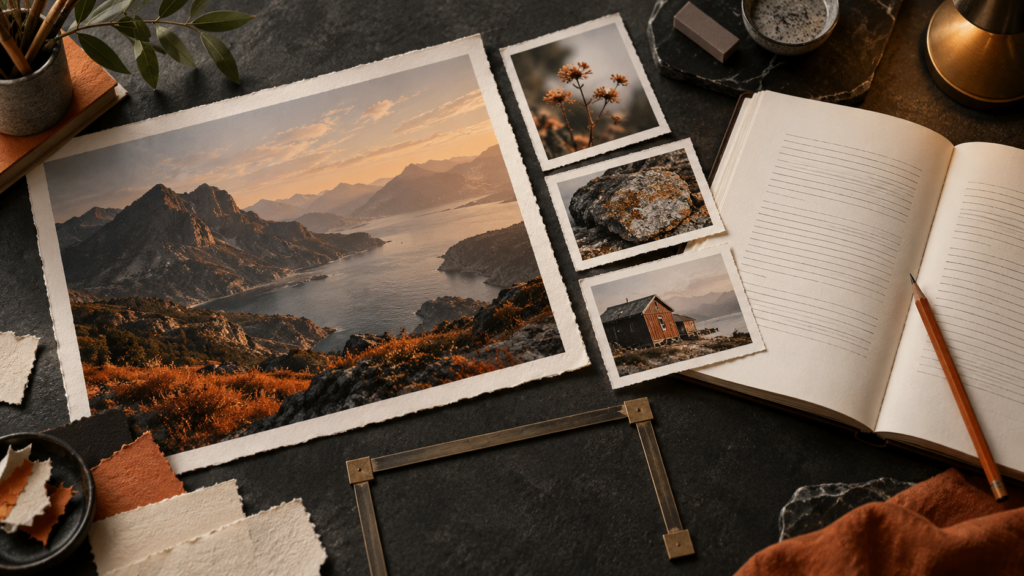
| Featured image | Introduce the topic | A manuscript and image prints on a desk |
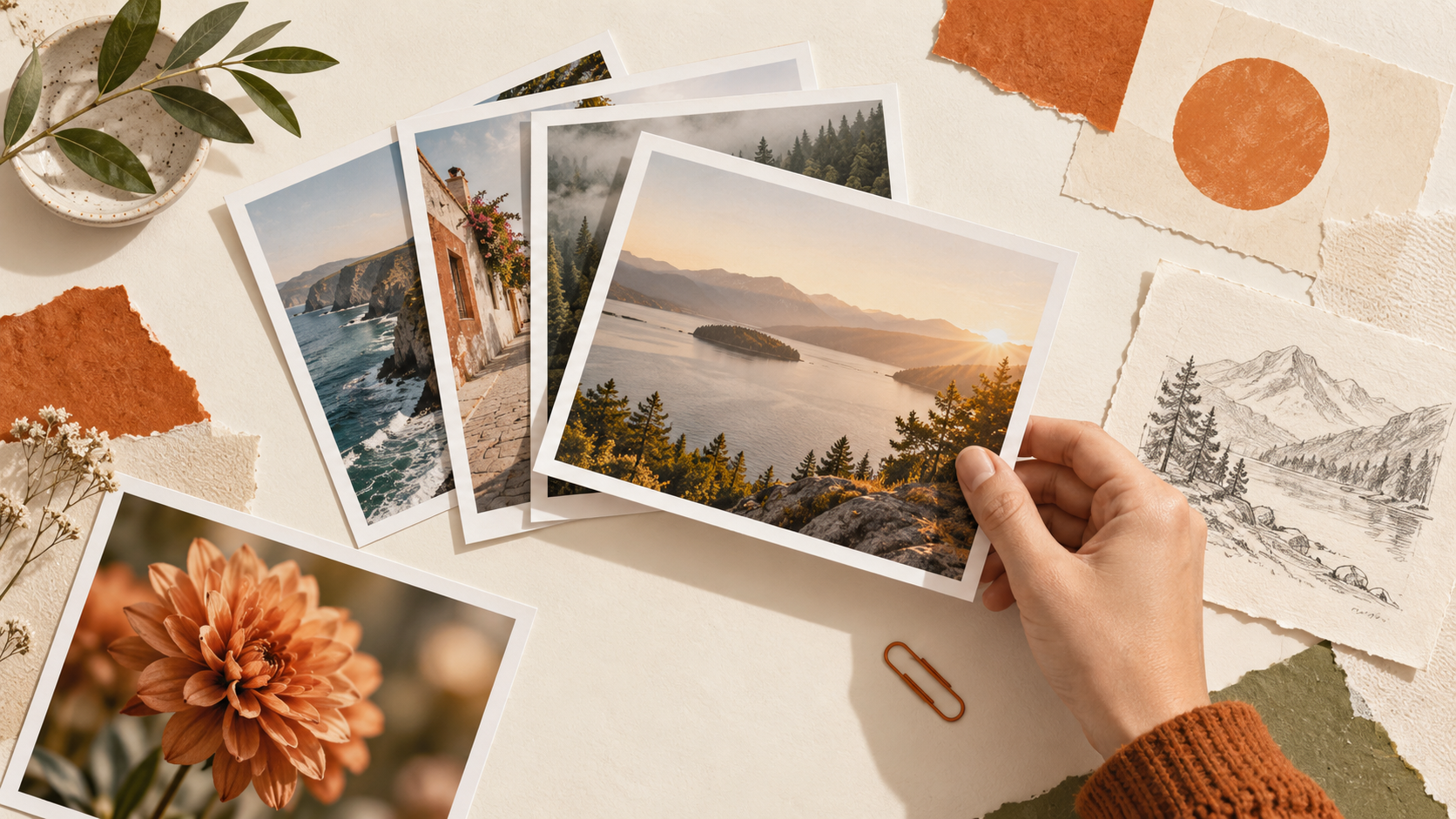
| Early in the post | Explain selection | Choosing images with different viewpoints |
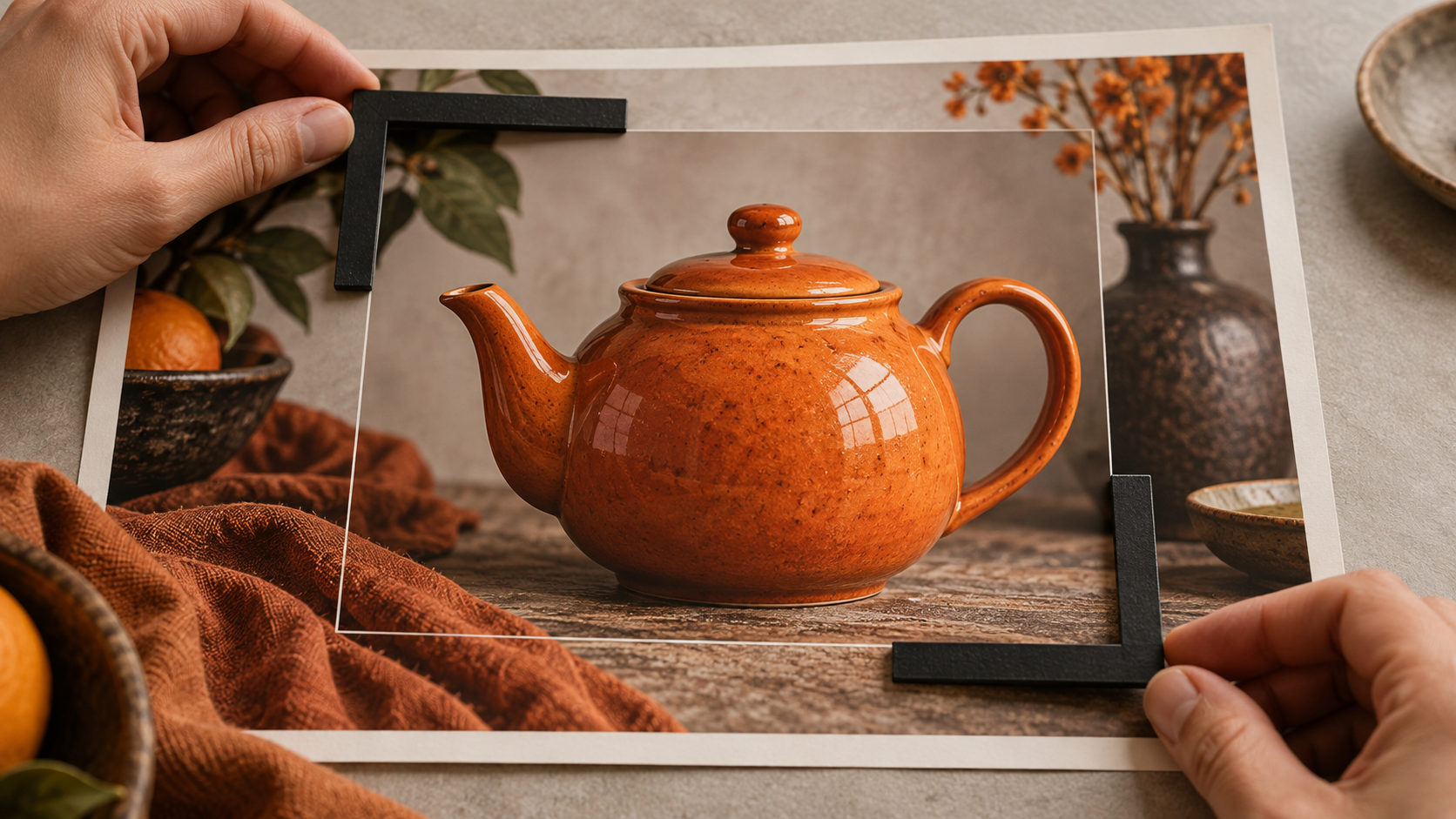
| Midway through | Show a practical decision | Keeping essential details inside a crop |
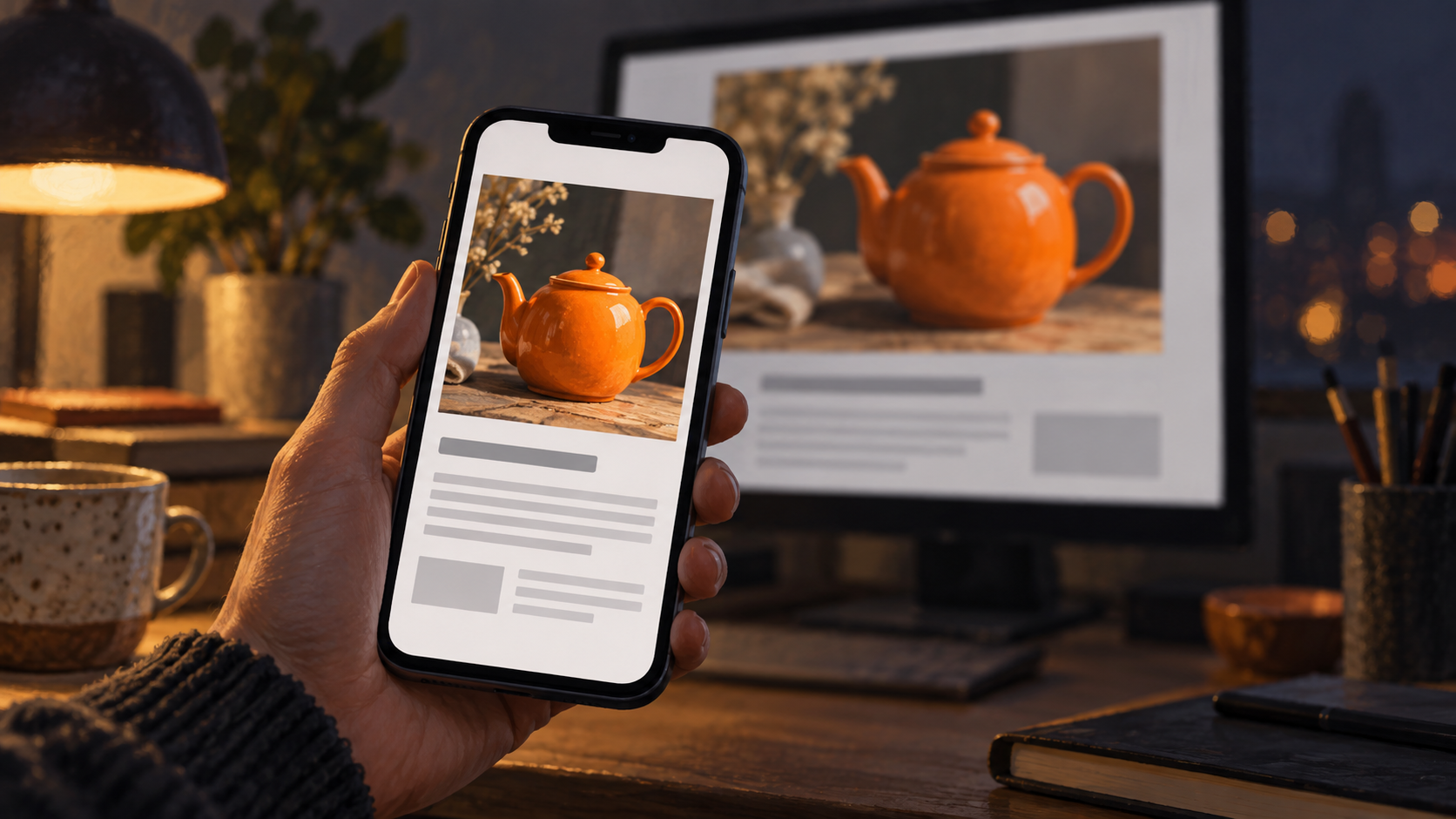
| Near the end | Support the final check | Reviewing the image on a phone |
2. Keep the style; change the shot
If every image shows a laptop surrounded by floating cards, the article will feel repetitive even when the colors change. Keep a few visual choices consistent—your palette, texture, and line weight—then vary the subject, distance, and angle.
This post uses a wide worktable scene, a hand choosing reference images, a close-up of cropping guides, and a phone check. They’re AI-generated editorial illustrations, not screenshots or proof of a product test.
When a reader needs to see a button label or an error message, capture the real interface. A generated screen can look convincing while showing controls that don’t exist. Set up a sample post with dummy data before taking screenshots, then check the exported file for account details or private figures.
3. Prepare the file for where it will appear
Look at the destination before choosing a crop. A wide thumbnail on your blog’s index and a tall screenshot inside a tutorial don’t need the same proportions. Give the main subject some breathing room so a tighter thumbnail crop won’t cut it off. Featured-image placement and sizing depend on your theme; see the WordPress featured-image reference.
For a landscape illustration, 1600 × 900 pixels can be a useful starting file. That’s a working choice for this example, not a WordPress requirement. For a screenshot, preserve the area readers need and check that its text remains legible at the displayed size.
Try JPEG or WebP for photos. For screenshots with small text and sharp edges, compare PNG with a WebP export that preserves those details. There’s no single format or file-size target that works for every image. Inspect the compressed version before uploading it.
Use a descriptive filename such as blog-image-crop-example. Google’s image guidance also recommends useful alt text and placing images near relevant text. These choices help describe the image; they don’t promise a particular ranking or click-through rate. See Google’s image SEO guide.
4. Write alt text and captions for different reasons
Alt text conveys the information a reader needs when they can’t see the image. A caption is visible on the page and can point out why a detail matters. You don’t have to repeat the same sentence in both places.
For the cropping illustration, alt text might say, “Cropping guides keep the orange teapot’s handle and spout inside the frame.” The caption could add, “Check that a tighter crop preserves the details your paragraph discusses.” One describes the relevant visual; the other gives the reader a useful check.
A purely decorative image may need empty alt text. An image that acts as a link may need text describing its destination or function instead. For a detailed chart, provide the data or explanation in the article too. The W3C images tutorial explains how the image’s purpose changes the right approach.
5. Add the images in WordPress
Set the featured image in the post settings. Adding an Image block to the article is a separate action. If your theme already displays the featured image above the post, check for an accidental repeat before adding that same picture at the start of the body.
For a body image, add an Image block where you need it and choose Upload or Media Library. Use Replace to swap an existing image. Add the alt text and caption, then check its position next to the relevant paragraph. Controls can vary by version; the WordPress Image block guide covers the available options.
If you publish in more than one language, check the words inside the image as well. Translating the article and alt text won’t translate a screenshot. Capture the English interface for an English tutorial. A text-free illustration can often serve both editions, with alt text and captions written for each audience.
Check both language versions after changing image metadata, especially for featured images. The way your theme and media setup use that metadata can affect what readers get. A linked translation is not evidence that every image has been localized.
6. Save a reusable image brief
Ask AI for a placement plan before it starts generating pictures. Once you’ve chosen the scenes, you can revise one image without rethinking the entire set. Attach your article and adapt this brief.
Plan the images for the attached article before generating them.
For the featured image and each body image, specify:
- The section and the point the image should help explain
- The type: real photo, actual screenshot, or conceptual illustration
- The subject, viewpoint, and how this composition differs from the others
- The aspect ratio and details that must survive cropping
- Draft alt text and captions for the English and Korean editions

Visual brief: charcoal, ivory, restrained orange accents, paper texture.
Vary the scenes; don’t repeat the same laptop-and-cards composition.
Keep conceptual illustrations free of text.
If the article needs an actual interface, data, or evidence of product use,
identify the source material needed instead of generating fake evidence.
Don’t invent image URLs, media IDs, or firsthand experience.
After the plan is finalized, deliver the images with their placement list.
7. Check the post at phone size
Save and reopen the draft. Check the featured image, each body image, and the captions. If a screenshot is hard to read, crop to the relevant control or split it into useful close-ups instead of squeezing the entire desktop onto a narrow screen.
Use the mobile preview and, when possible, open the page on an actual phone. Switch languages and check the image content, alt text, and captions again. Judge loading performance from the page itself rather than assuming that a smaller file has solved every issue.
Keep the final files together with a placement list, language-specific alt text and captions, and the featured-image choice. That gives you a clear handoff for publishing. In part five, we’ll use that information to connect image uploads with automated draft creation.