WORDPRESS · AI WRITING · PART 02
How to Import an AI Draft into WordPress as Editable Blocks
Turn an AI draft into headings, paragraphs, and images you can edit in WordPress.
You have an AI draft you’re happy with. Then you paste it into WordPress and start fixing the formatting: turning lines into headings, moving paragraphs, and making room for images. The writing is done, but the post still needs work.
Ask AI for WordPress block markup so you can edit each part of the draft separately. In this walkthrough, you’ll paste a short sample into the Code editor, switch back to the visual editor, and try three everyday edits: changing a heading, moving a paragraph, and adding an image. You don’t need to write the code yourself.
Before you start, open a new draft and have an image ready that you’re allowed to use. You’ll work in the standard WordPress Block Editor, also called Gutenberg. The steps below don’t require a page builder.
1. Ask for WordPress blocks, not just HTML
An HTML file can contain different kinds of content. For the blocks used here, WordPress reads comments such as <!-- wp:paragraph --> to identify where each block begins and ends. Those comments are part of the format you need to preserve. The WordPress block markup reference explains how it works.
- One Custom HTML block: You can paste a prepared HTML layout, but revising the content may mean editing its code.
- Separate WordPress blocks: You can click a heading to rewrite it, move a paragraph, or replace an image using the editor’s controls.
The .html extension alone doesn’t tell you which one you have. Ask AI for “Gutenberg core blocks with block comments.” Start with headings, paragraphs, lists, and images. Once those work, you can build out the formatting.
2. Import a short sample first
Try the sample below in a new draft before importing a whole article. It contains two headings, two paragraphs, a list, and an empty Image block. You’ll add the image in step four.
<!-- wp:heading -->
<h2 class="wp-block-heading">Before you publish</h2>
<!-- /wp:heading -->

<!-- wp:paragraph -->
<p>This paragraph is for the moving exercise. Move it below the list.</p>
<!-- /wp:paragraph -->

<!-- wp:list -->
<ul class="wp-block-list"><!-- wp:list-item -->
<li>Check your sources and links.</li>
<!-- /wp:list-item -->
<!-- wp:list-item -->
<li>Check that each image matches its description.</li>
<!-- /wp:list-item --></ul>
<!-- /wp:list -->

<!-- wp:heading -->
<h2 class="wp-block-heading">Add an image</h2>
<!-- /wp:heading -->

<!-- wp:paragraph -->
<p>Select your prepared file in the image block below.</p>
<!-- /wp:paragraph -->

<!-- wp:image -->
<figure class="wp-block-image"><img alt=""/></figure>
<!-- /wp:image -->
- Create a new post and give it the title “Block editing practice.”
- Open the three-dot Options menu in the top toolbar and choose Code editor.
- Copy the full sample above and paste it into the main content field. Keep it out of the title field and don’t add a Custom HTML block.
- Click Exit code editor to return to the visual editor.
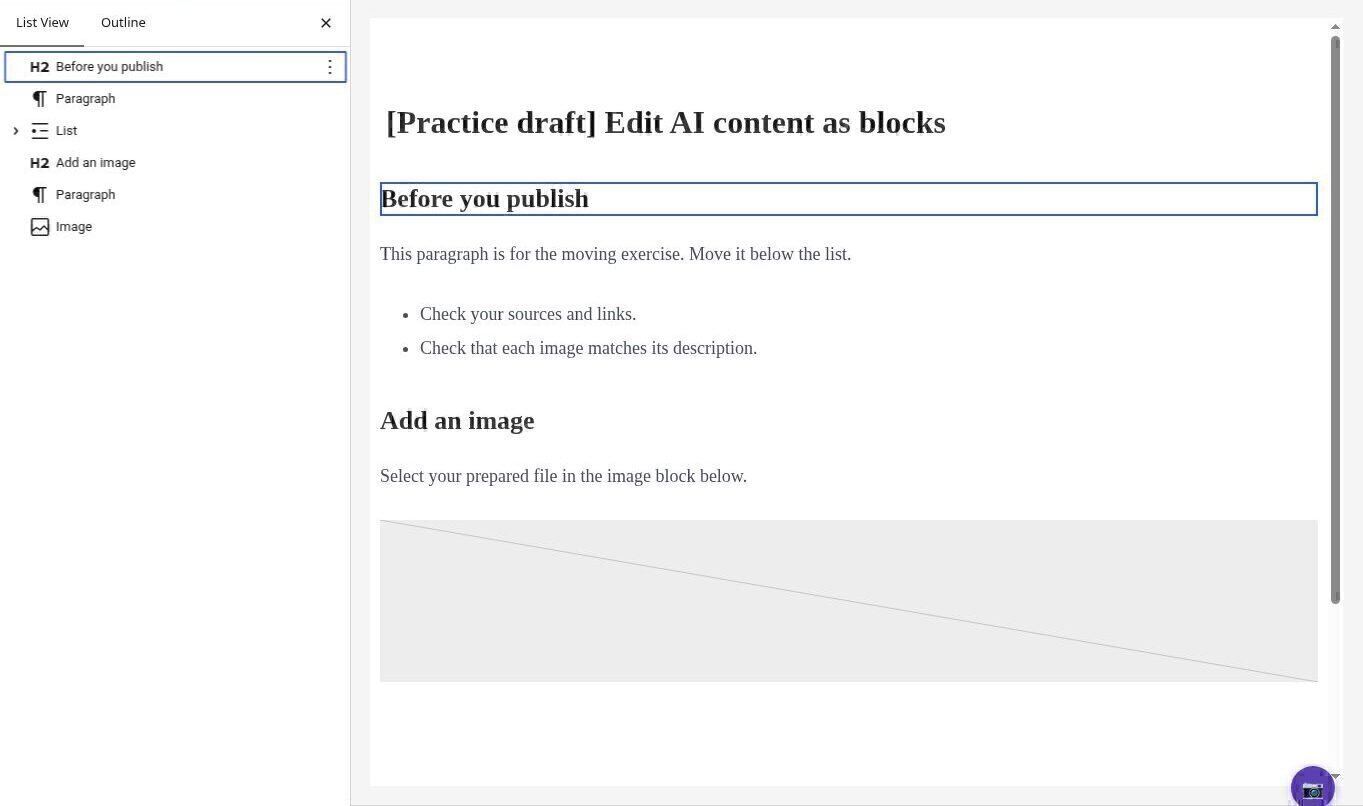
- Open Document Overview, then select List View. You should see separate entries for the headings, paragraphs, list, and image.
If your menus look a little different, check the WordPress editor guide. Labels and button positions can vary by version.
3. Change a heading and move a paragraph
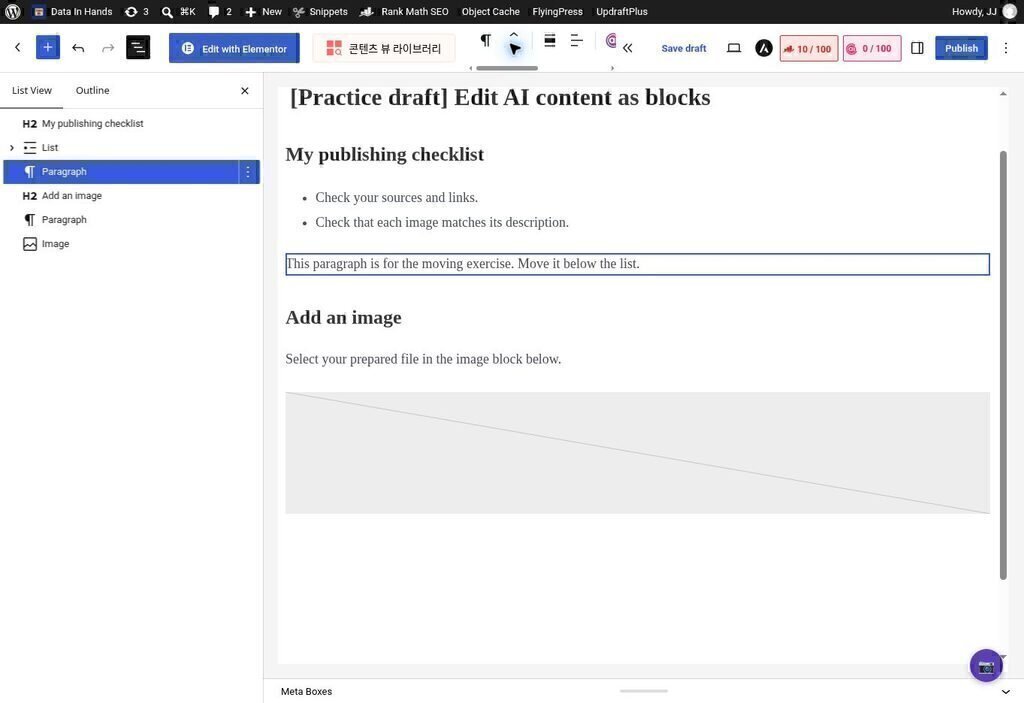
Click the heading “Before you publish” and change it to “My publishing checklist.” You’re editing a heading in the body of the post; leave the post title as it is.
Next, select the paragraph that starts “This paragraph is for the moving exercise.” Click the block toolbar’s Move down control once. The paragraph should now sit below the list. Check List View to confirm its new position.
The order should now be heading → list → moved paragraph → second heading. You’ve moved the paragraph without rewriting it. On a longer post, List View is a useful way to find the block you want without scrolling through the whole article.
4. Add an image and a useful caption
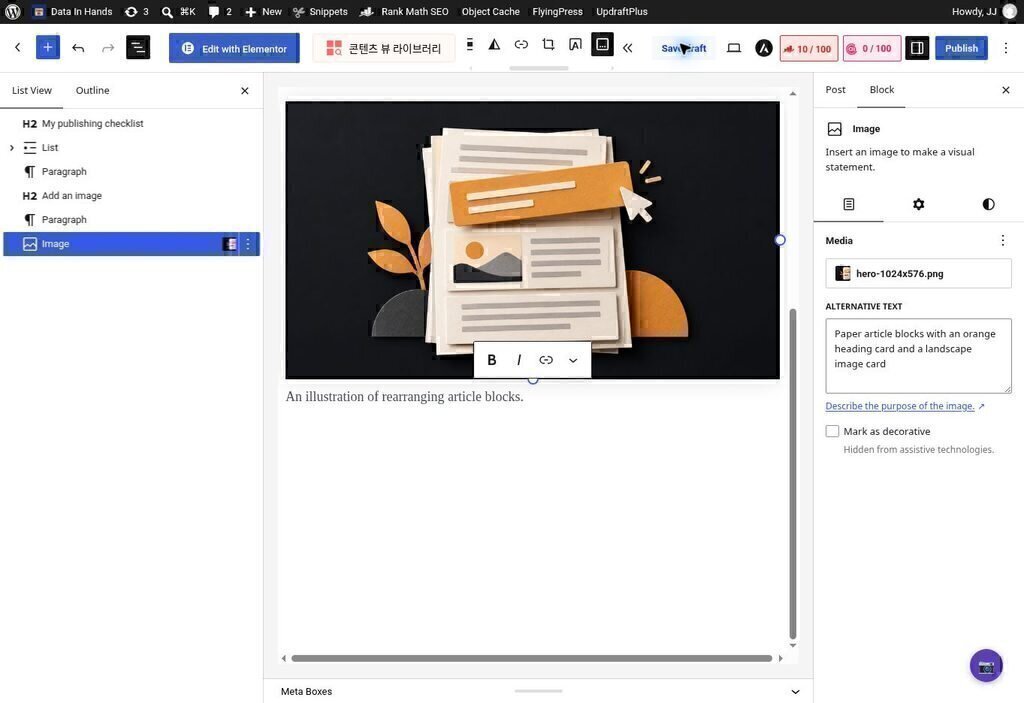
Click Upload in the empty Image block to add a file from your computer, or choose Media Library to use one you’ve already uploaded. To swap it later, select the image and click Replace. You can find the available controls in the Image block documentation.
For a screenshot that helps explain a step, write alt text describing what it shows. “WordPress List View showing separate heading, paragraph, list, and image blocks” tells the reader more than “screenshot” or a list of SEO keywords.
Use the caption to draw attention to the part that matters—for example, “The paragraph now appears below the list.” This is an image inside the article. Your featured image is a separate post setting; part four will cover how to plan both.
5. Reuse this prompt for your next draft
Once the sample works, save it as sample-blocks.html and attach it when you ask AI for a draft. Copy the prompt below and fill in the brackets. For example, a product review might include your own test notes, while a tutorial might rely on official documentation. If you haven’t tested anything yourself, write “none” under firsthand observations.
Write an article I can edit in the WordPress Block Editor.
Topic: [the reader's problem]
Audience: [who the reader is and what they already know]
Sources: [materials and links]
Firsthand observations: [verified details, or none]
Reference blocks: [attached sample-blocks.html]

1. Use core Heading, Paragraph, List and Image blocks.
2. Return Gutenberg markup with block comments.
3. Keep the sample’s block markup intact and replace its article text.
4. Do not wrap the article in one Custom HTML block.
5. Omit html, head, body, script tags and external CSS.
6. Supply the post title separately; start body headings at H2.
7. Do not invent image URLs, media IDs, firsthand experience, or statistics.
8. Use the reference empty Image block when no image is supplied.
9. Put claims needing verification in separate editorial notes.
10. Remove repetitive conclusions and inflated language.

Return the body HTML, post title and SEO metadata, and image plan separately.
Keep explanations and Markdown fences out of the body file.
Only say you tested the blocks in WordPress if you actually did.
If one part needs fixing, ask for that change specifically: “Rebuild only the list under the second heading using the sample’s block format. Leave the rest unchanged.” That gives AI a clear task and helps protect the wording you’ve already reviewed.
6. Save, reopen, and check the result
- Save the draft, reopen it, and check for invalid-block warnings.
- Make sure your new heading and paragraph order are still there.
- Check the mobile preview. Images and long code samples shouldn’t run off the side of the page.
- Before publishing a real article, remove unused image blocks and editorial notes, and check every link.
One issue came up while preparing this guide: an empty Image block represented by a single self-closing block comment triggered a validation warning on the test site. The sample above was updated to use the empty image HTML produced by the editor. That’s a good reason to try a small sample in a new draft before importing a full post.
If the import looks wrong, check for extra Markdown code fences—the lines of triple backticks AI may put around a code sample. Also check that you pasted into the post’s Code editor, not a Custom HTML block. If only one block is broken, keep a copy of the original and rebuild that block. After using a recovery option, compare the result with the original; formatting may have changed.
7. Keep the sample and build on it
You now have a sample you can import, edit, and reuse. The next step is to make the writing sound like you. In part three, build a style guide for your blog using your own writing preferences or a few posts you’re happy with.
Keep the working block sample alongside that style guide. One gives AI the format to follow; the other explains how you want to write. Later in the series, we’ll cover images and then automate image uploads and draft creation.