The Easiest Way for Digital Nomads to Manage Client Timezones

It's 2 PM at your Bali co-working space. That means 2 AM in New York and 7 AM in London (summer time). "Can I message them right now?" — if you're doing this mental math multiple times a day, check local times and work hours in one view before sending a message.
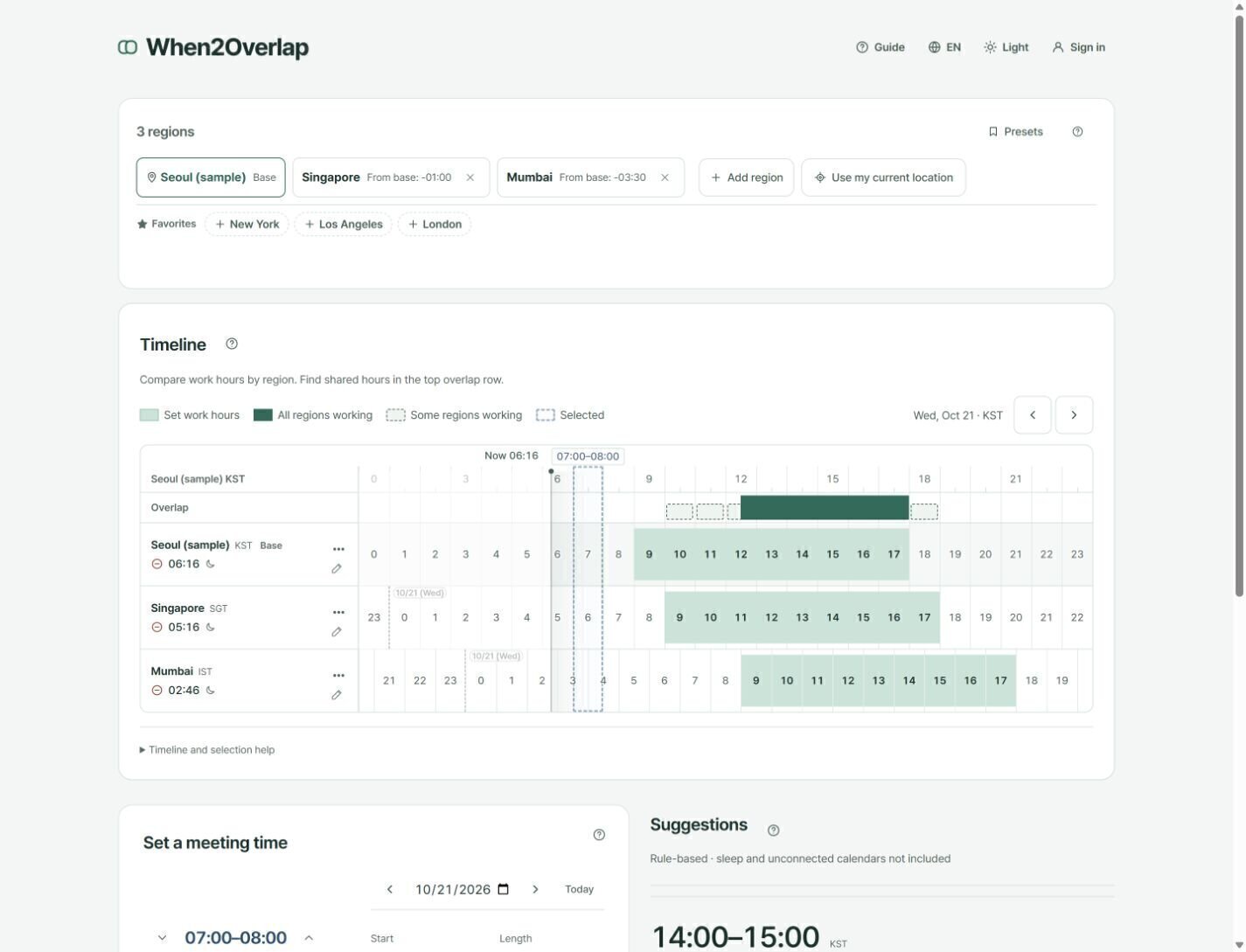
Choosing a time in the updated layout
Set the cities and work hours in the regions section, then compare them on the timeline. The grid height follows the number of regions. On desktop, time controls sit below the grid on the left and suggestions on the right. On a phone, they follow in that order vertically. Time controls remain available with just one region.
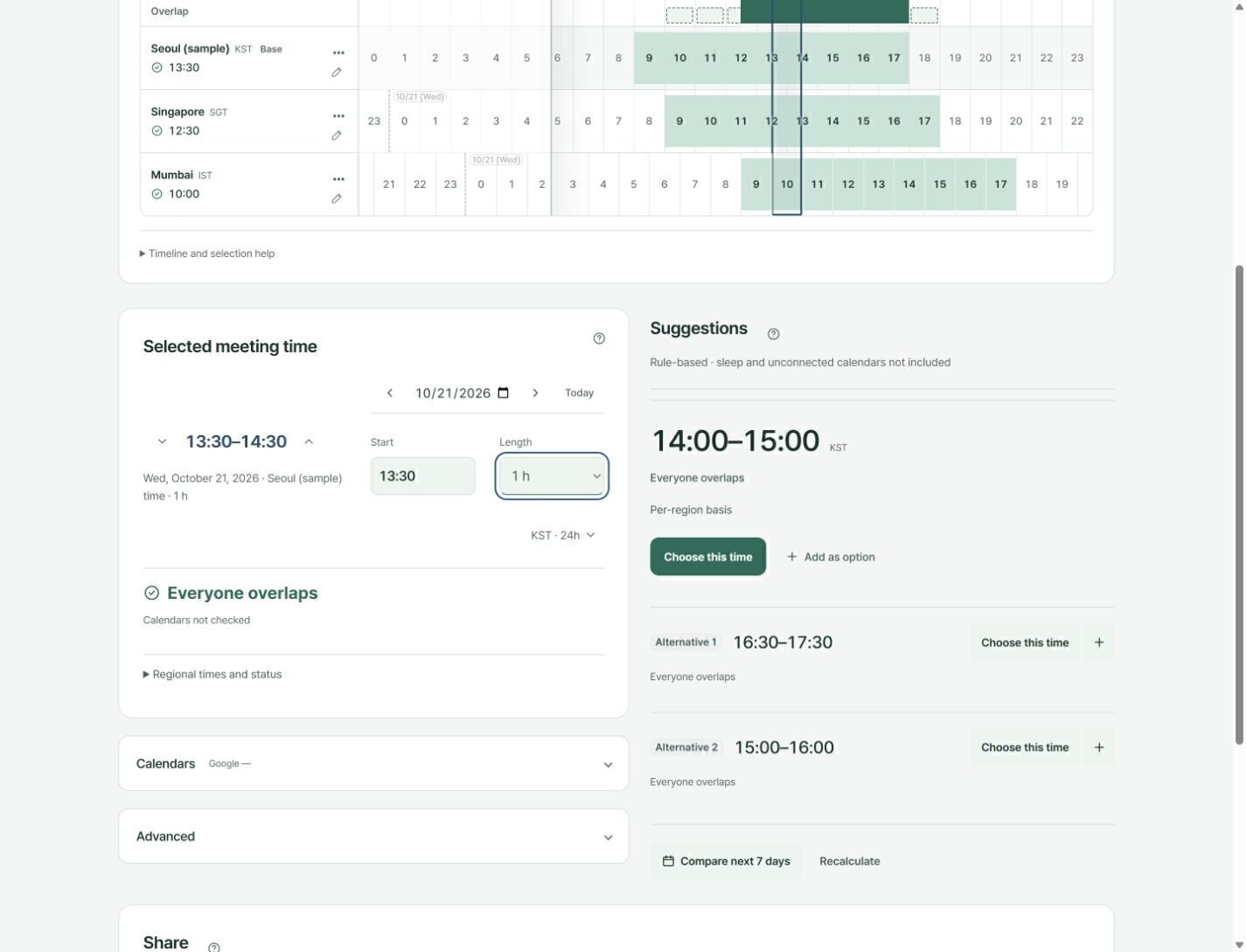
The left and right arrows above the grid move one day at a time. The arrows beside the large start–end time below it move the whole meeting 15 minutes earlier or later, preserving its length. Crossing midnight changes the date too. You can also type a start time or choose a length from 15 minutes to eight hours.
The time controls are visible before a time is selected. The initial dashed range is a prompt, so no verdict appears yet. Select the timeline or change the date, start or length to see work-hour status and whether calendars have been checked. Expand the regional time and status details for local dates and times. Suggestions do not confirm attendance; agree on the final time with participants.
Checking Timezones Across Client Locations
"Which timezone am I even in right now?"
If you manage clients across 2+ timezones, timezone math becomes part of your job. When you're a digital nomad moving between cities, you sometimes lose track of your own local time. And the moment you send "Sorry, I miscalculated the time" to a client — the meeting may need to be rescheduled.
Three core frustrations of freelancer timezone management:
First, every client has different work hours. Client A works 9–5, Client B works 10–7, Client C has flexible hours. Managing each one's "available window" simultaneously in your head requires checking both local time and availability for each client.
Second, moving changes your time difference with each client. The time difference to New York from Seoul is different from the difference from Bali. Every time you change cities, you need to update your own timezone and check each client’s local time again.
Third, context switching between clients. After finishing a meeting with Client A, you want to reach Client B — but "is it even business hours there right now?" You may repeat that check several times during the day.
How When2Overlap Solves This
When2Overlap is a free web tool that lets you set custom work hours per client timezone and switch between presets in one click. Per-region work hours and saved presets can reduce repeated setup.
Work Hours Override
Set individual work hours for each timezone. Client A is 9–5, Client B is 10–7 — set start and end in Region settings, in 30-minute steps.
Preset Saving & One-Click Switch
Save "NYC Client" and "London Client" presets. When switching clients, one click loads the entire timezone map.
Current-Time Line — Instant Check
A current-time line on the timeline shows "right now" across all regions instantly.
Suggested Times
Compares the selected regional settings and shows candidate times with reasons. It does not infer sleep or read unconnected calendars.
Working across clients in When2Overlap
Add the cities where your clients are, and in each region's settings save that client's work hours and a display name such as “New York · Client A”. Save the combinations you use often as Presets. Use the Now line on the timeline to check the current time. Before selecting a meeting, the region labels show current local times; after selecting one, they show that meeting’s local times.
When you move, press Use my current location to make the city you are in your base region. After you allow it once, later visits show the nearest city automatically, and coordinates never leave the browser.
Suggestions are rule-based candidates from the work hours, holidays and loaded events you entered; they do not confirm that a client can meet. For a screen-by-screen walkthrough, see the When2Overlap guide.
Using Presets When You Travel
Your settings travel with you. When you move from Bali → Chiang Mai → Lisbon, just update your timezone. Client timezone configurations stay intact. No need to rebuild from scratch.
Presets remember your setup. Save a preset per client and load its timezone map in one click — or share the preset as a link and bookmark it. Free, no signup. Settings stay in your browser; sign in only if you want presets synced across devices.
Meeting proposals made simple. When you need to propose meeting times to a client, pick 2–3 suggested times (up to 3 options) and send a share link. The client can check each option against the displayed regional times and reply with a preference.
Worked Example: Alex in Bali
Consider Alex, a freelance designer working from Bali. The times below assume Bali at UTC+8, New York on EDT at UTC−4, and London on BST at UTC+1. These are illustrative offsets; check each city’s daylight-saving status for the actual meeting date.
09:00 WITA — Opens When2Overlap, loads "NYC" preset. Current-time line: New York 21:00 (previous evening). After hours. Posts async deliverables to Slack.
14:00 WITA — Switches to "London" preset. Current-time line: London 07:00. Checks the configured start of work and reviews possible call times. Proposes London 10:00 (Bali 17:00) using a multi-slot share link.
21:00 WITA — Switches back to "NYC" preset. Current-time line: New York 09:00. The NYC client’s workday begins. After confirming availability, schedules a feedback call about the deliverables.
Result: In this example, Alex loads three presets to check local times. This illustrates the workflow; it is not a measured claim that presets prevent all scheduling mistakes.
Get Started
Check Client Local Times in One View
Free. No installation. No login required.
Create a preset for the regions you use regularly.
When2Overlap is a free timezone meeting scheduler available at datainhands.com.