2025 셀프호스팅 워드프레스에 커스텀폰트(프리텐다드) 적용하기

Adding Custom Fonts to Selfhosting WordPress rev2

셀프호스팅 워드프레스를 위한 커스텀폰트(프리텐다드) 적용

Astra + Elementor(무료) · 온프레미스 운영자를 위한 실전 기록

셀프호스팅 워드프레스에 커스텀폰트(프리텐다드) 적용하기 | Data In Hands

셀프호스팅으로 워드프레스를 직접 운영하고 있는데, 글과 디자인을 손보는 시간이 늘어나면서, "사이트 인상이 왜 이렇게 밋밋할까?"라는 생각을 자주 했어요. 시스템 폰트만으로는 브랜드 톤이 잘 살아나지 않더군요. 그래서 한·영 혼용에서도 안정적으로 읽히는 Pretendard를 제가 운영하는 워드프레스에 적용해 보기로 했습니다. 가변(Variable) 폰트를 쓰면 요청 수와 용량을 줄이면서도 굵기를 유연하게 다룰 수 있어 성능 면에서도 이점이 큽니다. 외부 CDN에 의존하지 않고 제 서버에서 폰트를 제공하면 개인정보 측면이나 캐시/배포 관리도 한결 편해지고요.

이 글은 실제 적용 과정을 거치면서 경험한 내용을 정리한 것인데, 먼저 Astra의 Custom Fonts로 가장 쉽게 붙이고, 업로드가 막히면 에러 원인을 짚어 해결합니다. 그래도 막힌다면 WP-CLI로 우회 등록을 하고, 끝으로 플러그인 없이 @font-face만으로 완전 수동 적용하는 방법까지 정리했습니다.

시작 준비 — Pretendard 폰트 파일 다운로드

폰트는 Pretendard 최신 릴리스 페이지 에서 받습니다. 페이지에 표시된 최신 버전(vX.Y.Z)을 확인하고 ZIP을 내려받으세요.
예시: https://github.com/orioncactus/pretendard/releases/download/v1.3.9/Pretendard-1.3.9.zip

방법 A) PC에서 ZIP 다운로드(권장)

  1. 위 최신 릴리스 페이지에서 ZIP 다운로드.
  2. 압축 해제 후 web/static/woff2-subset/ 폴더에서 필요한 굵기(예: 300/400/500/700)만 선택.
  3. 이 파일들을 워드프레스 관리자에서 업로드하거나, 아래 섹션의 절차로 등록합니다.

방법 B) 서버에 직접 받기(curl/wget)

서버로 다운로드 & 압축 해제
	# Pretendard 최신 버전은 여기서 확인:
	# https://github.com/orioncactus/pretendard/releases/latest

	# 1) 작업 폴더 준비
	mkdir -p ~/fonts && cd ~/fonts

	# 2) 버전 지정(릴리스 페이지에서 vX.Y.Z 확인 후 숫자만 넣으세요)
	VER=1.3.9    # ← 최신 버전으로 바꾸기

	# 3) 공식 ZIP 다운로드
	curl -L -o Pretendard-${VER}.zip \
	  "https://github.com/orioncactus/pretendard/releases/download/v${VER}/Pretendard-${VER}.zip"

	# 4) 압축 해제
	unzip -q Pretendard-${VER}.zip

	# 5) 웹 서브셋(용량 ↓)을 모아 둡니다.
	mkdir -p ~/fonts/woff2 ~/fonts/woff
	cp -f Pretendard-${VER}/web/static/woff2-subset/*.woff2 ~/fonts/woff2/ 2>/dev/null || true
	cp -f Pretendard-${VER}/web/static/woff/*.woff       ~/fonts/woff/   2>/dev/null || true

	# (다음 단계에서 /tmp 로 옮겨 chown 하는 절차가 나옵니다)
	# 우리가 쓸 경로 예시: ~/fonts/woff2/Pretendard-*.woff2 , ~/fonts/woff/Pretendard-*.woff
	
TIP · 트래픽/용량을 줄이려면 woff2-subset 위주로 사용하세요. 구형 브라우저 호환이 필요하면 woff도 함께 준비합니다.

플러그인으로 간단 적용 — 처음이라면 편한 방법부터

  1. 플러그인 설치 · 관리자 → 플러그인 → 플러그인 추가 → “Custom Fonts (Brainstorm Force)” 설치/활성화.
  2. Pretendard 파일 준비 · web/static/woff2-subset 기준으로 *.woff2 (필요시 *.woff) 선택.
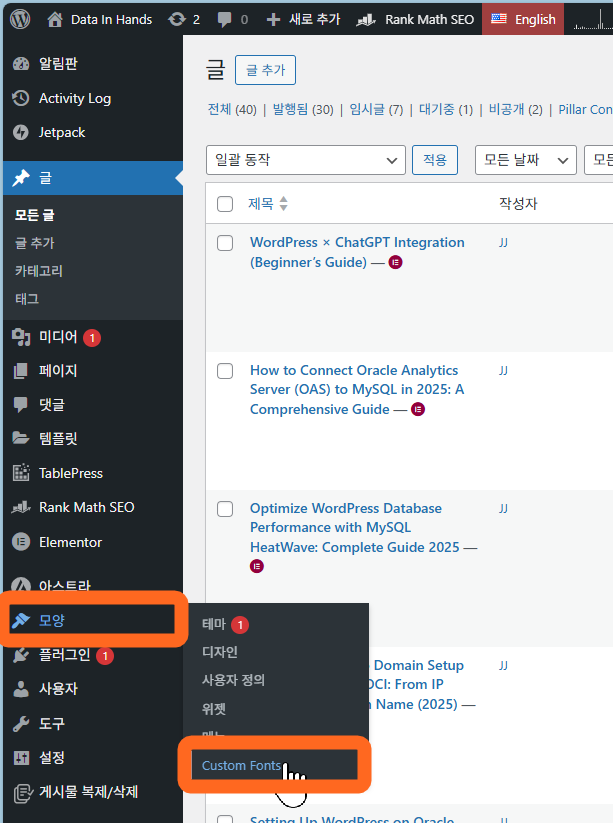
  3. 폰트 등록 · 모양 → Custom FontsAdd New FontFont Name = PretendardWOFF2/WOFF/TTF 칸에 굵기별 파일 업로드(예: 300/400/500/700).
  4. 테마에 적용 · 모양 → 사용자 정의 → Global → Typography → Body/Headings = Pretendard공개.
  5. Elementor 쓰면 · Elementor → 설정 → 일반에서 “기본 글꼴/색상 비활성화(Disable Default …)” 체크 → 에디터 새로고침.
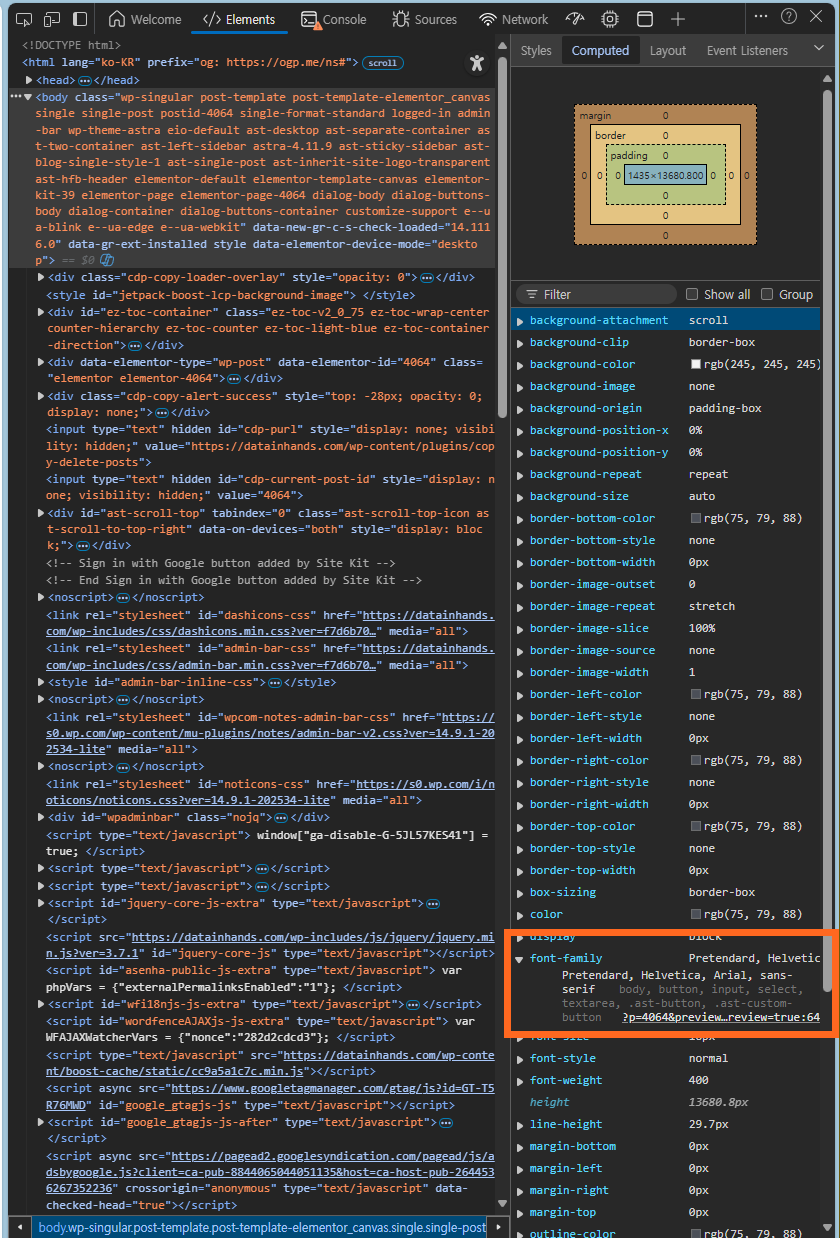
  6. 확인 · DevTools → Elements/Computed에서 font-family: 'Pretendard' & 네트워크에 .woff2 로드 확인.
업로드 에러? “이 파일 유형 업로드할 권한이 없습니다 / 서버에서 예상치 못한 응답”이 보이면, 아래 업로드 에러 해결을 먼저 보세요.
Custom Fonts 등록 화면
등록 후엔 Elementor 글꼴 목록에서도 바로 검색됩니다.

업로드 에러 해결 — 증상 진단 → 로그 확인 → 바로 조치

Pretendard .woff/.woff2 업로드 중 “이 파일 유형 업로드할 권한이 없습니다” 또는 “서버에서 예상하지 않은 응답이 있습니다”가 보일 수 있습니다. 아래 순서대로 보면 원인 파악 → 근거 로그 → 즉시 해결까지 한 번에 끝납니다.

1) 먼저 이렇게 확인(브라우저 + 서버)

  • 브라우저: DevTools Network에서 async-upload.php 요청을 필터링 → Status가 200이 아니면 응답/콘솔 에러 문구를 확인.
  • Apache/ModSecurity: 서버에서 async-upload.php, multipart, id 200003 같은 키워드로 로그를 조회.
서버 즉시 점검 명령
	# Apache 에러로그(Oracle/RHEL 계열 경로 예시)
	sudo tail -n 200 /var/log/httpd/error_log

	# ModSecurity 감사로그에서 업로드 관련만 추림
	sudo egrep -i "async-upload\.php|multipart|id \"?200003" /var/log/httpd/modsec_audit.log | tail -n 80

	# WordPress 디버그 로그(필요 시 wp-config.php에 아래 3줄 추가 후 재현)
	# define('WP_DEBUG', true); define('WP_DEBUG_LOG', true); define('WP_DEBUG_DISPLAY', false);
	sudo tail -n 200 /var/www/html/wordpress/wp-content/debug.log
	
샘플 로그 — 실제로는 이렇게 보입니다

ModSecurity (modsec_audit.log) — 업로드 엔드포인트에서 멀티파트 경계 오탐:

excerpt: modsec_audit.log
	--abcdEF12-F--
	Message: Access denied with code 403 (phase 2). [id "200003"]
	 [msg "Multipart parser detected a possible unmatched boundary."]
	 [uri "/wp-admin/async-upload.php"] [hostname "example.com"]
	

Apache 에러로그 — 같은 시각에 403과 함께 기록:

excerpt: error_log
	[Tue Feb 04 12:55:22.123456 2025] [:error] ModSecurity: Access denied with code 403
	 for POST /wp-admin/async-upload.php (id "200003": Multipart unmatched boundary) ...
	

WordPress 디버그 — MIME 미허용 시 자주 보이는 형태:

excerpt: wp-content/debug.log
	[04-Feb-2025 03:02:10 UTC] Notice: File type does not meet security guidelines (.woff2)
	 in /wp-admin/includes/file.php on line ...
	

2) 원인별 빠른 해결(요약)

증상 A · “이 파일 유형 업로드할 권한이 없습니다”
워드프레스가 .woff/.woff2 MIME을 기본 허용하지 않아서입니다. (관리자 한정 허용 권장)
MU 플러그인으로 woff/woff2 허용
	cd /var/www/html/wordpress
	sudo -u apache mkdir -p wp-content/mu-plugins
	sudo tee wp-content/mu-plugins/allow-fonts.php >/dev/null <<'PHP'
	
	  
증상 B · “서버에서 예상하지 않은 응답” + DevTools 403/500
ModSecurityasync-upload.php 멀티파트를 오탐(id 200003)한 경우가 많습니다. 업로드 엔드포인트에만 예외를 주는 방식으로 해결합니다.
ModSecurity: 업로드 엔드포인트 한정 예외
	sudo tee /etc/httpd/modsecurity.d/local_rules/020-wp-upload.conf >/dev/null <<'APACHE'
	
	  SecRule REQUEST_URI "@streq /wp-admin/async-upload.php" \
		"id:12003,phase:1,pass,nolog,ctl:ruleRemoveById=200003"
	
	APACHE
	sudo apachectl -t && sudo systemctl reload httpd
	
C) 서빙 헤더 확인 · 폰트가 다른 서브도메인에서 로드되면 CORS가, 잘못된 Content-Type이면 MIME 경고가 납니다.
Apache에 MIME/CORS 추가(+ 점검)
	sudo tee /etc/httpd/conf.d/mime.types-local.conf >/dev/null <<'APACHE'
	AddType font/woff  .woff
	AddType font/woff2 .woff2
	
	  Header set Access-Control-Allow-Origin "*"
	
	APACHE
	sudo apachectl -t && sudo systemctl reload httpd

	# 헤더 확인(서브도메인 기원 포함)
	curl -I https://example.com/wp-content/uploads/fonts/Pretendard-Regular.woff2 | egrep -i 'content-type|cache-control'
	curl -I -H "Origin: https://sub.example.com" https://example.com/wp-content/uploads/fonts/Pretendard-Regular.woff2 | egrep -i 'access-control-allow-origin|content-type'
	
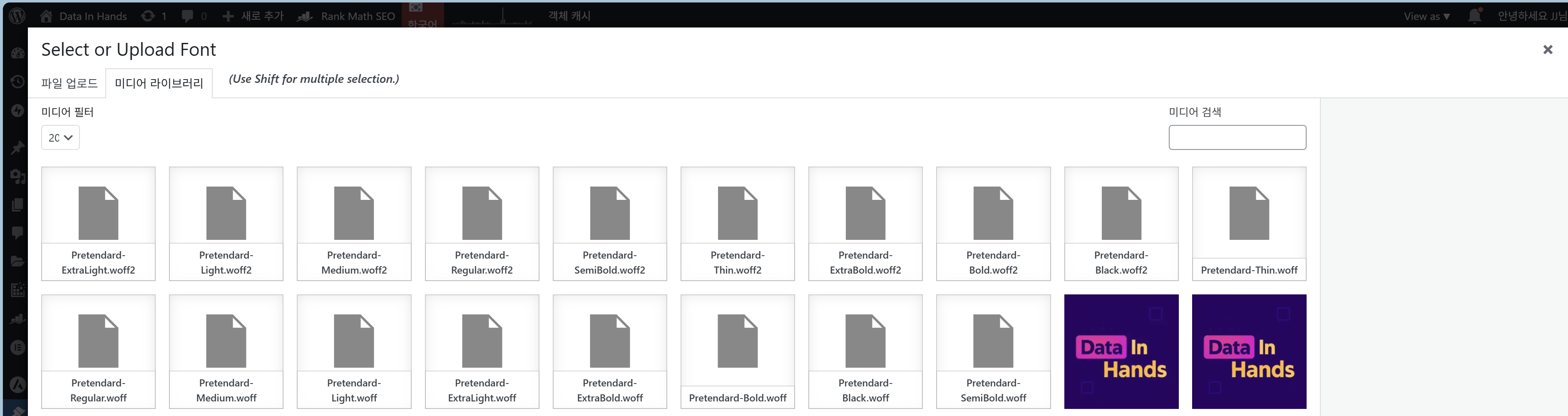
미디어 라이브러리 Pretendard 등록 확인
등록되면 파일 아이콘과 파일명이 보입니다(여러 굵기 가능).

WP-CLI로 우회 등록 — 브라우저가 막힐 때

Step 1. WP-CLI 점검/설치

WP-CLI는 워드프레스를 브라우저 없이 서버 명령줄에서 조작하는 도구예요. 미디어 업로드가 보안 정책(ModSecurity), MIME 제한, 프록시·용량 제한 등으로 브라우저에서 막힐 때, WP-CLI를 이용하면 파일을 직접 wp-content/uploads에 등록(첨부글 생성)할 수 있습니다.

언제 이 방식을 쓰나요?
  • 관리자 화면에서 “.woff/.woff2 업로드 불가” 또는 “서버에서 예상치 못한 응답”이 반복될 때
  • 방화벽/WAF(예: ModSecurity) 예외를 바로 못 열어줄 때 임시로 우회가 필요할 때

  • 여러 굵기 파일을 한 번에 대량 등록하고 싶을 때
전제 조건
  • 서버 쉘(SSH) 접속 가능, php CLI 설치
  • 워드프레스 루트 경로 확인(예: /var/www/html/wordpress)
  • 웹서버 계정명 확인: RHEL/Alma/Oracle= apache, Debian/Ubuntu= www-data

흐름 요약: Pretendard 파일 준비 → /tmp/fonts로 이동(권한 정리) → wp media import로 미디어 라이브러리에 등록 → Astra의 Custom Fonts에서 해당 파일을 선택해 연결.

왜 ‘웹서버 계정’으로도 실행을 확인하나요? 업로드 디렉터리 권한은 보통 웹서버 계정이 소유합니다. sudo -u apache|www-data wp --info가 성공해야 이후 wp media import가 권한 문제 없이 파일을 쓸 수 있어요.

없다면 PHAR로 빠르게 설치합니다. (아래 스크립트는 “설치 여부 확인 → 다운로드 → 실행 배치 → 웹서버 계정으로 재확인” 순서예요.)

WP-CLI 설치
	# 0) 이미 설치돼 있는지 확인(없으면 'wp not found'가 출력됩니다)
	which wp || echo "wp not found"

	# 1) PHAR 바이너리 다운로드(공식 빌드 경로)
	curl -O https://raw.githubusercontent.com/wp-cli/builds/gh-pages/phar/wp-cli.phar

	# 2) 동작 점검(php CLI가 있어야 합니다)
	php wp-cli.phar --info    # php -v 로 PHP 버전도 한번 확인

	# 3) 실행 권한 부여 + PATH에 배치(루트 권한 필요)
	chmod +x wp-cli.phar && sudo mv wp-cli.phar /usr/local/bin/wp

	# 4) 웹서버 계정으로도 실행되는지 체크
	#   - RHEL/Alma/Oracle 계열: apache
	#   - Debian/Ubuntu 계열:     www-data
	sudo -u apache /usr/local/bin/wp --info || sudo -u apache wp --info
	# sudo -u www-data wp --info   # (서버가 www-data일 때)
	  

Step 2. 워드프레스 경로 고정

경로를 틀리면 “This does not seem to be a WordPress installation.”가 납니다.

경로 확인
sudo find /var/www -maxdepth 3 -type f -name "wp-config.php" 2>/dev/null
# 예: /var/www/html/wordpress/wp-config.php
sudo -u apache wp core version --path=/var/www/html/wordpress
· 서버에 워드프레스가 여러 개면 모든 WP-CLI 명령에 --path=/var/www/html/wordpress계속 붙이면 실수가 줄어듭니다.

Step 3. 파일 준비: 왜 /tmpchown?

홈 디렉터리는 보통 700 권한이라 apache가 못 읽습니다. 그래서 /tmp로 이동하고 소유자를 apache로 바꿔요.

권한/경로 준비
mv ~/fonts /tmp
sudo chown -R apache:apache /tmp/fonts
find /tmp/fonts -type d -exec chmod 755 {} \;
find /tmp/fonts -type f -exec chmod 644 {} \;
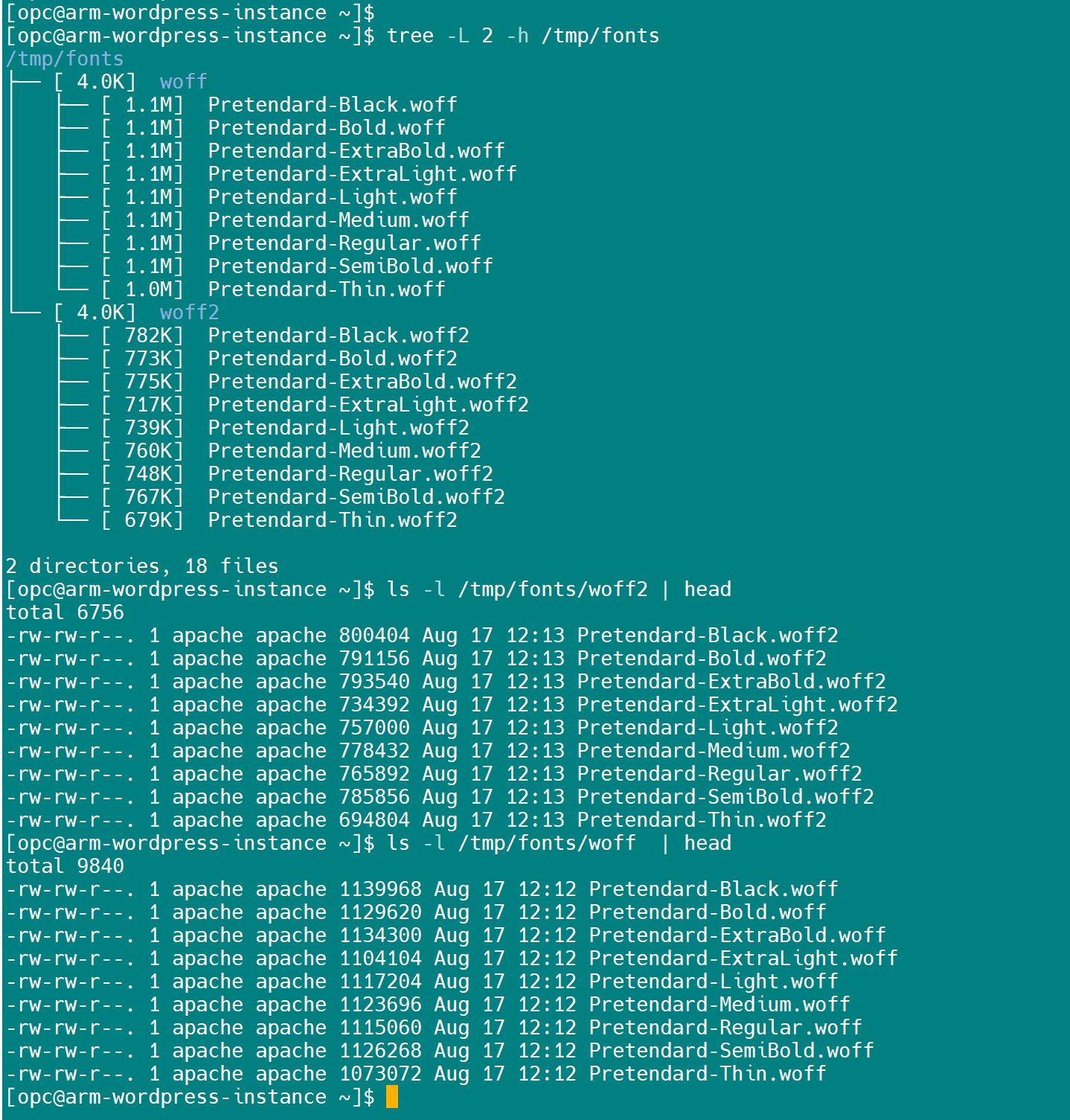
/tmp/fonts 폴더 구조: woff2/woff 및 Pretendard-*.woff2/woff 파일과 권한
예시: /tmp/fonts/woff2, /tmp/fonts/woff (소유자 apache:apache, 디렉터리 755 / 파일 644)
참고 · 이 폴더 구조는 WP-CLI/수동 업로드용입니다. Custom Fonts 플러그인으로 PC에서 바로 올리면 이 단계는 건너뛰세요.

Step 4. 미디어 라이브러리에 일괄 등록

media import
sudo -u apache wp media import \
  /tmp/fonts/woff/Pretendard-*.woff \
  /tmp/fonts/woff2/Pretendard-*.woff2 \
  --path=/var/www/html/wordpress --porcelain
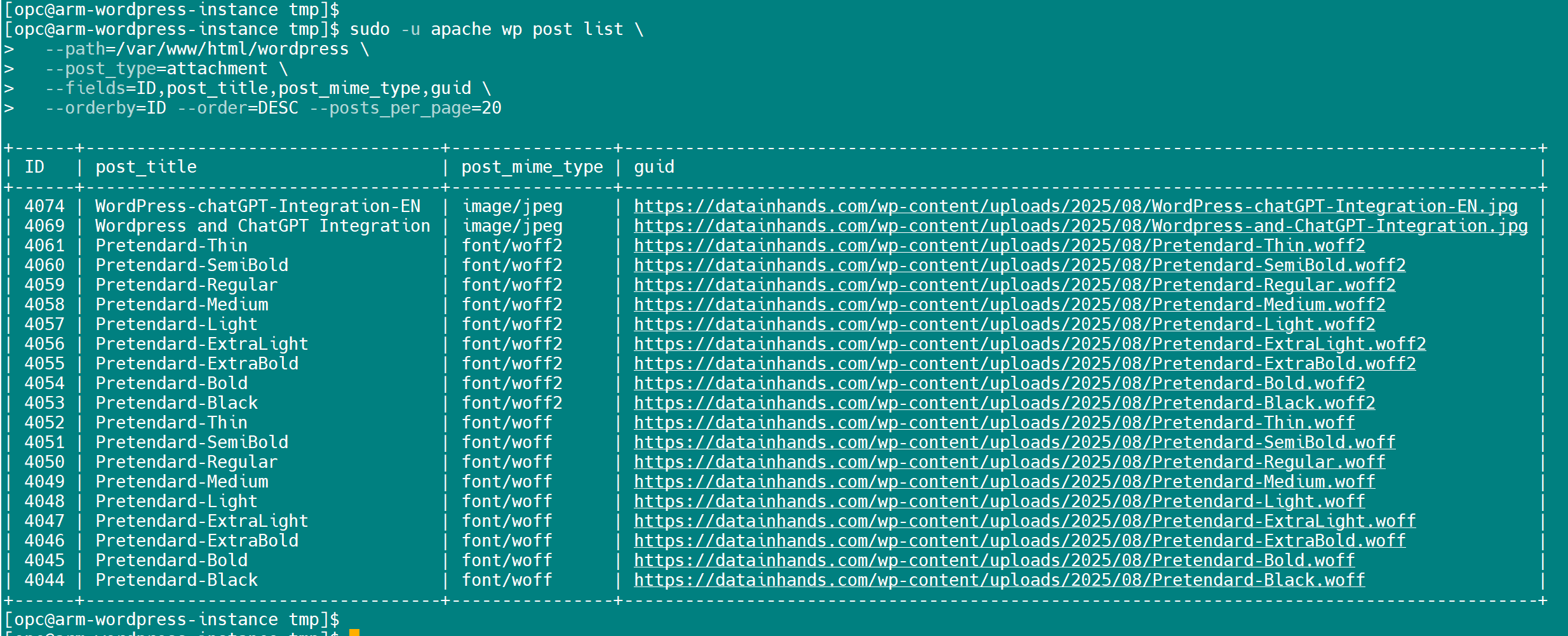
# 성공 시 첨부 ID가 줄줄이 출력 (예: 4044~4061)

Step 5. Astra에 “등록” (플러그인 UI로 매칭)

  1. 외모 → Custom FontsAdd New FontFont Name = Pretendard.
  2. Font Weight 카드에서 Upload 대신 미디어 라이브러리를 열고, 방금 media import로 들어온 Pretendard .woff2(필요시 .woff) 파일을 선택.
  3. 300/400/500/700 등 필요한 굵기만 추가 → Save/Publish.
  4. 적용: 외모 → 사용자 정의하기 → Global → Typography에서 Body/Headings = Pretendard → 공개.

Step 6. 결과 확인(콘솔 + UI)

최근 등록 목록
sudo -u apache wp post list \
  --path=/var/www/html/wordpress \
  --post_type=attachment \
  --fields=ID,post_title,post_mime_type,guid \
  --orderby=ID --order=DESC --posts_per_page=20
미디어 라이브러리: Pretendard-*.woff/woff2 등록 확인
확인 후 Customizer에서 Pretendard를 적용하세요.

자주 만나는 오류 & 해결

wp: command not found — WP-CLI 미설치/PATH 문제. PHAR 설치 후 /usr/local/bin/wp 절대경로로 호출해 보세요.
This does not seem to be a WordPress installation.--path가 틀렸습니다. find /var/www -maxdepth 3 -name "wp-config.php"로 정확한 루트를 찾아 넣으세요.
Permission denied — 홈 디렉터리 접근/소유권 문제일 가능성. mv ~/fonts /tmpchown -R apache:apache /tmp/fonts.

플러그인 없이 수동 적용 — @font-face로 끝내기

플러그인을 쓰지 않고도 Pretendard를 적용할 수 있습니다. 핵심은 @font-face로 폰트를 선언하고, 전역 CSS로 본문/헤딩에 폰트를 지정하는 것입니다. 드롭다운에 이름은 안 뜨지만, 실제 적용 결과는 동일합니다.

  1. 파일 준비 · Pretendard-*.woff2(권장) + 필요 시 .woff 파일을 미디어에 업로드하거나 wp-content/uploads/fonts/pretendard/ 등 웹에서 접근 가능한 폴더에 업로드합니다. 각 파일의 URL을 메모해 두세요.
  2. @font-face 선언 · 외모 → 사용자 정의하기 → 추가 CSS에 아래 코드를 붙여 넣고, URL만 여러분의 경로로 교체합니다(Regular 400, Bold 700 예시).
Additional CSS → @font-face (정적, 400/700)
@font-face{
  font-family:'Pretendard';
  src:url('https://YOUR-SITE/wp-content/uploads/2025/08/Pretendard-Regular.woff2') format('woff2'),
      url('https://YOUR-SITE/wp-content/uploads/2025/08/Pretendard-Regular.woff') format('woff');
  font-weight:400; font-style:normal; font-display:swap;
}
@font-face{
  font-family:'Pretendard';
  src:url('https://YOUR-SITE/wp-content/uploads/2025/08/Pretendard-Bold.woff2') format('woff2'),
      url('https://YOUR-SITE/wp-content/uploads/2025/08/Pretendard-Bold.woff') format('woff');
  font-weight:700; font-style:normal; font-display:swap;
}
  1. 전역 적용 · 본문은 400(Regular), 헤딩은 700(Bold)로 지정합니다.
전역 적용 CSS
body, button, input, select, textarea{
  font-family:'Pretendard', -apple-system, BlinkMacSystemFont, 'Segoe UI', Roboto, 'Noto Sans KR', 'Malgun Gothic', system-ui, sans-serif !important;
  font-weight:400;
}
h1,h2,h3,h4,h5,h6{ font-family:'Pretendard',sans-serif !important; font-weight:700; }
중요: 이 수동 방식은 Astra의 글꼴 드롭다운에 “Pretendard”가 표시되지는 않습니다. 대신 위 CSS가 전역으로 적용되므로 결과는 동일합니다. (Elementor 무료는 기본 글꼴/색상 비활성화 권장)
(선택) Variable 하나로 100–900 커버하기

가변 폰트(PretendardVariable.woff2) 하나로 모든 굵기를 처리할 수 있습니다.

@font-face (Variable)
@font-face{
  font-family:'Pretendard';
  src:url('https://YOUR-SITE/wp-content/uploads/2025/08/PretendardVariable.woff2') format('woff2-variations');
  font-weight:100 900; font-style:normal; font-display:swap;
}
/* 본문/헤딩 기본 가중치 */
body{ font-weight:400; }
h1,h2,h3,h4,h5,h6{ font-weight:700; }
(선택) 성능 최적화 — preload

상단(헤더 삽입)에서 핵심 폰트를 미리 불러오면 FOUT를 줄일 수 있습니다.

<head>에 추가
<link rel="preload" as="font" type="font/woff2"
      href="https://cdn.datainhands.com/wp-content/uploads/2025/08/Pretendard-Regular.woff2"
      crossorigin>

검증 체크리스트

  • DevTools → Elements/Computed에서 font-family: 'Pretendard' & font-weight 값 확인.
  • Network 탭에서 .woff2가 로드되는지 확인(상태 200, 타입 font/woff2).
  • Elementor 사용 시: Elementor → 설정 → 일반에서 기본 글꼴/색상 비활성화 체크.
  • 캐시/최적화 플러그인 사용 시 캐시 비우고 강력 새로고침.
적용 후 화면(DevTools: Computed에 font-family 'Pretendard' 확인)
Network에서 .woff2 응답 헤더(content-type: font/woff2)도 함께 확인하세요.

마무리 체크

  • Pretendard .woff2 + .woff 준비(필요 굵기만)
  • Custom Fonts로 변형 등록 → 커스터마이저 Body/Headings = Pretendard
  • Elementor: Disable Default Fonts/Colors 체크 → 에디터 새로고침
  • 문제 시: WP-CLI 우회, MU 확장자 허용, ModSecurity/Apache 보완
  • DevTools: Network에서 .woff2 로드, Elements에서 font-family:'Pretendard' 확인
License · Pretendard: SIL Open Font License 1.1
© Data In Hands · Oracle Linux + Apache(ModSecurity) + WordPress(Astra + Elementor)
위로 스크롤