Start with what changed
If you changed only the text of a post, check the HTML cache first. For images or stylesheets you manage yourself, a new filename is usually the simplest option. If the URL must stay the same, verify the original file before clearing the caches that serve it.
- Post text or title: compare the saved post with the public page.
- Image with a new filename: replace the image in the post and check the new URL.
- Image overwritten at the same URL: check the original, generated sizes and relevant caches.
- CSS, JavaScript or fonts: use a new filename, or a versioned URL whose cache behavior you have verified.
For origins and cache lifetimes, see the Bunny setup guide.
Do not manually rename CSS or JavaScript managed by a theme or plugin. Updates may break those references. Use the product’s supported versioning mechanism.
Check the HTML cache after editing a post
The homepage’s recent-post list should update automatically when a post is published or edited. Routine publication should not require editing the homepage or manually clearing its cache.
Data In Hands builds these lists from published posts in each language and topic. Saving or publishing a post invalidates the list cache. Changes to its public status, category or language also trigger a refresh. The integration then requests FlyingPress cache updates for both homepages.
On November 9, 2026, temporary Korean and English posts were used to test immediate publication, title edits, and scheduled publication. Each change appeared on the appropriate public homepage without a manual cache refresh. Scheduled posts stayed out of the lists before their publication time. Returning the test posts to draft removed them from both homepages automatically. The featured article remains separate. Recent posts are selected by publication date and category, so editing an older article does not necessarily move it to the top.
FlyingPress also documents automatic updates for edited posts and related pages. Custom homepages must be included in the automatic refresh path. FlyingPress automatic cache updates
If the public page still shows the old text, open the page while logged out. Also check FlyingPress for queued or failed jobs. Fix the cause if automatic refresh fails. Limit any manual recovery refresh to the affected post and related lists. A text edit does not require clearing every image in Bunny.
FlyingPress documents Purge & Preload Cache as clearing all existing page caches before rebuilding them. Preload alone does not clear existing caches first. A full rebuild should not be the default response to a single post edit. Preload versus Purge & Preload
Upload a revised image with a new filename
The WordPress Image block lets you replace an image without editing its HTML. Use a new filename for the revised file.
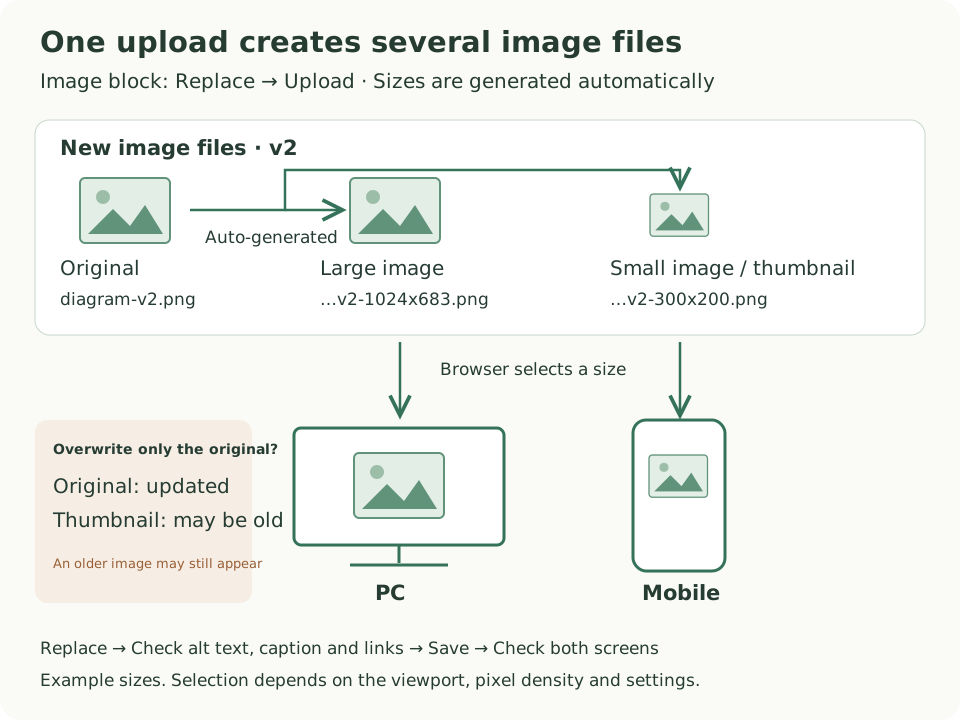
- Use a new filename. For example, replace
diagram-v1.pngwithdiagram-v2.png. - Replace the image in the block. Upload the new file or choose it from the Media Library.
- Check the accompanying details. Update the alt text and caption as needed. Check that the full-size image link opens the new file.
- Save and check the public page. Open it while logged out on desktop and mobile.
When you upload an image to the WordPress Media Library, WordPress generates smaller images and thumbnails according to the configured sizes. It does not necessarily generate every size—for example, a requested size may be larger than the uploaded image. The theme and site settings also affect which sizes are created. You normally do not need to upload each thumbnail or enter its URL by hand. Replacing an Image block · Generated image sizes
Once the browser receives a page that references the new URL, it requests the new file. A cached copy of the old URL does not substitute for it. If the old image still appears, first check whether the public HTML cache has updated.
Uploading directly to Object Storage is different. Inserting a public image URL does not trigger WordPress thumbnail generation either. If you use an offload plugin, check that generated sizes reach the storage service along with the original.
Overwriting the original file is a different operation
If you overwrite only the original file on the server, previously generated sizes may remain unchanged. That can leave a new image on desktop and an older thumbnail on mobile.
If this happens, or if you wrote the image HTML manually, inspect currentSrc in the browser’s developer tools to see which file is actually displayed. The srcset attribute lists the size candidates. If an optimizer provides WebP or AVIF versions, check those files too.
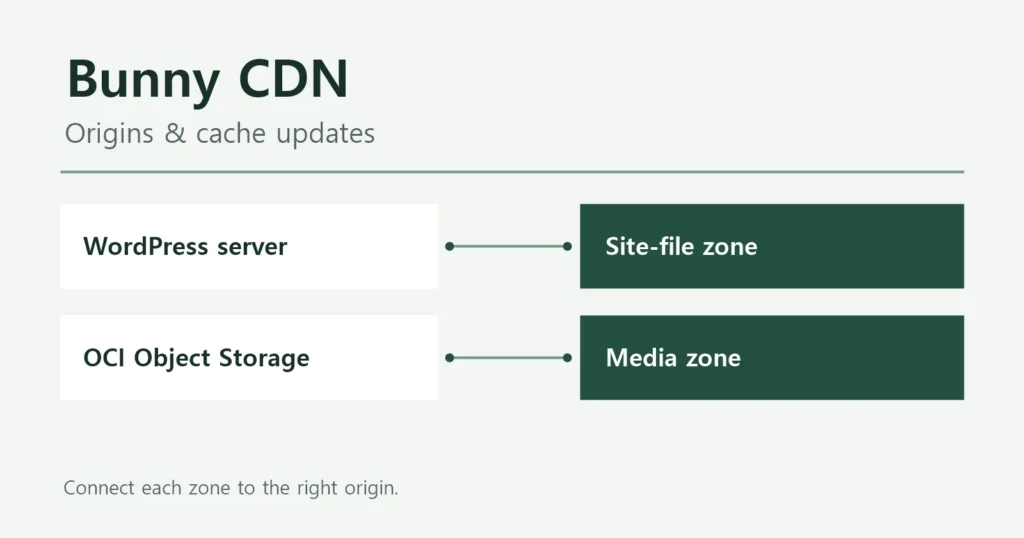
For an image overwritten at the same URL in Object Storage, refresh the media Bunny Zone that serves it. Clearing the separate WordPress-files Zone will not remove that media Zone’s old copy.
Keep the old files until you have verified the change. Older cached pages may still reference them. You may also need them for a rollback.
Verify the original before purging an unchanged URL
When replacing a public WordPress file without changing its URL, work outward from the original. Only refresh caches that actually store that file.
- Verify the original file. Check its contents or change history on the server. A response from the site domain may have passed through WAAS, so it does not by itself prove the server’s file has changed.
- Refresh WAAS if it caches this file. Otherwise, Bunny may fetch the old WAAS copy after its own cache is cleared.
- Purge the relevant Bunny cache. Use the file URL or a tag that was configured beforehand. Purging invalidates a cached copy. The original file still needs to be updated separately.
- Refresh related HTML when needed. If image references or other page data changed, regenerate that HTML. A file-only change does not automatically require an HTML change.
- Check what the browser received. An existing visitor may still have a valid local copy at the unchanged URL.
This order applies when Bunny fetches WordPress files through the site domain and WAAS. The Object Storage media route skips the site’s WAAS. Do not expose private files or bypass authentication to check an origin.
Choose the Bunny Zone that serves the file
The Bunny dashboard supports purging a whole Zone or files associated with a tag. A tag must first be assigned using CDN-Tag. Use the URL purge API to purge a specific file URL. First check whether the Zone’s Vary configuration supports it.
Supply the CDN URL requested by the browser, not the origin URL. Keep API keys in protected server-side configuration, out of browser code, articles and screenshots. If a full-Zone purge is necessary, consider its wider impact. Wildcards and paths ending in a slash can affect more files. A full-zone purge can temporarily increase requests to the origin. Tag purging is not supported when Perma-Cache is enabled. Bunny cache purge documentation
Bunny does not automatically watch the origin for file changes. Rewriting file URLs through FlyingPress does not establish that Bunny purges are also automated. That integration has not been verified for this configuration. FlyingCDN integration and a custom Bunny setup need separate checks. Before adding automation, test the changed URLs, target Zone, results and failure retries.
Account for files already cached in the browser
A browser with a valid cached file can use it without requesting it again. Purging Bunny does not delete copies on visitors’ devices. Avoid long browser cache lifetimes for files that you frequently replace at the same URL. A new file URL is preferable when a change needs to take effect promptly. Browser caching
A hard refresh or Disable cache in developer tools checks your own browser. Other visitors may still have older files. Changing ?ver= only separates versions when the intervening caches distinguish that query value. On November 9, 2026, URL Query String was still unselected for the site-files Bunny Zone. WAAS query-string behavior still needs testing.
The isolated CSS tests delivered the update under a new filename
On November 9, CSS files unused by the site were replaced in an isolated test folder. Bunny returned the old contents when the URL stayed the same. Changing only the query version also returned the old contents. A new filename delivered the updated file.
Chrome reused the old file from its disk cache at the unchanged URL. A new filename loaded the updated contents. These observations cover the test files and one browser environment. No WAAS HIT was observed, so updating a previously cached WAAS copy still needs a separate test.
Check the file contents, not just HIT
HIT means a cached copy was used, not that it contains the latest revision. A MISS immediately after a purge can be expected: the cache may need to retrieve the file again.
- Text: confirm the revised wording on the logged-out public page.
- Images: check the displayed file and the full-size link on desktop and mobile.
- CSS, JavaScript and fonts: verify the changed contents or file identifier.
- Layout: check menus, code and images in both languages. If something breaks, investigate file errors, cached copies, CORS errors or incorrect references.
Use the URL readers normally visit. Random query strings can change the cache behavior—or do nothing if a cache ignores them. Record the login state, browser-cache setting and time so that results from different conditions are not mistaken for the same test.
For CSS, open Network in developer tools and select the stylesheet. Check Request URL under Headers. Then look for the revised declaration under Response. For example, check for --brand-color: #245640. For images, compare src, srcset and currentSrc.
Resizing a desktop browser does not test a phone’s stored cache. Open the page on a real phone as well. If you need a precise content comparison, compare hashes of consistently decoded response bodies, not differently compressed transfer data.
Restore the old files before restoring their references
Prepare the files that the earlier page needs before rolling the page back. If you restore a file at the same URL, its WAAS and Bunny copies may also need refreshing. Then restore the content and file references. Rebuild the related HTML cache. Restoring HTML first can leave it pointing to missing files.
Afterward, check the Korean and English pages on desktop and mobile, including images, full-size links and other links. Keep the previous settings, files and change records until these checks are complete. A successful purge message does not prove that the page has recovered.
The isolated CSS replacement tests are complete. A full test covering cache purges and rollback has not been performed. The time required for a change to reach all visitors has not been measured.