How to Schedule a 3-Timezone Weekly Meeting in Under 5 Minutes
Your team spans Seoul, Berlin, and San Francisco — 12 people across 3 timezones. Every Monday morning, you're wrestling with the same question: "What time works for everyone this week?"
Sound Familiar? The Global Team Lead's Weekly Struggle
"Someone's always stuck at 3 AM."
If you've led a team across 3+ timezones, you know there's no universally fair meeting time. When one region is comfortable, another sacrifices. And if you're spending 30+ minutes every week just coordinating that — it's a productivity problem.
The three core frustrations of multi-timezone scheduling:
First, recurring meeting fatigue. Send a Doodle or When2meet link, wait for responses, re-send because someone missed it — the same cycle every single week. With teams of 10+, just coordinating the schedule eats a surprising chunk of your day.
Second, persistent unfairness. The Asia team always gets late nights, the US team always gets early mornings — it should rotate fairly, but in practice, whoever is closest to HQ gets the comfortable slot.
Third, calendar ping-pong. "Does this time work?" → "Not for me" → "How about this?" → three days of Slack threads before landing on the same time as last week.
How When2Overlap Solves This
When2Overlap is a free, browser-based tool that visualizes timezone overlap and uses AI to recommend the optimal meeting time. No installation, no sign-up — just open and go.
AI Best-Time Recommendation
Analyzes work hours, sleep schedules, and comfort curves across all timezones to suggest the "least disruptive" meeting slot.
Heatmap Visualization
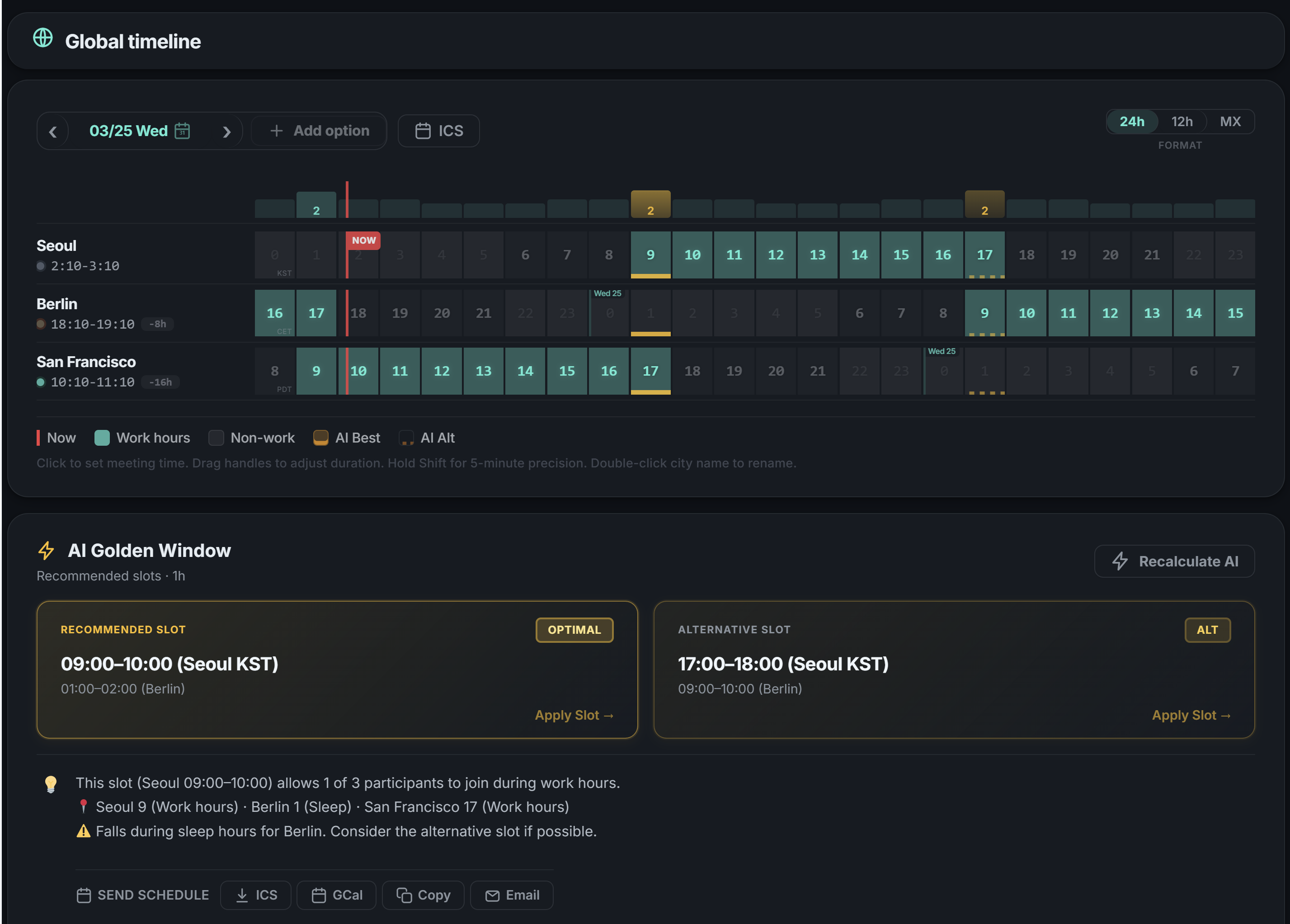
See work hours, sleep hours, and overlap zones across a 24-hour timeline at a glance for every timezone.
Multi-Slot Proposal & URL Sharing
Select multiple AI-recommended time slots and share them via a single URL. No separate polling app needed.
Preset Saving
Save your weekly meeting or monthly review configuration and reload it with one click next time.
The 5-Minute Workflow: Step by Step
Let's walk through scheduling a weekly meeting for a team across Seoul (KST), Berlin (CET), and San Francisco (PST).
Add Timezones (30 seconds)
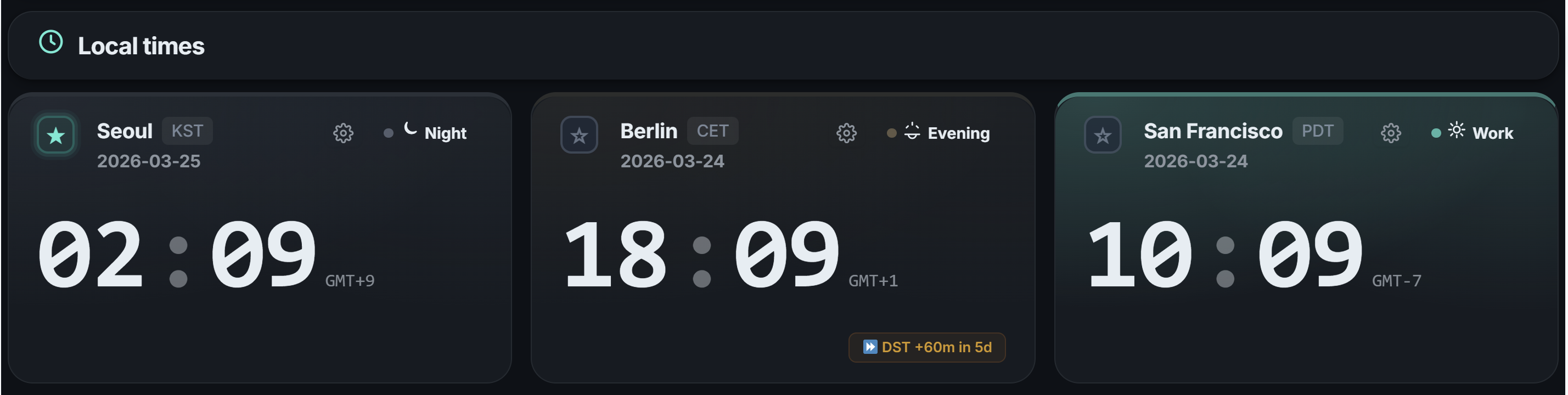
Open When2Overlap and add the timezones where your team members are located. Search by city name — Seoul, Berlin, San Francisco — and the heatmap immediately shows where working hours overlap.
Override Work Hours (optional, 30 seconds)
If any team member works non-standard hours — say your Berlin developer works 10 AM to 7 PM — simply adjust their timezone's work hours with the slider. The heatmap updates instantly.
💡 Tip: Default work hours are set to 9:00–18:00. If most of your team follows standard hours, skip this step entirely.
Review AI Recommendations (1 minute)
Once timezones are added, the AI engine automatically analyzes every hour of the day. It weighs golden hours, lunch breaks, evening boundaries, and sleep exclusions to rank the fairest possible time slots for all participants.
Example result: "Seoul 23:00 / Berlin 15:00 / San Francisco 06:00" — with an explanation of why this is the top-ranked slot.
Share Multi-Slot Proposal via URL (1 minute)
Pick 2–3 promising candidates from the AI recommendations and hit "Share." A URL is generated instantly. Paste it in Slack or email — when your team opens it, they see each proposed time converted to their own timezone automatically.
"One URL replaced our entire calendar ping-pong ritual. Team members click the link, see the options in their own timezone, and we're done."
Save as Preset (30 seconds)
Save this configuration as a preset. Next week, load it with one click — same timezone mix, same work hour overrides. Unless your team composition changes, steps 1–4 become a one-time setup.
💡 Tip: Presets are also encoded in the URL. Bookmark it in your browser for instant one-click access.
Why Existing Tools Fall Short
Doodle, When2meet, and Calendly are great tools — but they leave gaps for global team leads:
No overlap visualization. Most polling tools show "available / not available." But global teams need to filter out slots where technically everyone is awake, but someone is at 4 AM. When2Overlap's heatmap shows what each hour means for every timezone — in color.
Recommendations without fairness. Finding "any overlapping hour" is different from finding "the fairest hour for everyone." When2Overlap's AI factors in sleep invasion, golden hour proximity, lunch overlap, and more.
Repetitive setup. Re-configuring the same weekly meeting from scratch wastes time. Presets + URL state persistence eliminate this loop entirely.
Real Scenario: Maya's Monday Morning
Maya is a PM team lead based in Seoul, managing 12 people across 3 timezones.
Before: Every Sunday night, she coordinates next week's meeting in Slack. Five messages over three days, ending with "let's just do the same time as last week." Total time spent: ~40 minutes per week.
After: Monday morning, she opens her saved preset, checks AI recommendations (did daylight saving shift the optimal window?), and shares a multi-slot URL in Slack. Total time: 5 minutes.
35 minutes saved per week × 52 weeks = roughly 30 hours reclaimed per year from meeting scheduling alone.
Get Started
Try It Now — Free, No Installation
Open in your browser, add timezones, get AI recommendations.
No account needed. No app to install.
When2Overlap is a free AI-powered timezone scheduler available at datainhands.com.