Table of Contents
ToggleThis guide describes a WordPress setup on OCI ARM servers. Always Free eligibility, available capacity and charges depend on the account and the resources selected; the examples here do not establish that your deployment will be free or meet a particular performance target.
Oracle Cloud Free Tier: Scope and Conditions
OCI offers Always Free resources alongside a time-limited trial. Check the current limits for each service before provisioning; a free allowance does not guarantee capacity or cover every resource used by a WordPress site.
Review these resource categories separately:
Compute:
Always Free resources are subject to the current eligible shapes, monthly allowances, home-region capacity and account conditions. The earlier 24 GB / 3,000 OCPU-hour example is historical and must not be treated as a current entitlement or a guarantee that two ARM VMs can be created. Check the official Always Free resource limits before provisioning. Idle instances may be reclaimed and usage outside the free allowance can incur charges; this guide does not verify the limits of your account.
Storage:
Count boot and block volumes together when checking the Block Volume allowance. Check Object Storage tier and account limits separately, then estimate the space needed for the site, backups and growth. The historical storage figures in this setup are not a current account entitlement.
Data Transfer:
Check the current outbound-transfer allowance and the traffic expected from pages, images and backups. Transfer charges and limits must be evaluated for the selected services and account.
Installation and Configuration
1. Setting Up Your Foundation
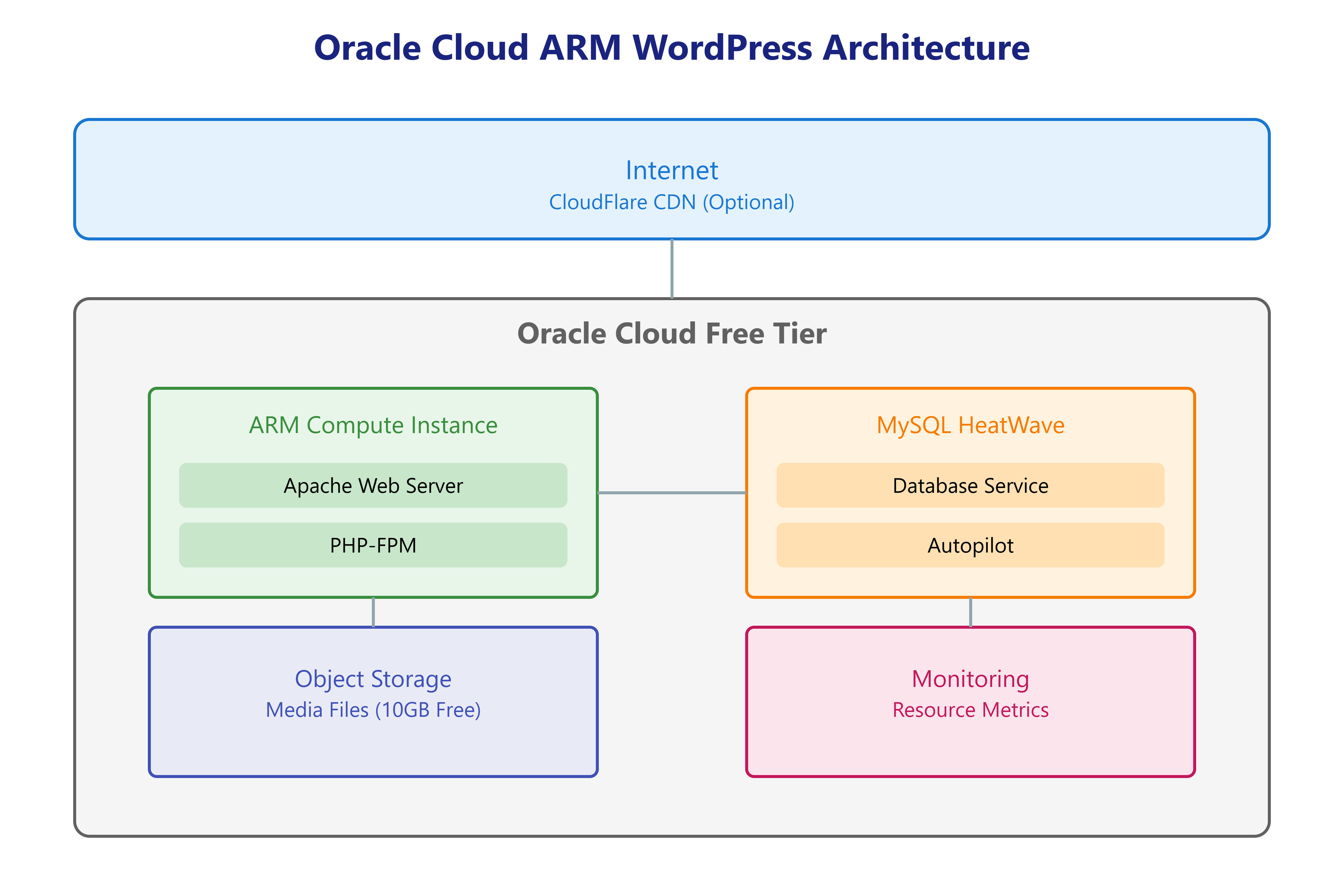
The diagram shows the example architecture. Before using it, check the operating-system image, package versions, networking and database requirements for your deployment.

# First, let's update our system and install essential packages
sudo dnf update -y
sudo dnf install -y httpd php php-mysqlnd php-fpm

# Start and enable our web services
sudo systemctl start httpd
sudo systemctl enable httpd
sudo systemctl start php-fpm
sudo systemctl enable php-fpm
Use an ARM-compatible operating-system image and packages. Measure PHP worker memory, request latency and database load before choosing capacity; the processor architecture alone does not establish WordPress performance.
2. MySQL HeatWave Database Setup
MySQL HeatWave provides a managed MySQL DB System. Check its free-tier eligibility, available capacity, eligible shape and network access separately before using this example. Supported HeatWave features and query processing paths also need verification; WordPress queries do not automatically receive analytical acceleration.
-- Let's create our WordPress database environment
CREATE DATABASE wordpress_db;
CREATE USER 'wordpress_user'@'%' IDENTIFIED BY 'your_password';
GRANT ALL PRIVILEGES ON wordpress_db.* TO 'wordpress_user'@'%';
FLUSH PRIVILEGES;
3. Performance Optimization for ARM
The following example covers PHP-FPM pool settings. Choose worker limits from the workload and available memory rather than treating the values as ARM-specific defaults.
This is a fragment for an existing FPM pool, not a complete www.conf replacement. Confirm the service’s actual php-fpm.conf/include paths, [www] pool, user and listen settings; retain a known-good copy. pm.* are pool directives; PHP ini settings use php_admin_value[…] here. Do not mix bare php.ini directives into the pool. These admin values cannot be overridden by ini_set(). php –ini describes CLI, not proof of the FPM configuration path. Use the installed FPM binary to pass php-fpm -t before considering reload of the verified service. Stop on failure and restore the original. Existing numerical examples still require validation for your environment.
; /etc/php-fpm.d/www.conf
pm = dynamic
pm.max_children = 50
pm.start_servers = 5
pm.min_spare_servers = 5
pm.max_spare_servers = 35
pm.max_requests = 500

; Optimize PHP memory settings
php_admin_value[memory_limit] = 256M
php_admin_value[max_execution_time] = 300
php_admin_value[max_input_time] = 300
php_admin_value[post_max_size] = 64M
php_admin_value[upload_max_filesize] = 32M
These values are configuration examples, not validated ARM-specific tuning. In dynamic mode, PHP-FPM adjusts the worker count within the configured limits; it does not determine safe limits for this workload. Size workers and PHP memory limits from measured process memory, available RAM, traffic and latency, then validate under representative load. Keep the existing values here as examples rather than universal recommendations. See the PHP-FPM configuration reference.
4. Caching Layers
This example uses OPcache, Redis object caching and browser caching. They cache different kinds of data and need separate checks.
// First, let's configure WordPress caching in wp-config.php
define('WP_CACHE', true);
define('WPCACHEHOME', '/var/www/html/wp-content/plugins/wp-super-cache/');

// Redis object caching configuration
define('WP_REDIS_HOST', 'redis');
define('WP_REDIS_PORT', 6379);
define('WP_REDIS_TIMEOUT', 1);
define('WP_REDIS_READ_TIMEOUT', 1);
define('WP_REDIS_DATABASE', 0);
OPcache stores compiled PHP bytecode; Redis can serve WordPress object-cache entries when the integration is configured; browser caching reuses static resources according to HTTP headers. Check each layer independently and measure its effect on the site.
OPcache configuration example:
opcache.memory_consumption=128
opcache.interned_strings_buffer=8
opcache.max_accelerated_files=4000
opcache.revalidate_freq=60
opcache.fast_shutdown=1
opcache.enable_cli=1
5. Security Checks
Review remote access, certificates and update procedures before exposing the site. The inspection commands below do not by themselves establish that the installation is secure.
Treat SSH restrictions as a separate change with a recovery path. Keep the existing session open; first verify key login and sudo for a non-root administrator in a second fresh session. Prepare OCI console recovery and known-good configuration/firewall copies. Inspect sshd_config and effective Include/Match settings; do not apply unconditional sed replacements. After an edit, require sshd -t and sshd -T -C for the actual user/address to pass; stop on any failure. Reload only the verified service, then test fresh login and sudo before closing the original session. On failure, restore the known-good configuration through that session or console, validate and reload. Do not mix firewalld management with direct iptables writes. Review actual IPv4/IPv6, OCI network rules, chain order and trusted source CIDR. Never continue to a deny rule after an allow rule fails. Require a tested timed rollback or console recovery before remote access restrictions. The commands below only inspect and validate.
# Read-only preflight; replace paths only after verifying the installed service.
sudo /usr/sbin/sshd -t
sudo /usr/sbin/sshd -T
# Match-specific example; replace ALL placeholders before use:
# sudo /usr/sbin/sshd -T -C user=ADMIN,addr=CLIENT_IP,host=CLIENT_HOST
# Inspect whichever firewall manager this host actually uses:
# sudo firewall-cmd --list-all
# sudo iptables-save
# sudo ip6tables-save
Let’s Encrypt is used for HTTPS in this example. Check certificate issuance, renewal and Apache reload behavior as separate steps.
Inspect existing Certbot timers, cron entries and recent results, then use one scheduler. Verify the binary path, package version, execution account and Apache authenticator/installer setup. /etc/crontab and /etc/cron.d need a user field; crontab -e does not. Twice-daily scheduling provides retry opportunities; adapt it to your policy. A post-hook is not success-only. If extra work is needed after successful renewal, use a validated deploy-hook that tests Apache configuration before reload; do not duplicate work already handled by the Apache plugin. Test dry-run and hook behavior outside production, monitor failures and certificate expiry, and restore the prior schedule/configuration on failure. Certificate renewal does not replace WP-Cron. This article has no DISABLE_WP_CRON setting: retain visitor-triggered jobs until a separate replacement scheduler has been configured and verified.
# Install and configure Let's Encrypt
sudo certbot --apache -d yourdomain.com
sudo certbot --apache -d www.yourdomain.com


# Renewal: inspect existing timers/cron first; do not install duplicates.
systemctl list-timers --all
# First test with the verified Certbot binary in a non-production environment:
# sudo /usr/bin/certbot renew --dry-run
# Only if no scheduler exists, review this /etc/cron.d/certbot example.
# System crontabs require the root user field after the five time fields.
# 17 2,14 * * * root /usr/bin/certbot renew --quiet
# This is a configuration row, not a shell command; install only after validation.
6. Monitoring
The script below is a historical monitoring example, not a ready-to-run health check. It requests wp-cron.php, which can trigger scheduled WordPress work, and passes a placeholder database password on the command line. Establish protected credential handling, failure detection and a suitable probe before using it.
#!/bin/bash
#
# comprehensive_monitor.sh
# Purpose: Monitor WordPress installation on Oracle Cloud ARM server
# Monitors system resources, WordPress status, and database health
# Outputs monitoring data to a log file for analysis
#

# Configuration variables
LOG_FILE="$HOME/wordpress_monitor.log"  # Store logs in user's home directory for better security
DB_USER="your_db_user"                  # Database username
DB_PASS="your_db_password"              # Database password
WP_URL="http://localhost"               # WordPress installation URL

# Function to monitor system status and write to log file
monitor_system() {
    # Write timestamp for this monitoring session
    echo "=== System Status Check: $(date) ===" >> "$LOG_FILE"

    # Monitor system memory usage and write to log
    echo "Memory Usage:" >> "$LOG_FILE"
    free -m >> "$LOG_FILE"

    # Monitor CPU utilization and top processes
    echo "CPU Usage:" >> "$LOG_FILE"
    top -bn1 | head -n 20 >> "$LOG_FILE"

    # Check WordPress accessibility and response
    WP_STATUS=$(curl -sL -o /dev/null -w "%{http_code}" "$WP_URL/wp-cron.php")
    echo "WordPress cron check status: $WP_STATUS" >> "$LOG_FILE"

    # Check database health and active connections
    mysql -u "$DB_USER" -p"$DB_PASS" -e "SHOW PROCESSLIST\G" >> "$LOG_FILE" 2>/dev/null

    # Add a separator line for better log readability
    echo "----------------------------------------" >> "$LOG_FILE"
}

# Main execution
monitor_system

# Exit successfully
exit 0
Use the collected values to investigate changes in resource use and HTTP responses. A successful HTTP response does not prove that WordPress jobs ran or the database is healthy. Verify each check, failure reporting and alert delivery separately.
7. Maintenance Best Practices
The following maintenance example needs a workload, backup and failure-handling review before use.
Redis FLUSHDB deletes every key in the selected database, regardless of WordPress prefix. A blanket wp cache flush can also affect all sites using a persistent object cache; it is not a safe substitute. Routine maintenance now leaves caches unchanged. If stale content needs invalidation, verify the plugin/version, endpoint, database, prefix and shared consumers, then use its documented key/group-specific mechanism only after proving the scope. If no such mechanism is established, do not delete cache data. The existing database optimization example is retained outside this cache correction; it requires its own backup/load/locking review. This block does not certify overall maintenance success.
#!/bin/bash
#
# maintenance.sh
# Purpose: Essential WordPress maintenance tasks focusing on database and cache
#

# Configuration variables
DB_NAME="wordpress_db"
DB_USER="your_db_user"
DB_PASS="your_db_password"
WP_PATH="/var/www/html"

# Main maintenance function
maintenance() {
    echo "=== Starting WordPress Maintenance: $(date) ==="

    # Database optimization - Essential for maintaining database performance
    echo "Optimizing WordPress tables..."
    mysql -u "$DB_USER" -p"$DB_PASS" -e "OPTIMIZE TABLE wp_posts, wp_postmeta, wp_options;" "$DB_NAME"

    # Leave shared caches unchanged during routine maintenance.
    # Identify the object-cache plugin, endpoint, DB, prefix and other consumers.
    # Use only documented, verified key/group-specific invalidation when needed.
    # Do not assume a WordPress path or Redis key prefix scopes a global flush.
    echo "Cache deletion skipped; targeted invalidation requires separate review."

    echo "=== Maintenance Completed: $(date) ==="
}

# Execute maintenance
maintenance
8. Operational Checklist
This guide combines OCI provisioning, WordPress configuration and operational examples. Check eligibility and costs separately from application performance and recovery readiness.
Before using the configuration:
- Measure the WordPress workload on the selected ARM shape
- Check database connectivity, query behavior and applicable HeatWave features
- Check OPcache, Redis object caching and browser caching separately; review maintenance scope, failures and recovery before execution
- Test restoration from a protected backup
- Review remote access, certificates and security logs
Ongoing operational checks:
- Review the scope and recovery path of maintenance tasks before running them
- Monitor system performance and resource usage
- Keep WordPress core and plugins updated
- Maintain regular backups
- Review security logs periodically
Treat free-tier hosting as an operational service: document the configuration, measure the workload and test recovery. The hosting price does not establish performance or reliability.
Remember to check Oracle’s official documentation regularly for updates about free tier resources and limitations.
📝References
- “WordPress Server Optimization on Oracle Linux 8: Historical Configuration and Diagnostics”
- “WordPress Database Optimization with MySQL HeatWave: Index Diagnostics and Requirements” – datainhands.com technical blog
- “MySQL HeatWave Autopilot Indexing Guide” – MySQL Technical Documentation
January 2025 identifies the original setup, not current compatibility or service entitlements. Distinguish the revised explanations from historical screenshots and code examples, and check official documentation for current allowances, supported versions and service conditions.
#OracleCloud #FreeTier #CloudComputing #WordPress #ARM #MySQL #DevOps #TechBlog