Connecting OAS to MySQL requires a compatible database, driver, and OAS release. This guide follows the ODBC and RPD configuration workflow shown in the example environment.
Check the certification matrix for your OAS release before using the examples. Local authoring connectivity and connectivity from the OAS server must both be verified.
What You'll Need Before Starting
Confirm these prerequisites before configuring the connection:
- A MySQL release certified for your installed OAS release and the intended connection type
- A non-production sample database for testing
- Oracle Analytics Server Client for OAS on your local machine
- Compatible local ODBC connectivity for authoring and the appropriate OAS server driver; Linux OAS provides DataDirect ODBC drivers
- Access credentials for Oracle Analytics Server
Step1: Setting Up Your MySQL Environment
Prepare a supported MySQL test environment before importing metadata:
- Install MySQL server on your Linux machine
- Import the sample employee database
- Configure compatible ODBC connectivity for the authoring environment
⚠️ Pro tip:
Verify the driver and DSN on the authoring machine separately from the server-side driver and configuration. A working local DSN does not prove that the OAS server can reach MySQL.
Step2: Configuring Your ODBC Data Source
For the Windows authoring workflow shown here, configure the local ODBC data source:
- Install the BI Developer Client on your local machine
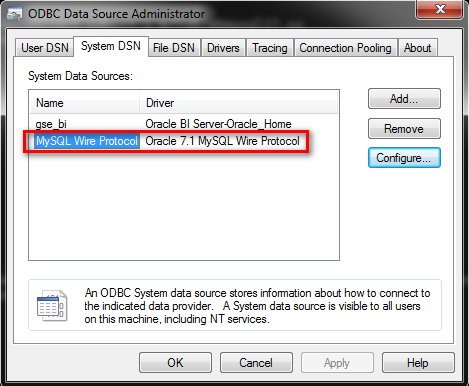
- Open your ODBC Data Source Administrator
- Create a DSN specifically for MySQL
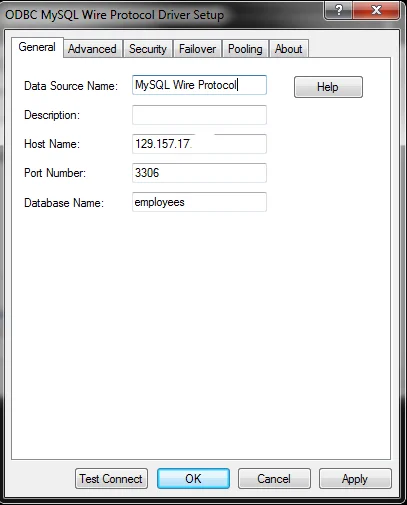
- Verify the DSN, driver architecture, host, port, and database connection
⚠️ Remember:
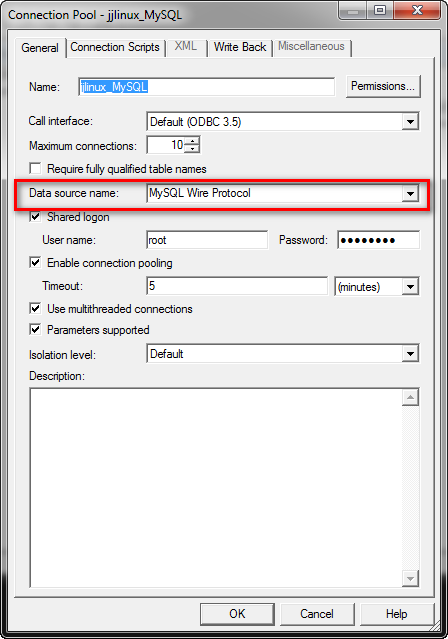
Record the DSN and connection parameters, then test connectivity before importing metadata.
Step3: Importing MySQL Data into OAS
Import metadata into a working copy of the RPD:
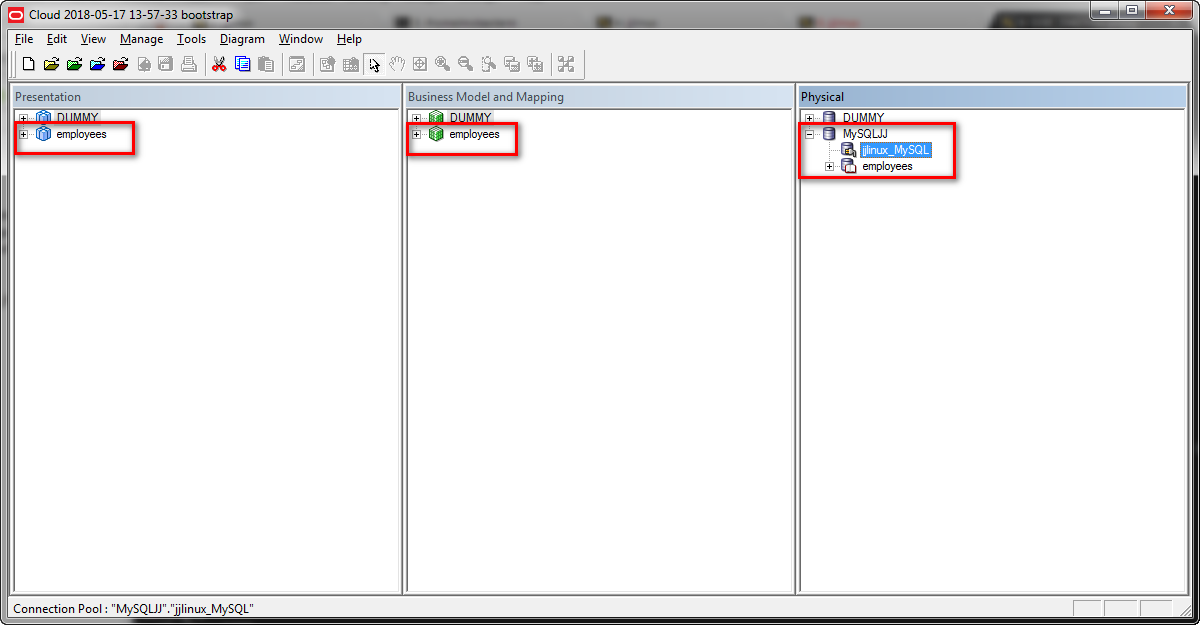
- Access your Repository (RPD) file in OAS
- Start the metadata import process for MySQL
- Save your RPD locally
- Verify your import settings
Step4: Setting Up ODBC in Oracle Analytics Server
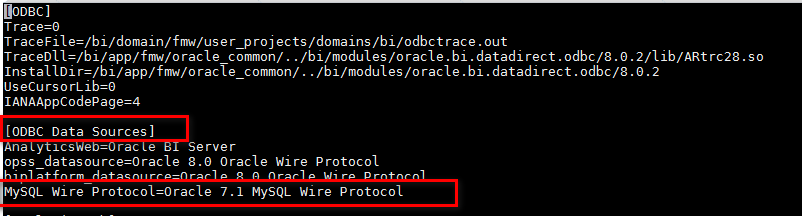
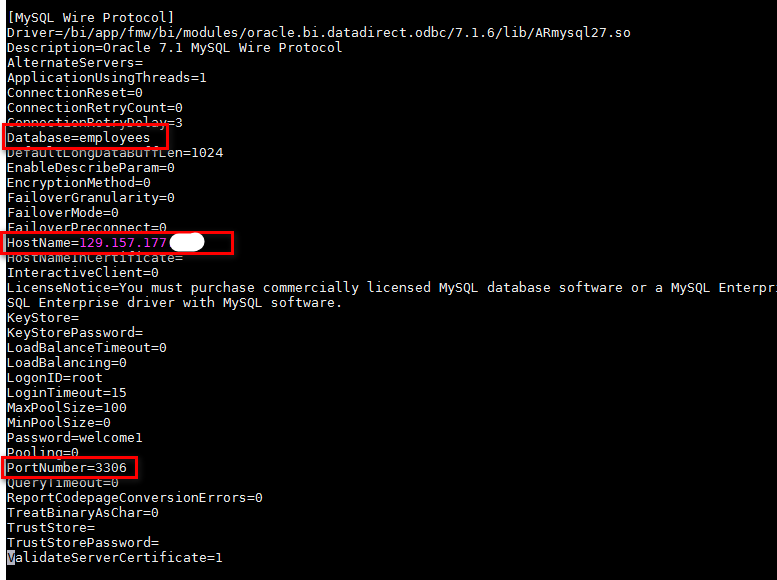
The paths below belong to the example environment. Locate the corresponding configuration and driver files in your own OAS installation; do not treat these absolute paths as universal.
1. Navigate to your odbc.ini file in OAS at:
/u01/data/domain/fmw/user_projects/domains/bi/config/fmwconfig/bienv/core/odbc.ini
2. Gather your ODBC settings from:
/u01/app/4.3.0.0.0-20180417212544-0.0.6/fmw/bi/modules/oracle.bi.datadirect.odbc/7.1.6/odbc.ini
3. Update your odbc.ini file with MySQL connection details
Step5: Updating Your OAS Data Model
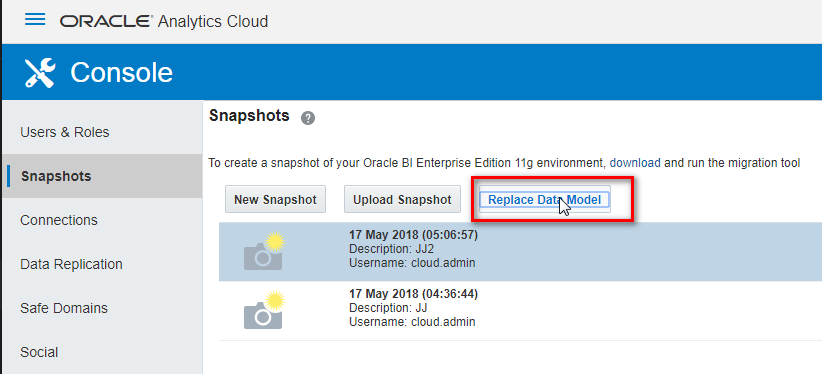
After testing the connection, deploy the model using the procedure for your OAS release:
- Go to the Data Model section in OAS
- Back up the current model and deploy the reviewed replacement under your change procedure
- Verify that the intended model is active and test queries; reconnect the session if the release procedure requires it
⚠️ Quick tip:
Signing out and back in may refresh a user session, but it does not prove that a new model is deployed or repair a failed server connection. Check deployment status and the relevant logs.
Step6: Creating Your First Visualization
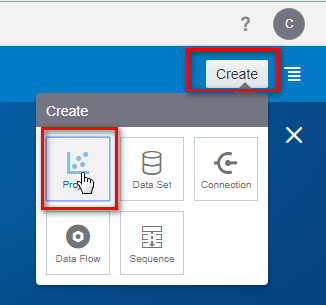
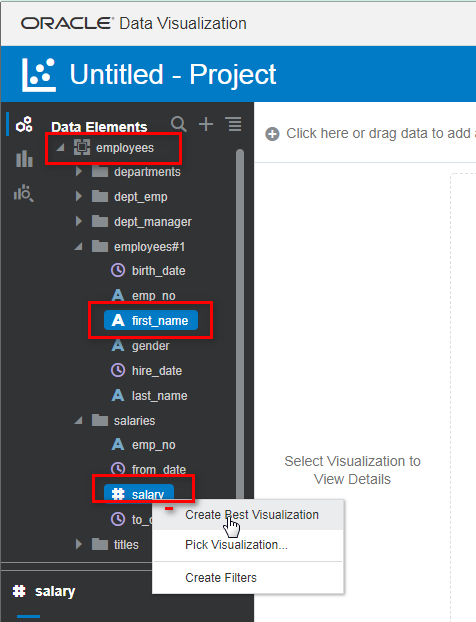
Once the model and connection are verified, test a visualization against the intended data source:
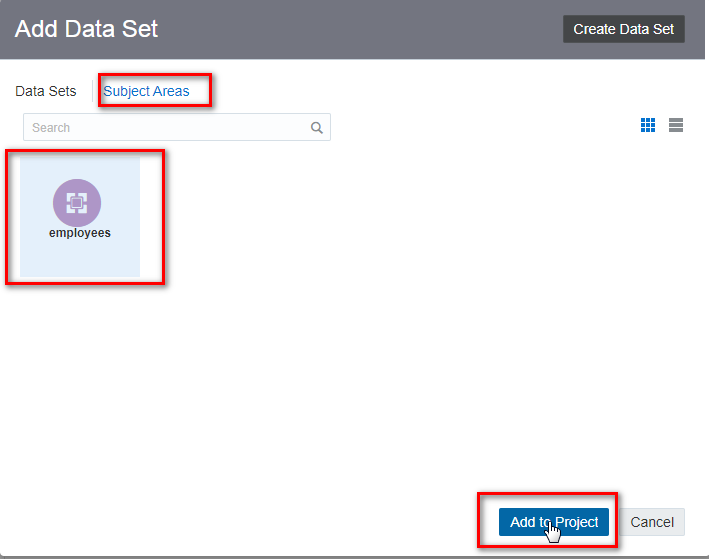
- Start a new project in OAS
- Connect to your MySQL data source
- Begin building your visualizations
Real-World Applications
Possible uses include the following; data freshness depends on the query, caching, and refresh design:
- Creating sales dashboards with a defined data-refresh policy
- Monitoring customer behavior patterns
- Generating automated financial reports
- Tracking inventory levels across multiple locations
Common Issues and Quick Fixes
Use the error and the failing connection stage to guide troubleshooting:
- Connection issues? Check your ODBC configuration
- Can’t access MySQL? Verify your firewall settings
- Changes not showing? Check the active model and distinguish browser, session, and BI query-cache effects before changing any cache
- Permission errors? Double-check your MySQL user privileges
Wrapping Up
Before using this configuration in production, confirm release compatibility, connectivity from both the authoring machine and server, and query results from the deployed model.
Record the OAS and MySQL releases, driver, DSN, and any relevant errors so the connection can be reproduced and maintained.
Ready to learn more?
Use the official resources below to check the requirements for your installed release.
Additional Resources
To deepen your understanding of OAS and MySQL integration: