Multi-Slot Meeting Proposals: Share Up to Three Options
Instead of announcing a single time, send a few candidates for participants to review. The Share section collects up to three options and carries them in one link with the displayed regional times.
Checked against the public app on October 9, 2026. Screenshots use an illustrative one-hour meeting on October 20, 2026 across Seoul, New York and London. No personal account or calendar was connected. Open an image to view it at full size.
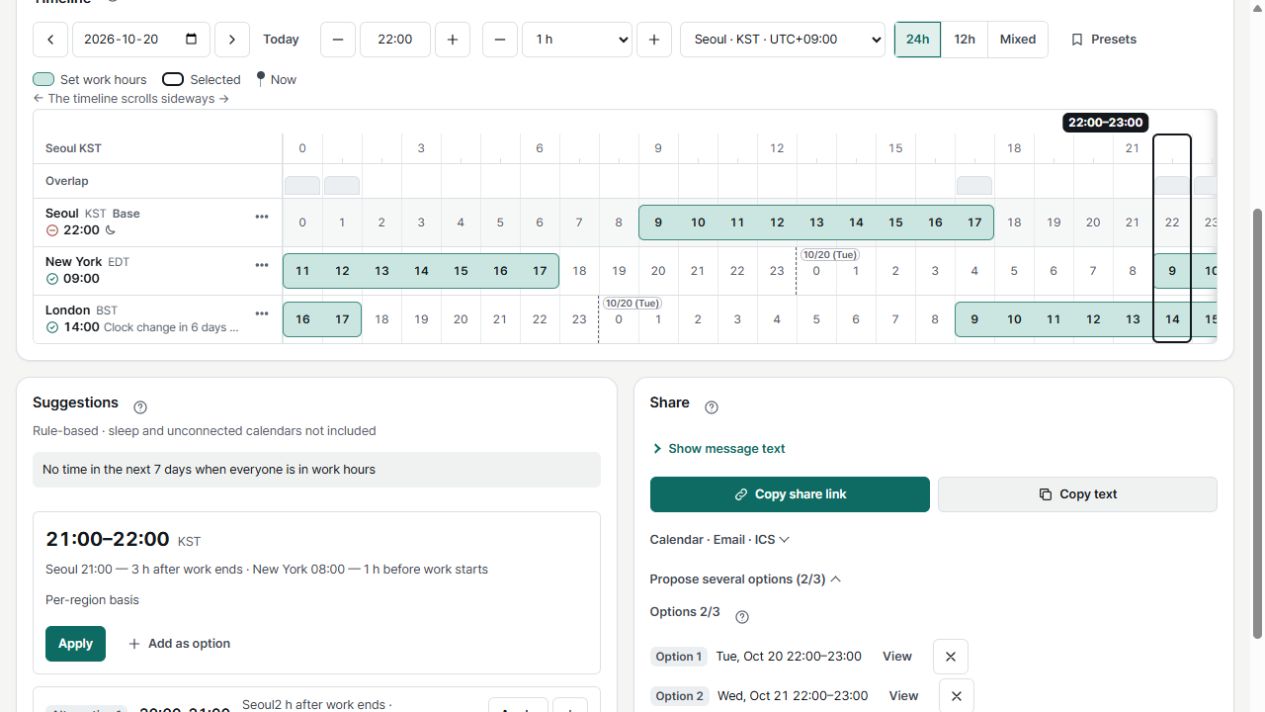
The current workflow for choosing meeting options
1. Set regions and actual work hours
Search for cities with Add region. Open a region chip or its name on the timeline to review the display name, work start/end, leave and optional calendar settings, then Save. Adding a city does not check anyone’s personal calendar.
2. Choose the date, start and length
Use the date, start and duration controls in Timeline to choose the meeting time. After typing a start time, press Enter and verify the displayed meeting time. Check the timeline’s Base and 24h/12h display rather than assuming the browser’s time zone is the base.
3. Review the timeline and suggestion reasons
Compare work-hour bands and the count of regions in work hours. On mobile, scroll inside the timeline horizontally. Review Suggestions, per-region reasons and other dates. If everyone’s work hours never overlap, consider another date, a shorter meeting, asynchronous discussion or rotating inconvenient hours.
4. Collect options and share
In Share, use Add as option to collect up to three candidates. Add next day too adds a candidate for the next date; recheck its date and local times. Expand Show message text before using Copy text or Copy share link.
5. Confirm replies and reuse the setup
Recipients can view the options in the shared link. They should check the displayed regions and base, then reply with a preference. Do not assume the app has collected acceptance votes. Manage recurring region configurations through Presets, but recheck the date, daylight-saving offsets and availability each time.
Suggestions are not availability confirmation
Suggestions rank candidates under the supplied settings. The app explicitly says “sleep and unconnected calendars not included.” Work-hour overlap does not confirm personal availability or willingness to attend. Check the coverage and status of holidays, leave and calendars, then agree on the final time with participants.
The recipient view and calendar exports
A shared link opens a proposal notice and option list. Review regional times on the timeline and check the selected base. Do not assume it always replaces the base with the recipient’s device time zone or confirms attendance on opening. The message preview can contain both English and Korean; review the actual copied text before sending.
Export ICS and Add to Google Calendar are separate from sharing an option link. The current Google Calendar link uses the first option’s time range and includes all options in its description. Check the confirmed date and start/end before creating an event. No personal calendar event was created or file imported for this guide.
📄 Technical Reference
This design document was published in 2026. Use the current public interface above for button names, available features and calendar connection status.
Moon, J. (2026). Client-Side Heuristic Algorithms for Cross-Timezone Meeting Optimization: A Defensive Publication. Zenodo. https://doi.org/10.5281/zenodo.19258704
Compare options for your own meeting
Basic time-zone comparison and option sharing work without signing in. Account and calendar connections are separate, optional features.
Open When2Overlap