How to Schedule a 3-Timezone Weekly Meeting in Under 5 Minutes

Consider a team of 12 people working in Seoul, Berlin, and San Francisco. Scheduling its weekly meeting means comparing local times and agreeing on a slot that participants can attend.
Choosing a time in the updated layout
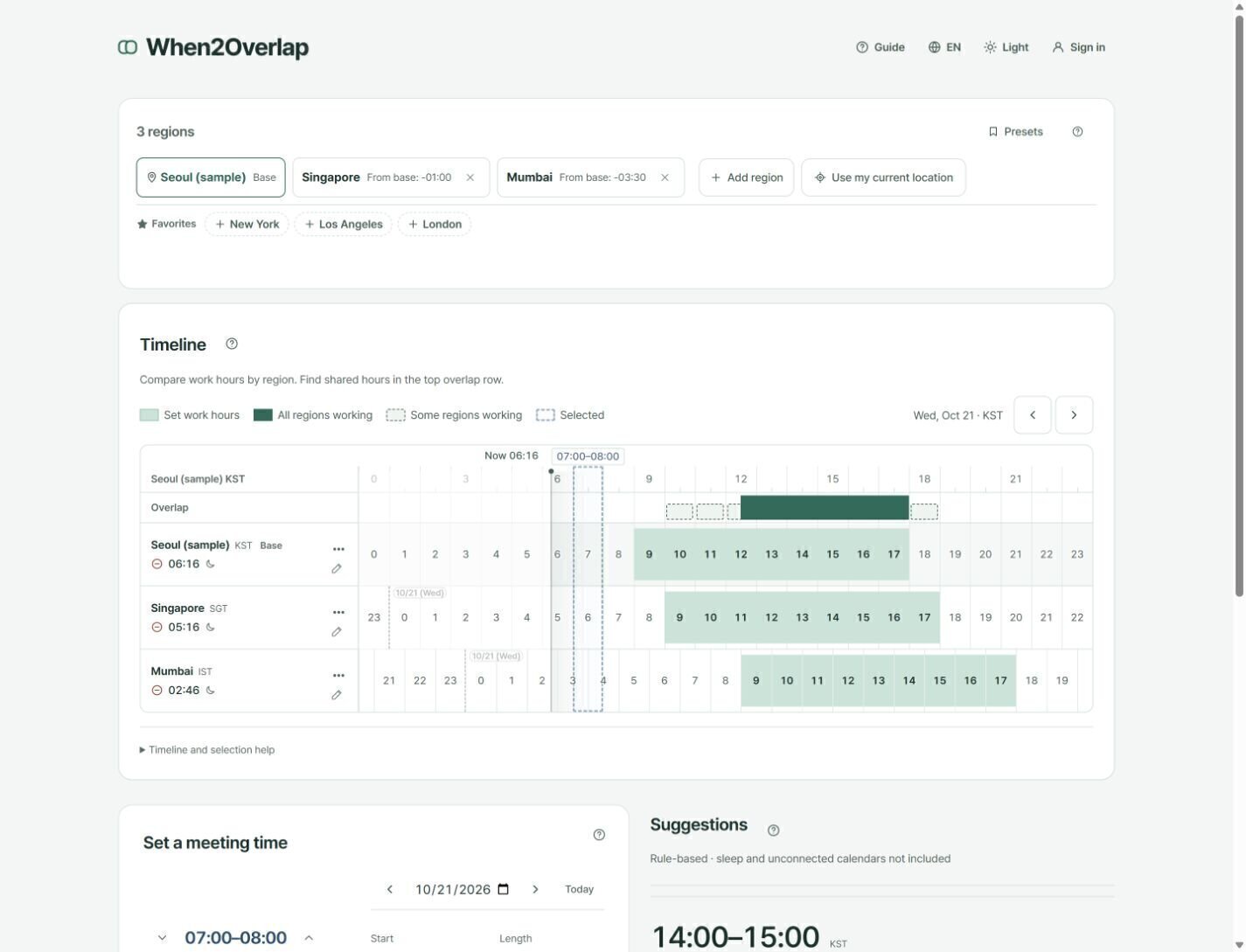
Set the cities and work hours in the regions section, then compare them on the timeline. The grid height follows the number of regions. On desktop, time controls sit below the grid on the left and suggestions on the right. On a phone, they follow in that order vertically. Time controls remain available with just one region.
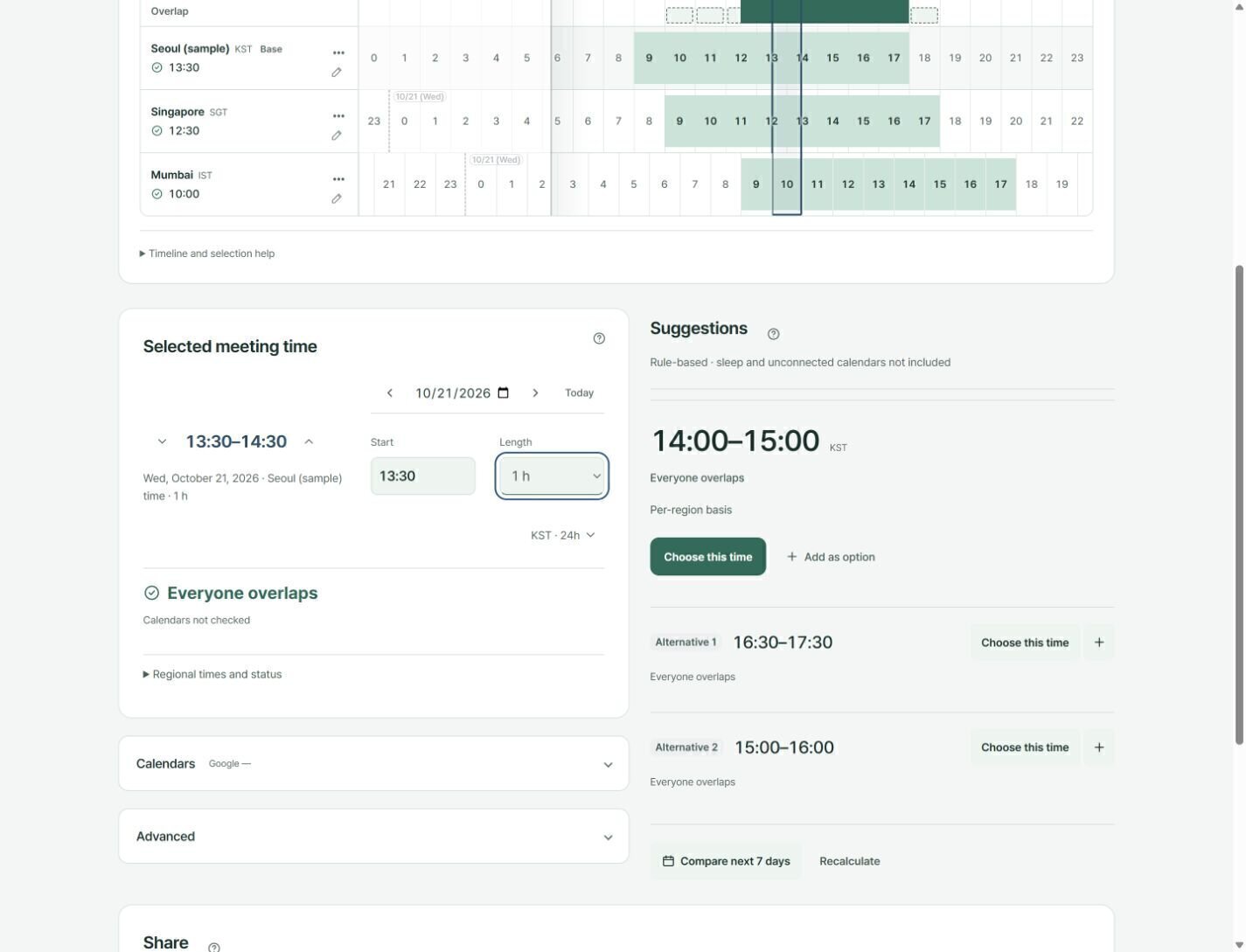
The left and right arrows above the grid move one day at a time. The arrows beside the large start–end time below it move the whole meeting 15 minutes earlier or later, preserving its length. Crossing midnight changes the date too. You can also type a start time or choose a length from 15 minutes to eight hours.
The time controls are visible before a time is selected. The initial dashed range is a prompt, so no verdict appears yet. Select the timeline or change the date, start or length to see work-hour status and whether calendars have been checked. Expand the regional time and status details for local dates and times. Suggestions do not confirm attendance; agree on the final time with participants.
Why Weekly Meetings Across Time Zones Are Hard to Schedule
"This slot would require one region to join at 3 AM."
When work hours do not overlap across three regions, a convenient slot for one region may fall late at night or early in the morning for another. If coordination takes more than 30 minutes each week, it is worth reviewing how the team compares and shares candidate times.
Three recurring coordination problems:
First, repeated availability checks. Send a Doodle or When2meet link, wait for responses, and follow up with anyone who has not replied. Repeating this process every week takes time, particularly with more than 10 participants.
Second, an uneven share of inconvenient hours. Keeping the meeting at one region's preferred time can repeatedly leave other participants with late-night or early-morning calls. The team needs a way to share that burden, such as rotating meeting times.
Third, repeated messages about candidate times. Messages such as "Does this time work?", "Not for me", and "How about this?" can continue for days, even when the team eventually chooses the same time as last week.
How When2Overlap Solves This
When2Overlap is a free, browser-based tool that visualizes timezone overlap and ranks meeting candidates with rule-based scoring. No installation, no sign-up — just open and go.
Suggested Times
Ranks candidates using the selected settings. Sleep and unconnected calendars are not included; confirm availability with participants.
Timeline & Overlap Bar
See each region's local hours, work-hours band, weekends and public holidays (from public holiday data) on one timeline, with a top bar marking the shared work-hour interval.
Multi-Slot Proposal & URL Sharing
Collect up to three candidate times and share a link or copied message. Calendar export is a separate action; recipients still need to reply.
Preset Saving
Save your weekly meeting or monthly review configuration and reload it with one click next time.
Running the weekly meeting in When2Overlap
Add Seoul, Berlin and San Francisco, save each region's real work hours, then save the set as a Preset; from next week you only load it. When you pick a time, the Selected meeting time card below the timeline names any region outside work hours and why.
Compare next 7 days finds the best time for each day and puts the day with the most regions in work hours on top. Regions with a daylight-saving change within seven days show “Clock change in N days” on the timeline, so recheck offsets in those weeks.
Suggestions are rule-based candidates from the work hours, holidays and loaded events you entered; they do not confirm who can attend. Send two or three options as a share link and agree on the final time. For a screen-by-screen walkthrough, see the When2Overlap guide.
What to Consider Alongside Other Scheduling Tools
When using Doodle, When2meet, Calendly, or another scheduling tool, check work hours and late-night timing across regions as well as availability. Consider the following when choosing a tool:
Check work-hour overlap. Availability alone does not show whether a slot is suitable. A participant may be able to attend even though it is 4 AM locally. When2Overlap's timeline shows work hours, weekends, holidays, and late-night timing for each region.
Check the recommendation criteria. An overlapping hour does not necessarily mean an equal burden for everyone. When2Overlap uses regional work hours, weekends, holidays, and late-night timing in its recommendations. Choose the final slot with participants' circumstances and the meeting purpose in mind.
Reuse settings for recurring meetings. For a weekly meeting with the same team, save the regions and work hours. Loading or sharing a preset reduces repeated data entry.
Illustrative Example: Maya's Weekly Team Meeting
For this example, consider Maya, a PM team lead in Seoul whose 12 team members work across Seoul, Berlin, and San Francisco.
Existing approach: Every Sunday night, she starts coordinating the next meeting in Slack. Five messages over three days end with "let's use the same time as last week." Assume this takes about 40 minutes each week.
Using a preset and candidate link: On Monday morning, she loads the preset, checks the suggested times and any daylight-saving change, and shares a multi-slot link in Slack. Assume she completes this in 5 minutes.
Under these assumptions, reducing coordination by 35 minutes per week for 52 weeks would save about 30 hours a year. Actual savings depend on team size and the coordination process.
Get Started
Try It Now — Free, No Installation
Open in your browser, add timezones, see suggested times.
No account needed. No app to install.
When2Overlap is a free timezone meeting scheduler available at datainhands.com.