
How To: When AD users sign in fast but only “weblogic” takes 2+ minutes
This case wasn’t about CPU, memory, or storage. It was about the Authentication Provider chain. The key was making the AD Authenticator stop “holding on” for a long time when the weblogic user does not exist in AD, so it can move on to the embedded LDAP in a quick “give up and move on” manner.
At first, this sounded like a typical “post-migration performance” complaint: after moving to OCI, users said sign-in felt slow and the UI felt slow. But once we timed sign-in properly, a very specific pattern showed up.
Normal business users (from AD) sign in quickly, similar to on-prem.
But the weblogic account (admin user) takes 2+ minutes to sign in.
And that delay is consistent across both WebLogic Console and Analytics.
Note: dashboard load time can be slow for all users for a completely different reason (query/DB track). I intentionally separated that from the sign-in issue in this post.
- Normal users: managed in Microsoft AD
- weblogic: exists only in embedded LDAP (DefaultAuthenticator)
- Security Realm: ADAuthenticator + DefaultAuthenticator
This is a common setup. The real issue comes from the fact that weblogic is not in AD. Ideally, the AD provider should determine “user not found” quickly and then the flow should move on to the embedded LDAP. If the AD provider spends a long time waiting during connect/search/referral handling, the “user not found” decision is delayed, and that delay becomes your sign-in time.
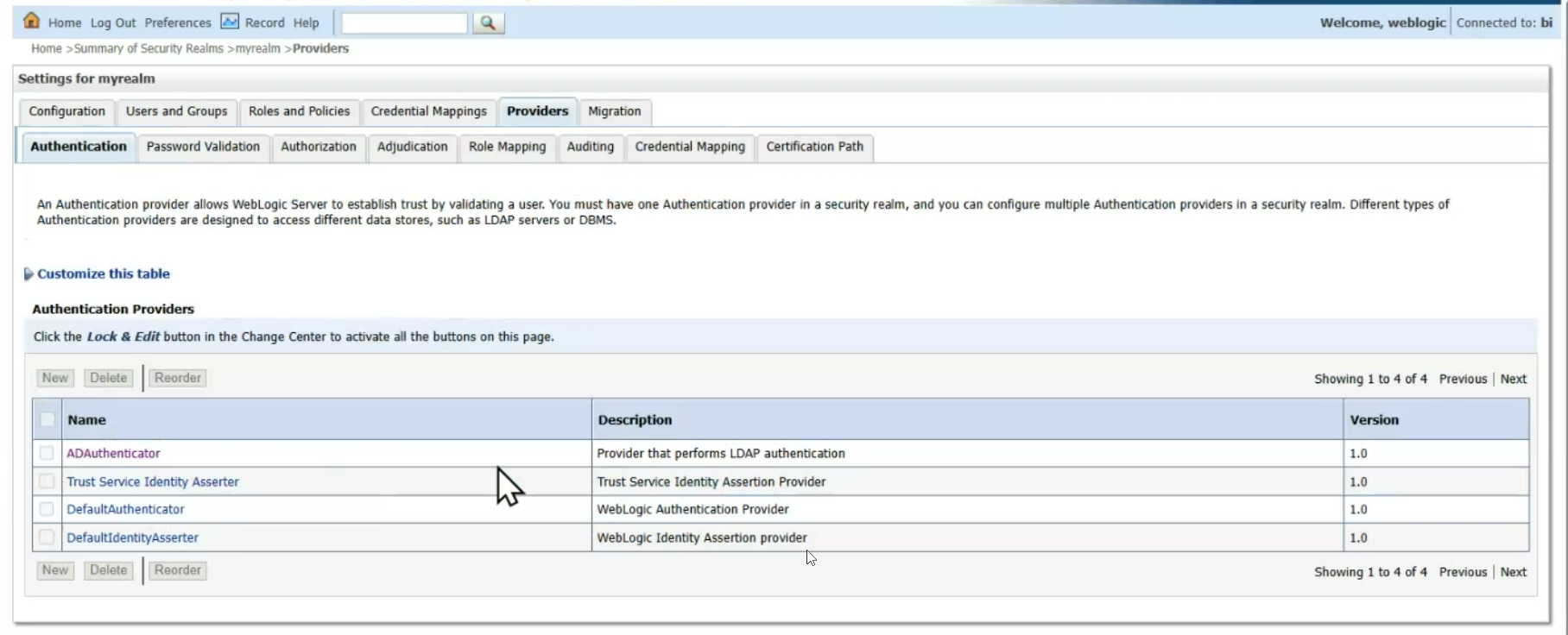
User enters weblogic → AD Authenticator quickly determines “not found” → flow moves to DefaultAuthenticator (embedded LDAP) → sign-in completes
In reality, the AD provider can spend time in multiple places: establishing the LDAP connection, performing the search, or chasing referrals. If any of those steps wait too long, the “not found” result is delayed, and the admin sign-in feels “stuck”.
“If the user doesn’t exist in AD, it will immediately fall through to the next provider.” That is only true when the AD lookup returns quickly. If time limits are effectively infinite (0) or referrals expand the lookup path, a non-existent user can still take a long time.
During the slow sign-in window, we repeatedly saw multiple LDAPConnThread threads and a recurring socketRead0 pattern. Even when the Java thread state shows RUNNABLE, the stack can represent native I/O wait (waiting on a response).
java.net.SocketInputStream.socketRead0
java.io.BufferedInputStream.read / fill
netscape.ldap.ber.stream.BERElement.getElement
netscape.ldap.LDAPConnThread.run
Seeing LDAP wait patterns does not automatically prove LDAP is the root cause. The stronger proof is to correlate the actual login request thread (ExecuteThread / request thread) and show it is blocked in the authentication path.
PID=<bi_server1_pid>
jcmd $PID Thread.print > /tmp/bi_server1_td_1.txt
sleep 10
jcmd $PID Thread.print > /tmp/bi_server1_td_2.txt
sleep 10
jcmd $PID Thread.print > /tmp/bi_server1_td_3.txt
The goal is simple: because weblogic is not in AD, we want the AD Authenticator to stop waiting too long and move on to embedded LDAP. So we focused on controlling (1) the maximum waiting time and (2) unnecessary lookup expansion.
-
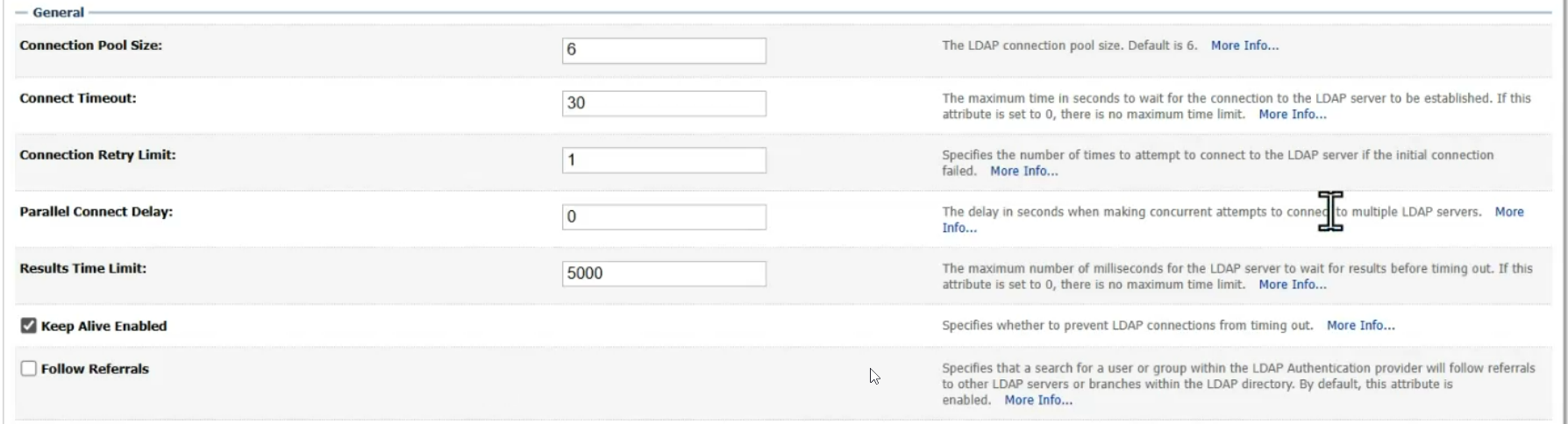
Set a finite Connect Timeout
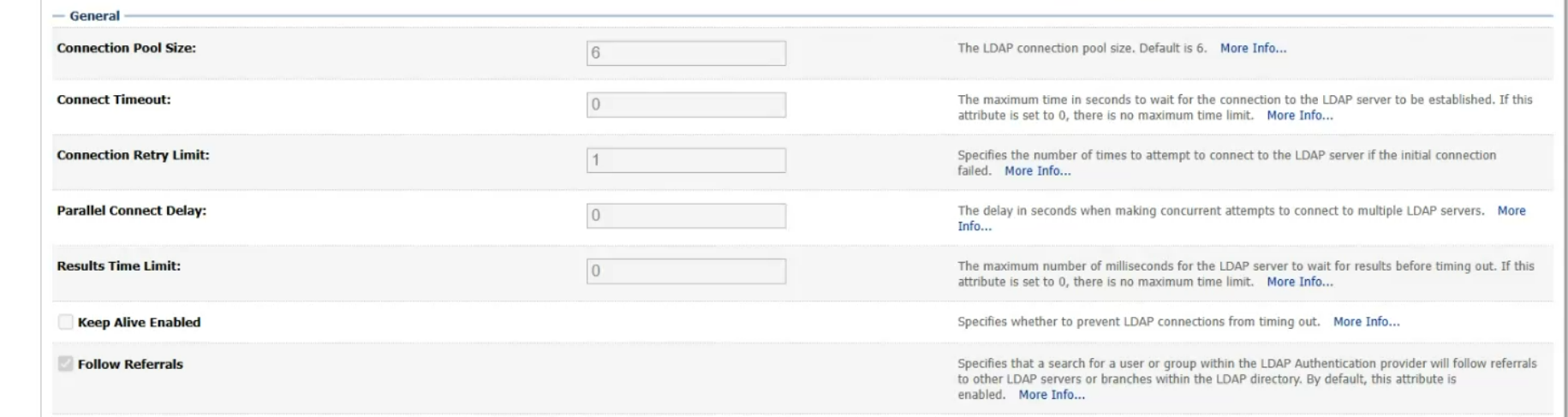
If Connect Timeout is 0, a connection attempt can effectively wait without a hard upper bound (depending on the environment). For troubleshooting and stabilization, starting with something like 10–30 seconds is practical.
Key pointConnect Timeout only covers establishing the connection. If the connection succeeds but the LDAP search is slow, you need a separate search/response time limit.
-
Set a finite Results Time Limit (search/response)
If Results Time Limit is 0, the LDAP search can take a long time and you will see socketRead0 waits. A common starting point is 2000–5000 ms, then adjust based on the environment.
-
Use “Follow Referrals” only when required
Referrals can expand a lookup to additional endpoints. That can increase latency and make analysis harder. If there is no explicit requirement, disabling referrals is often the safer operational choice.
-
Keep Alive is supportive, not the main fix
Keep-alive can reduce connection churn, but the main stabilizer for “worst-case login time” is setting reasonable time limits.
-
Restart after changes
Provider changes often behave more consistently after a restart. In production, do this with a change window and a rollback plan.
The weblogic sign-in time dropped from “minutes” to a shorter, more predictable window (tens of seconds). AD user sign-in remained fast.
I do not recommend changing it just to “fix slowness”.
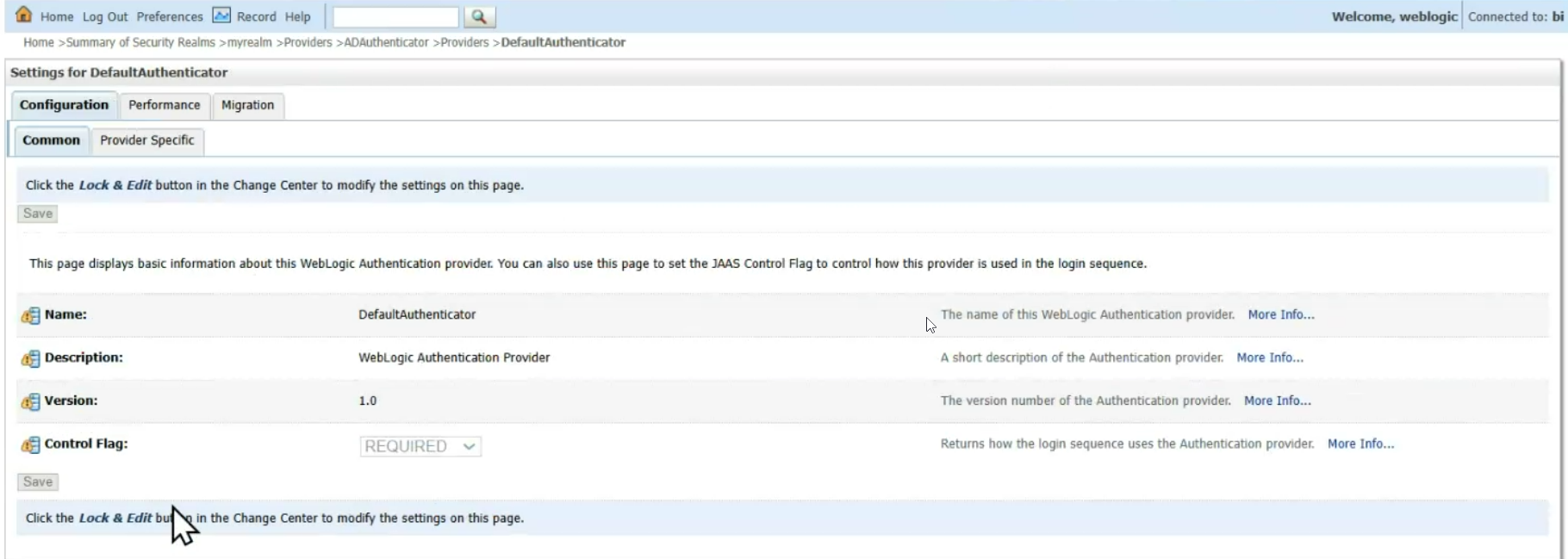
If the weblogic account exists only in embedded LDAP, DefaultAuthenticator = REQUIRED is usually a safe baseline.
In this pattern, the problem is rarely “DefaultAuthenticator is REQUIRED”. The more common issue is that the AD Authenticator is taking too long to decide “not found”. So the first priority is to make the AD path stop waiting too long (timeouts + referral control).
It falls through quickly only if AD returns “not found” quickly. If the network, search, or referrals delay the response, the login can wait until the configured limit (or indefinitely if that limit is 0). In practice, perceived login time is heavily influenced by timeout/referral settings.
- Measure WebLogic Console sign-in time with weblogic (3 trials)
- Measure Analytics sign-in time with weblogic (3 trials)
- Confirm AD user sign-in performance did not regress
- If still slow: recapture dumps and correlate request threads ↔ LDAP wait paths
If dashboards remain slow for all users, treat that as a separate track: query/DB performance. The fastest route is to identify the slow Physical SQL and work with the DBA on execution plans and wait events.