
In our previous post, [Building a High-Performance WordPress Blog with OCI and Cloudflare: Complete Global Performance Optimization Guide 2025], we explored integrating CloudFlare’s CDN services. Today, we’ll dive deep into WordPress server optimization, a crucial aspect of maintaining a stable blog site, particularly in an Oracle Linux 8 environment.
Are you experiencing intermittent connection issues with your WordPress website? In web hosting, stability and performance are paramount, especially when running a CMS like WordPress where various components must work harmoniously. This guide will walk you through WordPress server optimization methods verified in real-world scenarios.
Table of Contents
ToggleWordPress Server Environment Analysis and Performance Diagnosis
Before starting optimization, it’s crucial to accurately assess your system’s current state, much like a doctor checking a patient’s condition before diagnosis.
System Architecture for WordPress Server Optimization
1. Layered Architecture from Optimization Perspective
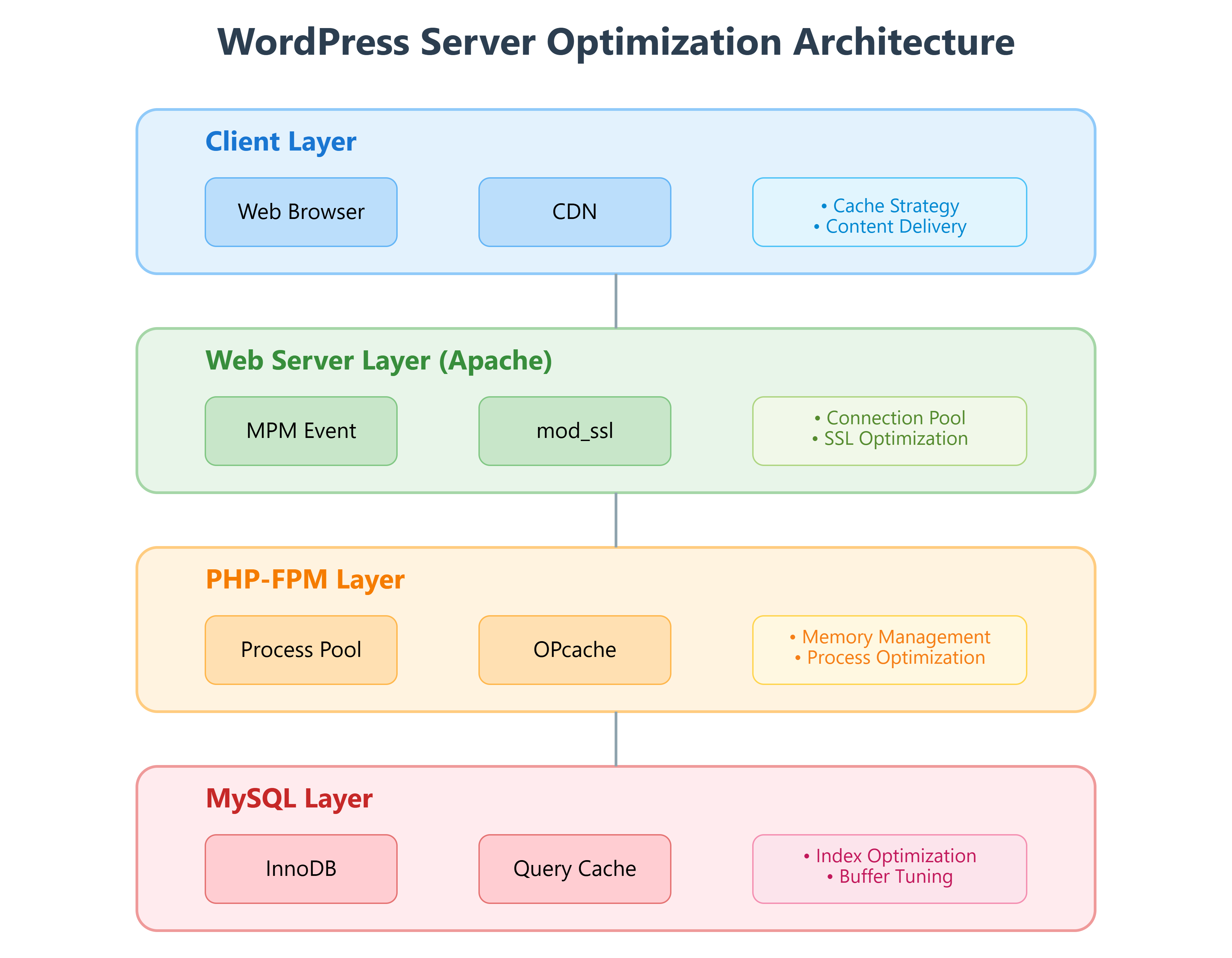
This diagram shows the key layers of a WordPress server and optimization points for each layer. Each layer requires independent yet interconnected optimization, which we’ll cover in detail in the following sections.
2. Actual Server Architecture Configuration
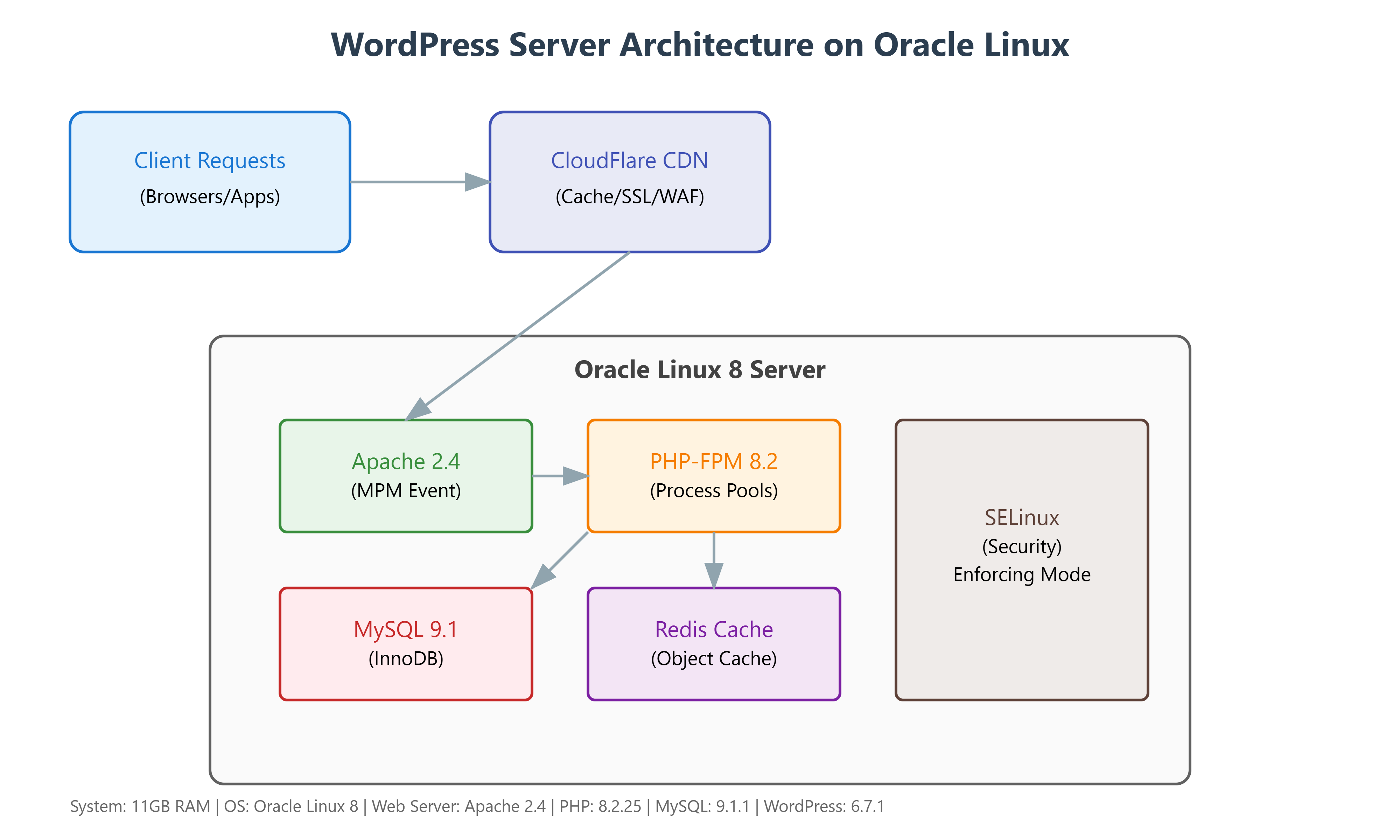
Above diagram illustrates the actual configuration of a WordPress server running on Oracle Linux 8. You can see the complete flow from client requests to database processing and the interactions between each component.
Performance Optimization Metrics by System Component
Our system consists of the following configuration:
Base Environment:
- Operating System: Oracle Linux 8
- Web Server: Apache (httpd)
- PHP Version: 8.2.25
- MySQL Version: MySQL Enterprise – Cloud v9.1.1
- WordPress Version: 6.7.1
Hardware Resources:
- Total Physical Memory (RAM): 11GB
- Currently Used Memory: 1GB
- Buffer/Cache Memory Usage: 7GB
- Available Memory: 9GB
- Swap Memory: 7GB (unused)
This configuration indicates:
- Memory usage has room for performance improvements
- Substantial memory allocation to buffer/cache optimizes I/O performance
- No swap memory usage indicates no memory shortage-related performance issues
Analysis of Settings Affecting WordPress Server Optimization
Current PHP and WordPress Settings:
- PHP Memory Limit: 256M
- WordPress Memory Limit: 40M
- WordPress Maximum Memory Limit: 256M
- PHP Maximum Input Variables: 1000
- PHP Maximum POST Size: 64M
Key Issues Identified from Current Settings Review:
- Memory Configuration Imbalance:
- WordPress memory limit is disproportionately low compared to PHP memory limit
- System Memory: 11GB
- WordPress Memory Limit: 40M (utilizing less than 1% of available system resources)
- PHP and WordPress Memory Setting Mismatch:
- PHP Memory Limit: 256M
- WordPress Memory Limit: 40M This discrepancy means WordPress is self-limiting despite PHP processes having access to more memory.
PHP Configuration Limitations
Several critical limitations have been identified in the current PHP configuration:
- Restricted Input Variables:
- Current setting: max_input_vars = 1000
- This can be a severe limitation when using page builders like Elementor
- May cause issues when processing complex pages or forms
- Limited POST Size:
- Current setting: post_max_size = 64M
- Can cause problems when uploading large media files or saving complex pages
Server Configuration for WordPress Performance Tuning
Server optimization is like conducting an orchestra – various components must work in harmony, and changes to one part can affect others.
Configuration File Backup
The first step is backing up your current configuration. Use the following script to backup all critical settings:
#!/bin/bash
# backup_configs.sh

# Create backup directory
BACKUP_DIR="$(date +%Y%m%d_%H%M%S)"
BACKUP_DIR="/root/config_backups/${BACKUP_DIR}"
mkdir -p $BACKUP_DIR

# Backup Apache configuration
cp -r /etc/httpd $BACKUP_DIR/
echo "Apache configuration backup completed"

# Backup PHP configuration
cp /etc/php.ini $BACKUP_DIR/
cp -r /etc/php.d $BACKUP_DIR/
cp -r /etc/php-fpm.d $BACKUP_DIR/
echo "PHP configuration backup completed"

# Backup WordPress configuration
cp /var/www/html/wordpress/wp-config.php $BACKUP_DIR/
echo "WordPress configuration backup completed"
Apache Web Server Performance Tuning
Apache serves as your website’s gateway, and its optimization significantly impacts overall performance.
1. MPM Module Selection and Configuration
Oracle Linux 8 provides two MPM options. Here’s the recommended Event MPM configuration:
# /etc/httpd/conf.modules.d/00-mpm.conf

# Event MPM (recommended)
<IfModule mpm_event_module>
  StartServers 3
  MinSpareThreads 25
  MaxSpareThreads 75
  ThreadLimit 64
  ThreadsPerChild 25
  MaxRequestWorkers 400
  MaxConnectionsPerChild 0
</IfModule>
Each setting’s purpose and impact:
- StartServers: Initial number of server processes (adjust based on server memory)
- ThreadsPerChild: Number of threads per process (consider CPU core count)
- MaxRequestWorkers: Maximum simultaneous request capacity (relates to memory usage)
2. WordPress Virtual Host Configuration
# /etc/httpd/conf.d/wordpress.conf

<VirtualHost *:80>
  ServerName yourdomain.com
  ServerAlias www.yourdomain.com
  DocumentRoot /var/www/html/wordpress

  # Logging configuration
  LogLevel warn
  ErrorLog logs/yourdomain.com-error.log
  CustomLog logs/yourdomain.com-access.log combined

  # HTTPS redirect
  RewriteEngine On
  RewriteCond %{HTTPS} off
  RewriteRule ^(.*)$ https://%{HTTP_HOST}%{REQUEST_URI} [L,R=301]
</VirtualHost>

<VirtualHost *:443>
  ServerName yourdomain.com
  ServerAlias www.yourdomain.com
  DocumentRoot /var/www/html/wordpress

  # SSL Configuration
  SSLEngine on
  SSLCertificateFile /etc/letsencrypt/live/yourdomain.com/fullchain.pem
  SSLCertificateKeyFile /etc/letsencrypt/live/yourdomain.com/privkey.pem

  # Enhanced SSL Security
  SSLProtocol all -SSLv3 -TLSv1 -TLSv1.1
  SSLCipherSuite ECDHE-ECDSA-AES128-GCM-SHA256:ECDHE-RSA-AES128-GCM-SHA256
  SSLHonorCipherOrder off

  # WordPress Directory Settings
  <Directory /var/www/html/wordpress>
    Options Indexes FollowSymLinks MultiViews
    AllowOverride All
    Require all granted

    # Performance Optimization
    EnableSendfile On
    FileETag None
  </Directory>
</VirtualHost>
PHP-FPM Optimization for WordPress Performance
PHP serves as WordPress’s execution engine, and its configuration directly impacts performance.
1. Basic PHP Configuration
# /etc/php.ini
; Memory Settings
memory_limit = 512M
max_execution_time = 300
max_input_time = 300
max_input_vars = 3000

; File Upload Settings
upload_max_filesize = 128M
post_max_size = 128M
max_file_uploads = 50

; Session Settings
session.gc_maxlifetime = 1440
session.gc_probability = 1
session.gc_divisor = 100

; Error Handling (Production Environment)
error_reporting = E_ALL & ~E_DEPRECATED & ~E_STRICT
display_errors = Off
log_errors = On
error_log = /var/log/php_errors.log
2. PHP-FPM Configuration
# /etc/php-fpm.d/www.conf

[www]
; Process Management
pm = dynamic
pm.max_children = 50
pm.start_servers = 5
pm.min_spare_servers = 5
pm.max_spare_servers = 35
pm.max_requests = 500

; Resource Limits
php_admin_value[memory_limit] = 512M
php_admin_value[max_execution_time] = 300

; Logging Configuration
php_admin_flag[log_errors] = on
php_admin_value[error_log] = /var/log/php-fpm/www-error.log
WordPress Configuration Optimization
WordPress configuration significantly impacts performance:
# /var/www/html/wordpress/wp-config.php

// Memory Settings
define('WP_MEMORY_LIMIT', '512M');
define('WP_MAX_MEMORY_LIMIT', '1024M');

// Performance Optimization
define('DISABLE_WP_CRON', true);
define('WP_CACHE', true);
define('EMPTY_TRASH_DAYS', 7);
define('WP_POST_REVISIONS', 5);

// Debugging Settings (Production)
define('WP_DEBUG', false);
define('WP_DEBUG_LOG', false);
define('WP_DEBUG_DISPLAY', false);
Configuration Changes and Service Restart
Changing configurations requires the same caution as replacing parts in a running engine. Here’s the safe procedure:
WordPress Service Restart Script
#!/bin/bash

# ================================
# Service Restart Script
# ================================

# Colors
RED='\033[0;31m'
GREEN='\033[0;32m'
YELLOW='\033[1;33m'
NC='\033[0m'

# Log file
LOG_FILE="/var/log/service_restart_$(date +%Y%m%d).log"
exec 1> >(tee -a "$LOG_FILE") 2>&1

# Services to restart
SERVICES=("php-fpm" "httpd")

# Prevent concurrent execution
LOCK_FILE="/tmp/service_restart.lock"
exec 200>$LOCK_FILE
flock -n 200 || { echo -e "${RED}Another instance is already running.${NC}"; exit 1; }

echo "$(date '+%Y-%m-%d %H:%M:%S') : Starting service restart process"

# Syntax check
echo -e "${YELLOW}Checking configuration syntax...${NC}"
if ! httpd -t; then
    echo -e "${RED}Apache configuration syntax error!${NC}"
    exit 1
fi

if ! php-fpm -t; then
    echo -e "${RED}PHP-FPM configuration syntax error!${NC}"
    exit 1
fi

# Restart services
for SERVICE in "${SERVICES[@]}"; do
    echo -e "${YELLOW}Restarting ${SERVICE}...${NC}"
    if systemctl restart "$SERVICE"; then
        if systemctl is-active --quiet "$SERVICE"; then
            echo -e "${GREEN}${SERVICE} restarted successfully${NC}"
        else
            echo -e "${RED}${SERVICE} is not active after restart!${NC}"
            exit 1
        fi
    else
        echo -e "${RED}Failed to restart ${SERVICE}${NC}"
        exit 1
    fi
    sleep 2
done

# Check logs
echo -e "${YELLOW}Recent error logs:${NC}"
echo "---- Apache Error Log ----"
tail -n 10 /var/log/httpd/error_log || echo "No Apache error log found."
echo "---- PHP-FPM Error Log ----"
tail -n 10 /var/log/php-fpm/error.log || echo "No PHP-FPM error log found."

echo "$(date '+%Y-%m-%d %H:%M:%S') : Service restart completed"
Configuration Implementation Order
1. Apache Configuration Changes:
# Modify configurations
sudo vi /etc/httpd/conf/httpd.conf
sudo vi /etc/httpd/conf.d/wordpress.conf

# Verify configuration
sudo httpd -t
2. PHP Configuration Changes:
# Modify PHP settings
sudo vi /etc/php.ini
sudo vi /etc/php-fpm.d/www.conf

# Verify configuration
sudo php-fpm -t
3. WordPress Configuration Changes:
# Modify wp-config.php
sudo vi /var/www/html/wordpress/wp-config.php
4. Service Restart:
sudo ./restart_services.sh
Enhancing WordPress Security with SELinux
Oracle Linux’s SELinux configuration affects both security and performance:
# WordPress directory context configuration
sudo semanage fcontext -a -t httpd_sys_content_t "/var/www/html/wordpress(/.*)?"
sudo semanage fcontext -a -t httpd_sys_rw_content_t "/var/www/html/wordpress/wp-content(/.*)?"
sudo restorecon -Rv /var/www/html/wordpress

# Additional SELinux settings
sudo setsebool -P httpd_can_network_connect on
sudo setsebool -P httpd_can_network_connect_db on
sudo setsebool -P httpd_unified on

# SELinux status verification
sestatus
getsebool -a | grep httpd
WordPress Server Monitoring and Maintenance
Implementing Effective System Monitoring
A systematic monitoring strategy is essential for maximizing WordPress server performance and ensuring stable operation. Here’s our field-tested approach to monitoring setup:
Real-time Resource Monitoring Configuration
#!/bin/bash
# monitor_system_resources.sh

# Color definitions
GREEN='\033[0;32m]'
YELLOW='\033[1;33m'
RED='\033[0;31m'
NC='\033[0m'

# Memory monitoring function
monitor_memory() {
  free -m | awk '
  NR==2{
    used=$3
    total=$2
    pct=used*100/total
    printf "Memory Usage: %d/%dMB (%.1f%%)\n", used, total, pct
    if (pct > 90) {
      exit 1
    } else if (pct > 80) {
      exit 2
    }
  }'
  return $?
}

# CPU monitoring function
monitor_cpu() {
  cpu_usage=$(top -bn1 | grep "Cpu(s)" | awk '{print $2}' | cut -d. -f1)
  echo "CPU Usage: ${cpu_usage}%"

  if [ $cpu_usage -gt 90 ]; then
    return 1
  elif [ $cpu_usage -gt 80 ]; then
    return 2
  else
    return 0
  fi
}

# Disk monitoring function
monitor_disk() {
  disk_usage=$(df -h / | awk 'NR==2{print $5}' | cut -d% -f1)
  echo "Disk Usage: ${disk_usage}%"

  if [ $disk_usage -gt 90 ]; then
    return 1
  elif [ $disk_usage -gt 80 ]; then
    return 2
  else
    return 0
  fi
}
Key Performance Indicators (KPI) Setup and Tracking
Setup for tracking and analyzing key performance indicators of WordPress server:
#!/bin/bash
# monitor_wordpress_kpi.sh

# WordPress process monitoring
monitor_wordpress_processes() {
  echo "=== WordPress Process Status ==="

  # PHP-FPM process status
  php_proc=$(ps aux | grep php-fpm | wc -l)
  echo "PHP-FPM Process Count: ${php_proc}"

  # Apache process status
  apache_proc=$(ps aux | grep httpd | wc -l)
  echo "Apache Process Count: ${apache_proc}"

  # MySQL connection status
  mysql_conn=$(mysqladmin status | awk '{print $4}')
  echo "MySQL Active Connections: ${mysql_conn}"
}

# Performance metrics collection
collect_performance_metrics() {
  echo "=== Performance Metrics ==="

  # Page load time check
  curl -w "Page Load Time: %{time_total}s\n" -o /dev/null -s your-domain.com

  # PHP memory usage
  memory_usage=$(php -r "echo memory_get_usage(true);")
  echo "PHP Memory Usage: $((memory_usage/1024/1024))MB"
}
Monitoring Dashboard Implementation
A simple dashboard script to visualize resource monitoring results:
#!/bin/bash
# dashboard_generator.sh

# Generate HTML dashboard
generate_dashboard() {
    cat << EOF > /var/www/html/dashboard/index.html
<!DOCTYPE html>
<html>
<head>
  <title>WordPress Server Monitoring Dashboard</title>
  <meta http-equiv="refresh" content="60">
  <style>
    body { font-family: Arial, sans-serif; margin: 20px; }
    .metric { border: 1px solid #ddd; padding: 10px; margin: 10px; }
    .warning { background-color: #fff3cd; }
    .critical { background-color: #f8d7da; }
  </style>
</head>
<body>
  <h1>WordPress Server Status</h1>
  <div class="metrics">
$(generate_metrics_html)
  </div>
  <div class="logs">
    <h2>Recent Error Logs</h2>
$(tail -n 10 /var/log/httpd/error_log | sed 's/$/<br>/')
  </div>
</body>
</html>
EOF
}
Core Log Analysis and Management
Efficient server log management and analysis are crucial for troubleshooting and performance optimization.
Critical Log File Locations and Usage
# Log path configuration
LOG_PATHS=(
    "/var/log/httpd/error_log" # Apache error log
    "/var/log/httpd/access_log" # Apache access log
    "/var/log/php-fpm/error.log" # PHP-FPM error log
    "/var/log/php-fpm/www-slow.log" # PHP slow script log
    "/var/www/html/wordpress/wp-content/debug.log" # WordPress debug log
)
Log Rotation and Retention Policy
# /etc/logrotate.d/wordpress
/var/log/httpd/*log {
    daily
    rotate 14
    compress
    delaycompress
    missingok
    notifempty
    create 640 apache apache
    sharedscripts
    postrotate
        /bin/systemctl reload httpd.service > /dev/null 2>/dev/null || true
    endscript
}
Automated Log Analysis Script
#!/bin/bash
# analyze_logs.sh

# Error pattern definitions
ERROR_PATTERNS=(
    "PHP Fatal error"
    "ERROR"
    "failed"
    "Connection refused"
    "Permission denied"
)

# Log analysis function
analyze_logs() {
    local log_file=$1
    echo "=== Analysis: $log_file ==="

    for pattern in "${ERROR_PATTERNS[@]}"; do
        count=$(grep -c "$pattern" "$log_file")
        if [ $count -gt 0 ]; then
            echo "$pattern: $count occurrences"
            grep "$pattern" "$log_file" | tail -n 3
        fi
    done
}
Systematic Maintenance Process
Daily/Weekly/Monthly Checkpoints
#!/bin/bash
# maintenance_checklist.sh

# Daily checks
daily_check() {
    # Service status verification
    for service in httpd php-fpm mysqld; do
        systemctl status $service
    done

    # Disk space check
    df -h
    du -sh /var/log/*
}

# Weekly checks
weekly_check() {
    # Database optimization
    mysql -e "OPTIMIZE TABLE wp_posts, wp_postmeta, wp_options;"

    # Old log cleanup
    find /var/log/httpd/ -name "*.log" -mtime +30 -delete
}

# Monthly checks
monthly_check() {
    # Complete database analysis
    mysqlcheck -A --analyze

    # System update check
    yum check-update
}
Database Optimization Schedule
#!/bin/bash
# optimize_database.sh

# Database optimization function
optimize_wordpress_db() {
    echo "Starting WordPress database optimization..."

    # Transaction log optimization
    mysql -e "RESET MASTER;"

    # Table optimization
    mysql -e "
ANALYZE TABLE wp_posts, wp_postmeta;
OPTIMIZE TABLE wp_options;
REPAIR TABLE wp_posts;
"

    # Cleanup unnecessary data
    wp post delete $(wp post list --post_status=trash --format=ids) --force
    wp comment delete $(wp comment list --status=spam --format=ids)
}
Backup and Recovery Strategy
#!/bin/bash
# backup_wordpress.sh

# Backup configuration
BACKUP_DIR="/backup/wordpress"
KEEP_DAYS=30
DB_NAME="wordpress"
DB_USER="wordpress_user"
DB_PASS="your_password"

# Backup execution function
backup_wordpress() {
    # Generate timestamp
    TIMESTAMP=$(date +%Y%m%d_%H%M%S)

    # Database backup
    mysqldump $DB_NAME > "$BACKUP_DIR/db_$TIMESTAMP.sql"

    # File backup
    tar -czf "$BACKUP_DIR/files_$TIMESTAMP.tar.gz" /var/www/html/wordpress

    # Clean old backups
    find $BACKUP_DIR -type f -mtime +$KEEP_DAYS -delete
}
WordPress Server Troubleshooting Guide
Connection Issue Diagnosis and Resolution
Let’s explore systematic methods to diagnose and resolve connection issues occurring in WordPress servers.
#!/bin/bash
# connection_diagnosis.sh

# Color definitions
RED='\033[0;31m'
GREEN='\033[0;32m'
YELLOW='\033[1;33m'
NC='\033[0m'

# Log file paths
APACHE_ERROR_LOG="/var/log/httpd/error_log"
PHP_ERROR_LOG="/var/log/php-fpm/error.log"
SYSTEM_LOG="/var/log/messages"

# Connection status diagnosis
check_connections() {
    echo -e "${YELLOW}""=== Current Connection Status Analysis ===""${NC}"

    # Check active connections
    active_connections=$(netstat -an | grep ESTABLISHED | wc -l)
    echo "Active Connections: ${active_connections}"

    # Apache worker status
    apache_workers=$(ps aux | grep httpd | wc -l)
    echo "Apache Workers: ${apache_workers}"

    # PHP-FPM process status
    php_processes=$(ps aux | grep php-fpm | wc -l)
    echo "PHP-FPM Processes: ${php_processes}"
}

# Log analysis function
analyze_logs() {
    echo -e "${YELLOW}""=== Recent Errors Analysis ===""${NC}"

    echo "Apache Errors:"
    tail -n 20 $APACHE_ERROR_LOG | grep -i "error\|failed\|timeout"

    echo -e "\nPHP-FPM Errors:"
    tail -n 20 $PHP_ERROR_LOG | grep -i "error\|failed\|timeout"

    echo -e "\nSystem Messages:"
    tail -n 20 $SYSTEM_LOG | grep -i "error\|failed\|oom"
}
Performance Degradation Analysis and Response
#!/bin/bash
# performance_troubleshoot.sh

# Performance metrics collection function
collect_performance_metrics() {
    echo "=== System Performance Metrics ==="

    # CPU usage
    echo "CPU Utilization:"
    top -bn1 | grep "Cpu(s)" | awk '{print $2}'

    # Memory usage
    echo -e "\nMemory Usage:"
    free -m

    # Disk I/O
    echo -e "\nDisk I/O Status:"
    iostat -x 1 3

    # MySQL status
    echo -e "\nMySQL Status:"
    mysqladmin status
}

# Immediate performance improvement measures
improve_performance() {
    echo "=== Executing Performance Improvement Measures ==="

    # Cache clearance
    echo "Clearing PHP OPCache..."
    php -r 'opcache_reset();'

    # WordPress cache cleanup
    echo "Clearing WordPress cache..."
    wp cache flush

    # Process cleanup
    echo "Cleaning up zombie processes..."
    killall -9 defunct

    # Service restart
    echo "Restarting core services..."
    systemctl restart php-fpm
    systemctl restart httpd
}
Automatic Recovery Process
#!/bin/bash
# auto_recovery.sh

# Threshold settings
MAX_LOAD=10
MAX_MEMORY_USAGE=90
MAX_CONNECTIONS=200

# System health check function
check_system_health() {
    # Load average check
    load_average=$(uptime | awk '{print $(NF-2)}' | cut -d. -f1)

    # Memory usage check
    memory_usage=$(free | grep Mem | awk '{print $3/$2 * 100.0}')

    # Connection count check
    connections=$(netstat -an | grep ESTABLISHED | wc -l)

    # Status evaluation and action
    if [ $load_average -gt $MAX_LOAD ] || \
       [ ${memory_usage%.*} -gt $MAX_MEMORY_USAGE ] || \
       [ $connections -gt $MAX_CONNECTIONS ]; then
        return 1
    fi
    return 0
}

# Recovery process
execute_recovery() {
    echo "$(date): Initiating recovery process"

    # Cache reset
    php -r 'opcache_reset();'
    wp cache flush

    # Service restart
    systemctl restart php-fpm
    systemctl restart httpd

    # Email notification
    mail -s "WordPress Server Automatic Recovery Executed" admin@example.com << EOF
Server automatic recovery has been executed.
Time: $(date)
Actions: Cache reset and service restart
Current Status:
$(collect_performance_metrics)
EOF
}
Conclusion and Key Guidelines
Effective Problem-Solving Checklist
- Preparation
- Backup all configuration files
- Document performance baselines
- Maintain emergency contact list
- Problem Resolution Process
- Accurately identify symptoms
- Analyze logs for root causes
- Apply solutions incrementally
- Document all changes
- Post-Resolution Management
- Document resolution process
- Implement prevention measures
- Enhance monitoring systems
Recommendations for Continuous Improvement
- Conduct regular performance testing
- Maintain security update schedule
- Verify backup and recovery procedures
- Update team training and technical documentation
Server optimization is more than just configuration changes; it’s about understanding how system components interact and finding the optimal balance between them. By following these guidelines and maintaining consistent monitoring and maintenance, you can achieve a high-performance, stable WordPress installation.
Key Points to Remember:
- Always backup configurations before changes
- Make one change at a time for easier troubleshooting
- Monitor system stability after each change
- Disable debugging in production environments
This comprehensive approach to WordPress server optimization on Oracle Linux 8 will help you maintain a robust, high-performance website. Remember, when issues arise, stay calm and follow the established procedures systematically.
Note: All commands and configurations in this guide are based on Oracle Linux 8 and WordPress 6.7.1. Adjust settings according to your specific environment and requirements.