
Table of Contents
ToggleThis article reviews domain and HTTPS configuration for a WordPress installation on OCI using Oracle Linux 8 and Apache as examples. Check the actual installation, request path and recovery procedure before applying them.
Understanding Domain Names
A domain provides a name visitors can use to reach the site. DNS can be updated when a server address changes, allowing the visitor-facing name to remain the same. This does not by itself preserve database connections or validate a migration.
Why Domain Names Matter for OCI WordPress Sites
When running WordPress on an OCI compute instance, having a proper domain name becomes even more crucial for several reasons:
- SSL Certificate Management
- This article uses domain certificates; IP certificates have separate client, profile and renewal requirements
- Domain names enable free Let’s Encrypt certificate usage
- Easier to maintain secure HTTPS connections
- Separating Site Names from Server Addresses
- Maintain consistent site settings despite IP changes
- Simplify backup and migration processes
- Domain configuration alone does not prevent database connection failures or prove backup/restore success
- Cloud Infrastructure Flexibility
- Keep the same address during instance recreation
- Enable load balancer implementation
- Facilitate regional expansion and scaling
Prerequisites
Before we begin, ensure you have:
- Domain Requirements
- A purchased domain name
- Access to domain registrar’s control panel
- DNS management permissions
- Server Information
- Your OCI compute instance’s public IP address
- SSH access credentials
- Sudo privileges on the server
- WordPress Access
- WordPress admin credentials
- Current site functionality verification
DNS Configuration: Connecting Domain to Server
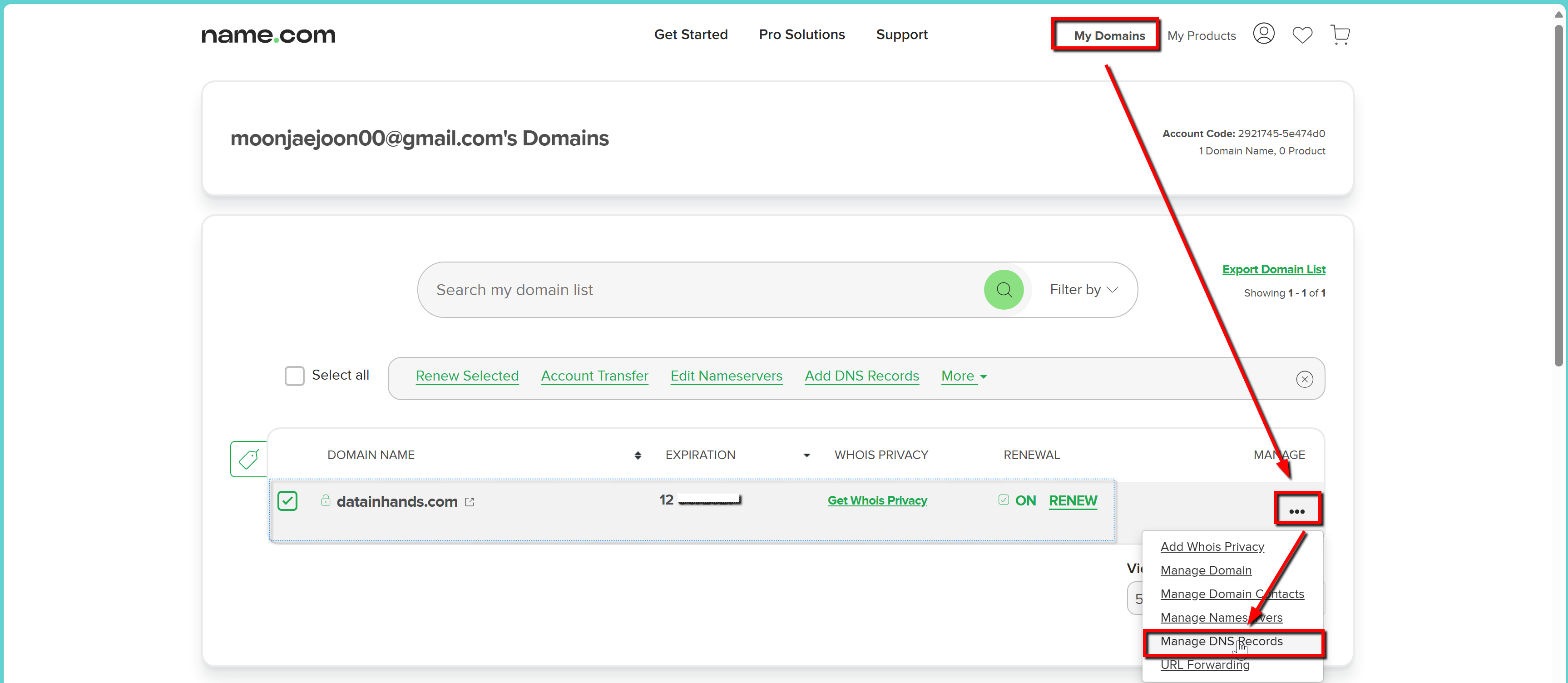
DNS (Domain Name System) acts as the internet’s address book. It tells browsers where to find your website when someone types in your domain name. Let’s set this up step by step.
Setting Up DNS Records
Log in to your domain registrar’s control panel. You’ll need to create two types of records:
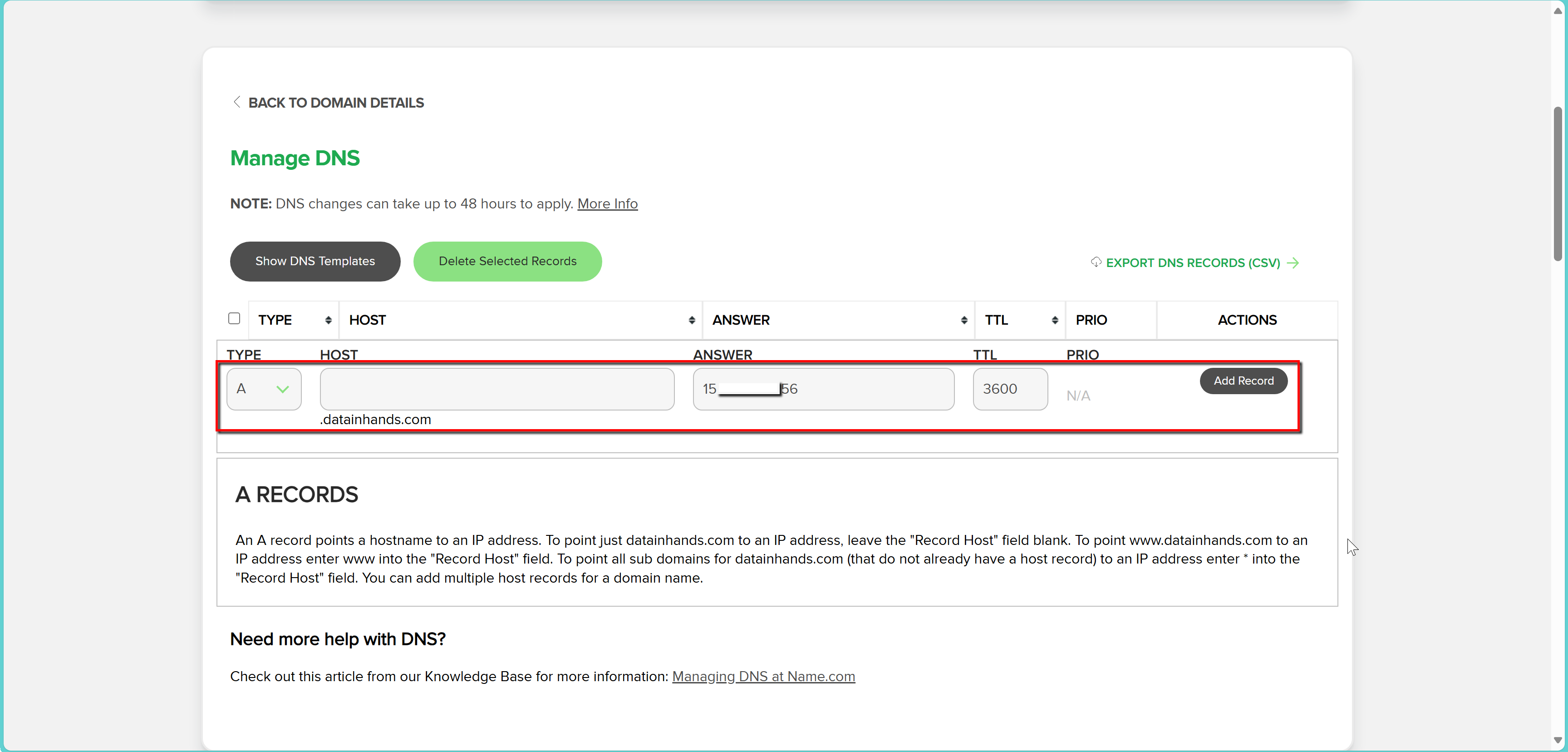
[A Record]
Host: @ (or leave blank)
Answer: [Your OCI Instance IP]
TTL: 3600
An A record maps a name to an IPv4 address. A CNAME aliases another name; it is not an HTTP redirect and does not configure the web server or certificate. A CDN or load balancer may change which address should be published.
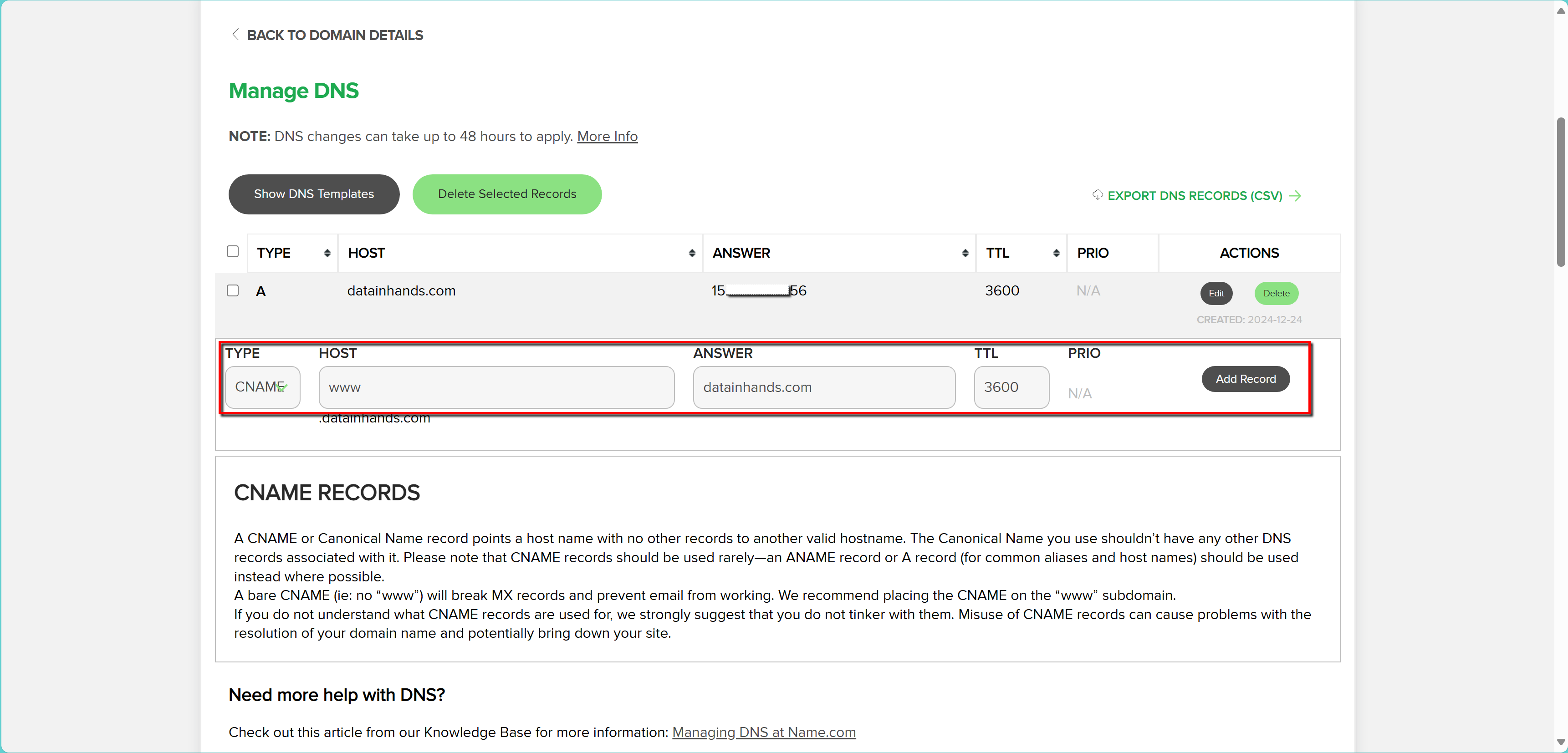
[CNAME Record]
Host: www
Answer: yourdomain.com
TTL: 3600
WordPress Settings Update
Now we need to tell WordPress about its new address. This step requires careful attention – a wrong setting here could temporarily lock you out of your site.
- Access your WordPress admin panel
- Navigate to Settings > General
- Update these two crucial URLs:
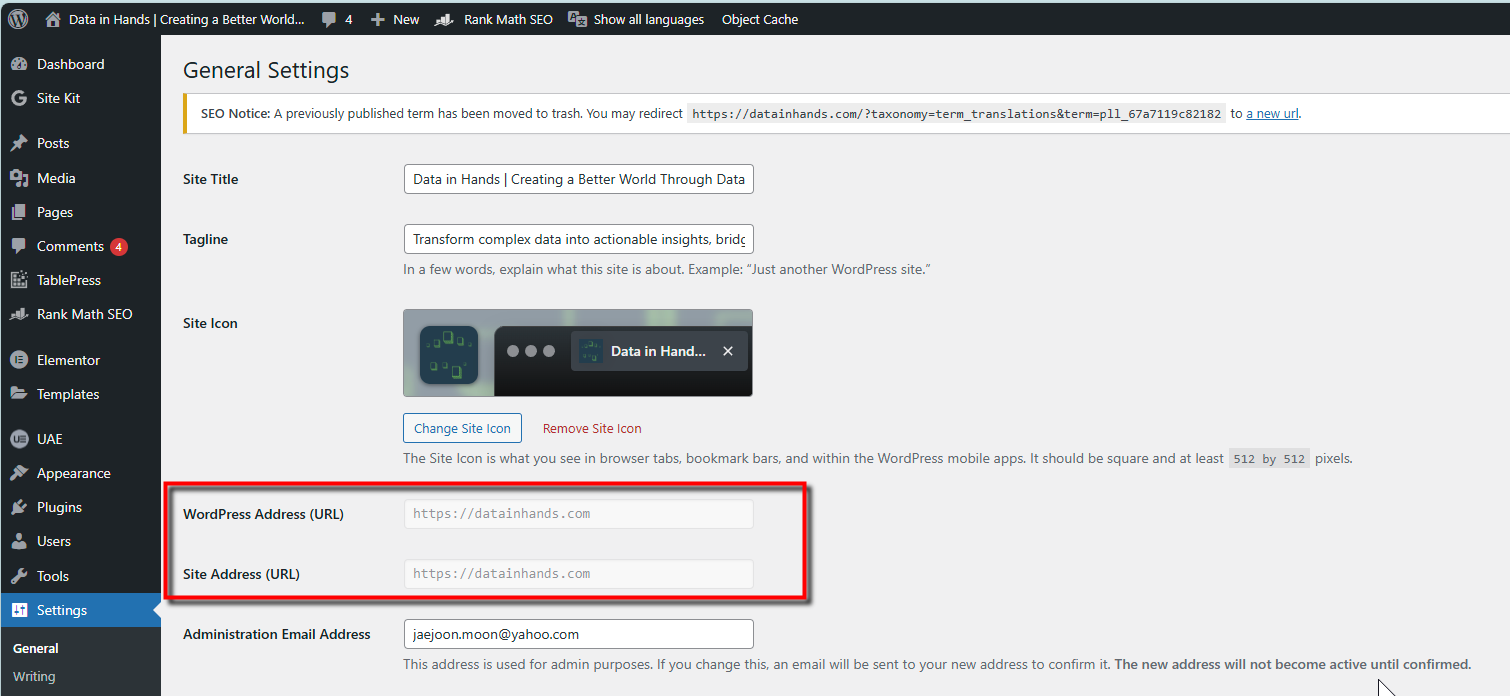
Site Address (URL): https://yourdomain.com
Verify DNS, web-server and HTTPS readiness before changing the URLs. WordPress Address identifies the installation location and Site Address the visitor-facing location; they may differ for a subdirectory installation. Loss of access is a symptom to investigate, not proof of a normal transition.
Apache Web Server Configuration
This example uses Apache. OCI does not require WordPress to use that web server. Confirm the installed server and its actual configuration before applying these steps:
1. Create Virtual Host Directory Structure
sudo mkdir -p /etc/httpd/sites-available

sudo mkdir -p /etc/httpd/sites-enabled
This directory layout is one way to organize virtual hosts. Creating directories or symlinks does not make Apache load them; check the actual Include path and avoid duplicate configuration entries.
2. Create Domain Configuration
sudo nano /etc/httpd/sites-available/yourdomain.com.confThis is a configuration example. Parenthesized sample annotations are not Apache directives; verify log variables and paths for the actual distribution. Review and adapt it before use:
<VirtualHost *:80>
       ServerName yourdomain.com
       ServerAlias www.yourdomain.com (ex. www.datainhands.com)
       DocumentRoot /var/www/html

       <Directory /var/www/html>
           Options Indexes FollowSymLinks MultiViews
           AllowOverride All
           Require all granted
       </Directory>

       ErrorLog ${APACHE_LOG_DIR}/error.log
       CustomLog ${APACHE_LOG_DIR}/access.log combined
   </VirtualHost>
This configuration:
- Selects a matching host name among virtual hosts for an address and port; listening sockets are configured separately
- Handles both www and non-www versions
- Sets the website file location
- Enables .htaccess file usage
- Sets up proper logging
3. Activate the Configuration
# Create symbolic link
sudo ln -s /etc/httpd/sites-available/yourdomain.com.conf /etc/httpd/sites-enabled/

# Add configuration directory to Apache
echo "IncludeOptional sites-enabled/*.conf" | sudo tee -a /etc/httpd/conf/httpd.conf

# Restart Apache
sudo systemctl restart httpd
Securing Your Site with SSL Certificate
The following steps use Let’s Encrypt to obtain a free SSL certificate for encrypted communication between your website and its visitors.
1. Installing Required Packages
First, let’s install the necessary tools:
sudo dnf -y install oracle-epel-release-el8
# Install Certbot and its Apache plugin
sudo dnf -y install certbot python3-certbot-apache
2. Setting Up SSL Environment
The following self-signed certificate is an optional example, not a mandatory Certbot or domain-validation step. Check its purpose and the paths Apache actually uses:
sudo mkdir -p /etc/pki/tls/certs
# Generate a temporary self-signed certificate
sudo openssl req -x509 -nodes -days 365 -newkey rsa:2048 \
-keyout /etc/pki/tls/private/localhost.key \
-out /etc/pki/tls/certs/localhost.crt
# Restart Apache to apply changes
sudo systemctl restart httpd
Default answers do not establish hostname matching or public trust. A self-signed certificate is not automatically trusted by ordinary browsers; do not bypass browser warnings as a substitute for validating production HTTPS.
3. Obtaining Let's Encrypt Certificate
Now for our official SSL certificate:
# Request certificate and configure Apache
sudo certbot --apache -d yourdomain.com -d www.yourdomain.com
The Apache plugin can perform these tasks when domain validation and supported configuration succeed. Check the selected options and actual results:
- Verify your domain ownership
- Generate secure certificates
- Configure Apache automatically
- Configure HTTPS redirection according to the selected options and supported configuration
4. Setting Up Automatic Renewal
Schedule renewal checks before expiry. Certificate lifetime and renewal eligibility depend on the selected profile and Certbot version; do not assume a fixed 90-day renewal interval:
# Test the renewal process
sudo certbot renew --dry-run

# Check automatic renewal service status
sudo systemctl status certbot-renew.timer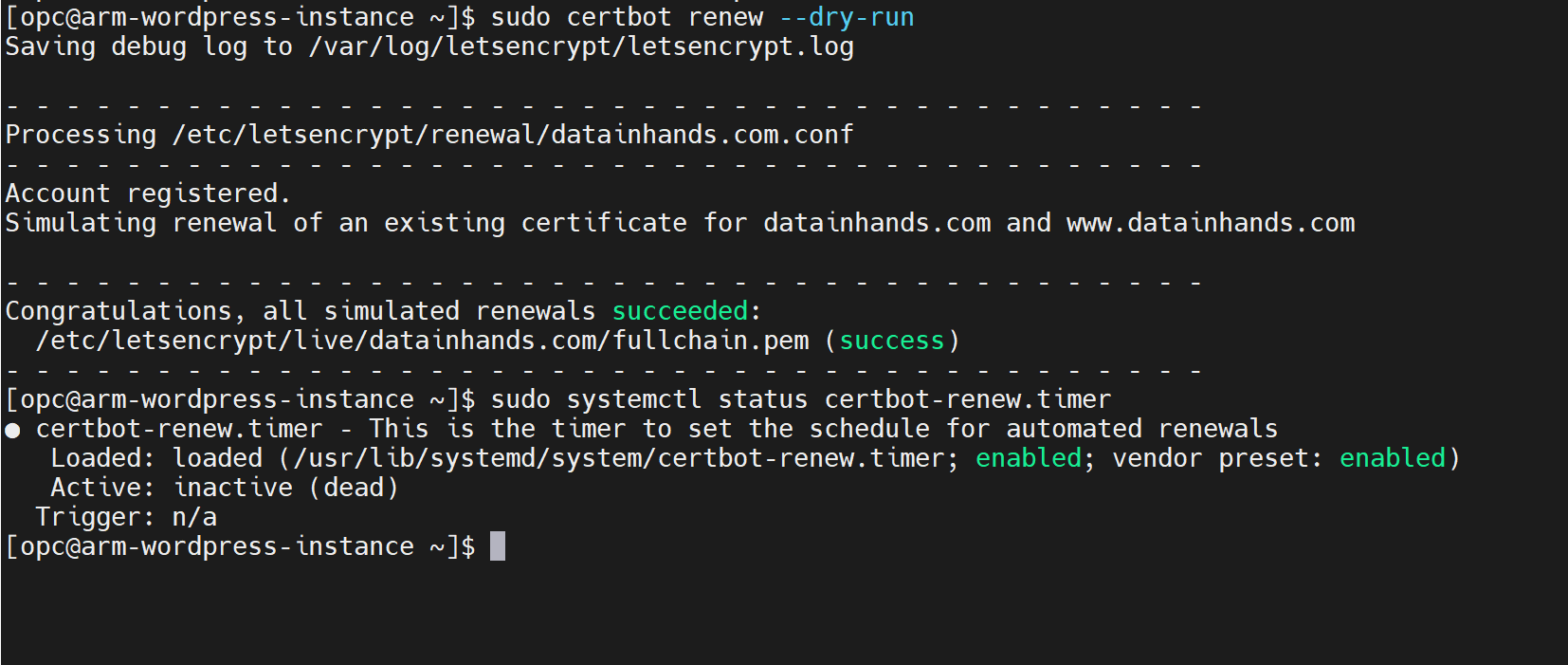
An inactive unit is not currently waiting to trigger, but another timer or cron may handle renewal. Confirm the installation method and actual scheduler before enabling the example unit below:
sudo systemctl enable certbot-renew.timer
sudo systemctl start certbot-renew.timer
Check whether this unit is waiting to trigger, then review service execution and renewal results separately. An active timer alone does not prove successful renewal.

When you check the timer status with sudo systemctl status certbot-renew.timer, the output describes that unit at the time of inspection. The historical screenshot records these values; it does not describe the current server:
- The displayed status timestamp belongs to the historical example
- The certbot-renew.timer is in an active state
- The next execution time is set to
2025-02-09 19:36:02 GMT
Here’s how the automatic renewal system works:
- The example scheduler checks every 12 hours in that example; verify the installed schedule
- A scheduler run is a renewal check, not proof that a certificate was replaced
- The historical certificate was a 90-day example, not a lifetime common to every current profile
- Historical guidance used a threshold of 30 days or less remaining; verify current eligibility for the installed version and profile
- While the
certbot renewcommand runs regularly, it only performs the actual renewal when needed
A schedule does not guarantee certificate validity. Authentication, network access, service execution and deployment can fail; monitor the actual expiry and renewal/deployment results and provide a recovery procedure.
An inactive example timer does not rule out another renewal scheduler. Confirm which task is responsible before changing it; do not infer uninterrupted HTTPS from a timer state.
5. Alternative Renewal Method Using Cron (Optional)
Cron is an alternative scheduler. Check existing tasks before adding another one, and account for duplicate checks or unnecessary reloads:
# Open crontab editor
sudo crontab -e

# Add this line to run renewal check daily at 2 AM
0 2 * * * certbot renew --quiet && systemctl reload httpd
This cron entry runs Certbot’s renewal check daily at 2:00 AM and reloads Apache if Certbot exits successfully. A successful check does not necessarily mean that a certificate was renewed.
6. Finalizing Security Settings
Review required network paths and SELinux permissions separately. The network-connect boolean below permits outbound httpd connections; it is not a general TLS-inbound switch. HTTPS access and HTTP-01 validation also have different port requirements:
# Grant SSL access permissions
sudo setsebool -P httpd_can_network_connect 1

# Allow HTTPS through firewall
sudo firewall-cmd --permanent --add-service=https
sudo firewall-cmd --reload
Final Verification Checklist
Before considering the setup complete, let’s verify everything:
1. DNS Propagation
What is DNS Propagation?
Authoritative DNS serves the published records while recursive resolvers cache answers according to TTL and prior responses. There is no universal 12- or 48-hour deadline for every resolver to return the new value.
How to Check DNS Settings
You can verify your DNS settings using these commands:
ping yourdomain.com
# Get detailed DNS information
nslookup yourdomain.com
Interpreting the Results
When you run these commands, compare the IP address in the response with your OCI instance’s IP address:
- A matching answer describes the queried resolver at that time; it does not prove worldwide completion
- A different answer may reflect caching, a wrong record, IPv6, CDN, proxy or load-balancer routing; compare with the intended architecture
- No ping response may reflect blocked ICMP; distinguish name-resolution failures from network and HTTPS failures
Troubleshooting Steps
- Initial Check: Inspect the authoritative records and intended endpoint without assuming that waiting fixes configuration errors
- Resolver-cache check: Compare TTL and current responses, then:
- Review your DNS settings in your domain registrar’s control panel
- Verify the A record points to the correct IP address
- Check CNAME record configuration
- Unresolved mismatch: Use the record and resolver evidence to:
- Contact your domain registrar’s support
- Verify there are no conflicting DNS records
- Check for any DNS zones that might override your settings
Do not diagnose a mismatch solely by elapsed time. Compare authoritative A/AAAA/CNAME records, the intended endpoint and the resolver cache; an instance IP is not necessarily the public answer behind a CDN or load balancer.
2. SSL Certificate
SSL certificate problems can be frustrating but are usually straightforward to diagnose and fix. Most issues stem from either the certificate issuance process or Apache configuration. Let’s walk through a systematic approach to troubleshooting:
sudo apache2ctl configtest
This command checks for any syntax errors in your Apache configuration files. If you see “Syntax OK”, the checked configuration passed a syntax check; this does not prove request routing, certificate trust or application behavior. If not, the output will point you to specific problems that need fixing.
sudo certbot certificates
This command shows you:
- Which domains your certificates cover
- The certificate identity and fields included by the installed Certbot version
- When they expire
- Local expiry status; this does not prove which certificate the public endpoint serves
Look for important information like:
- Expiration dates
- Domain name matches
- Verify the served chain separately; do not infer it from this listing alone
- Review renewal/deployment execution records separately
sudo tail -f /var/log/httpd/error.log
The error log is your best friend for debugging SSL issues. When examining the log:
- Look for entries containing “SSL” or “certificate”
- Pay attention to timestamps of errors
- Note any specific error codes or messages
- Watch the log in real-time while accessing your site
Common SSL Issues and Solutions
- Certificate Not Found
- Verify certificate paths in Apache configuration
- Check if files exist in specified locations
- Ensure file permissions are correct
- Certificate-Domain Mismatch
- Confirm ServerName matches certificate domain
- Check for missing www or subdomain configurations
- Verify all domain aliases are included in the certificate
- Chain Issues
- Ensure intermediate certificates are properly installed
- Verify certificate chain order
- Check for missing intermediate certificates
Applying certificate or configuration changes requires the supported reload/graceful/restart procedure for the actual deployment. A full restart is not universally required and can interrupt requests; check syntax, recovery readiness and actual HTTPS afterward.
This systematic approach should help you identify and resolve most SSL certificate issues. If you’re still experiencing problems after following these steps, the error log will usually provide the clues needed for further troubleshooting.
3. WordPress Admin Access Issues After Domain Change
After changing your domain, you might find yourself unable to access the WordPress admin panel. This is a common issue that occurs due to how WordPress stores URL information in its database. Let’s understand why this happens and how to fix it:
Distinguish stored database URL values from their administration interface and any configuration constants:
- The administration interface edits stored options unless configuration constants override them
- The database stores home/siteurl options; constants can override their applied values without changing them
You can temporarily override WordPress’s URL settings by adding these lines to your wp-config.php file:
// Force WordPress to use the new domain
define('WP_HOME','https://yourdomain.com');
define('WP_SITEURL','https://yourdomain.com');
Here’s how to implement this fix:
- Access your wp-config.php file:
- Connect to your server via SSH or FTP
- Navigate to your WordPress root directory
- Locate wp-config.php (usually in the main WordPress directory)
- Add the code:
- Open wp-config.php in a text editor
- Add the two lines above, just after the opening PHP tag
- Replace ‘yourdomain.com’ with your actual domain
- Save the file
- After regaining access:
- Log in to your WordPress dashboard
- Go to Settings > General
- While constants are defined, these URL fields are disabled. Correct the stored home/siteurl safely using a supported method and a recovery plan
- Remove the constants only after verifying the stored URLs; removing them first can restore the wrong values and lock you out again
These define statements tell WordPress to use the new domain regardless of what’s stored in the database. Think of it as a temporary override that helps you regain access to fix the permanent settings.
The constants override but do not update stored database values, and disable the corresponding URL fields in Settings. Plan the stored-value correction and removal together, with backups and a recovery route; do not assume the interface can edit those fields while constants remain defined.
Regular Maintenance Guide
To keep your site running smoothly, establish a regular maintenance schedule:
Monthly Checks
Review expiry and scheduler/deployment results on a cadence appropriate to the actual certificate lifetime. Monthly review is an example, not sufficient failure detection for every profile:
sudo certbot certificates
# Check renewal service
sudo systemctl status certbot-renew.timer
Quarterly Tasks
Every three months:
- Check domain expiration date
- Verify DNS settings
- Backup Apache configurations
- Install security updates
Use these examples as a checklist, then validate the actual DNS answer, HTTPS endpoint, WordPress URLs and renewal/deployment results. Following the article alone does not establish the security or reliability of a live environment.
Feel free to leave a comment if you encounter any issues or need clarification on any steps.