This article explains how to use OCI Object Storage and SFTPGo to manage WordPress image files separately from the web server. Review storage allowances, costs and public access before adopting the setup. Uploading files does not automatically register WordPress media or migrate existing image URLs.
Understanding the Current Challenge
A default WordPress installation normally stores uploads in wp-content/uploads. Original images, generated sizes and backups consume storage together. Measure the stored data and delivery traffic before deciding whether separate object storage is useful.
The Growing Storage Problem
Available server storage depends on the selected resources and free-tier conditions. Estimate image originals, generated sizes and backups from the actual files; a fixed size per post is not a reliable capacity plan.
The Hidden Costs of Image Optimization
Image optimization plugins have different free allowances and pricing. Compare the current terms for the product you use. Object Storage stores files; it does not replace compression, resizing or format conversion.
Performance Implications
Serving images from separate storage can reduce that delivery workload on the origin. Overall performance also depends on image size, caching, network latency and WordPress/database load. Measure the effect rather than assuming a speed improvement.
Oracle Cloud Object Storage: Your Solution
Object Storage is one option for separating blog images from compute storage. The following benefits depend on the configuration and workload.
Understanding the Benefits
Object Storage and compute volumes have separate allowances. Check the current account type, storage tier, API requests and outbound transfer conditions. A storage allowance is not a fresh allocation added every month, and it does not double the space of an arbitrary compute instance.
1. Performance Enhancement
When image URLs point to Object Storage, eligible image requests can be handled outside the WordPress origin. This can reduce origin delivery load; it does not guarantee faster pages or remove database and application bottlenecks.
2. Cost-Effective Scaling
Estimate required storage and request/transfer charges for the selected tier and account. Do not assume a fixed allowance is sufficient for most blogs or that this setup guarantees savings.
3. Global Content Delivery
A CDN can be configured separately to cache image responses nearer visitors. Cache eligibility, headers, visitor location and image size affect delivery time; Object Storage alone is not a globally distributed CDN.
Detailed Implementation Guide
The screenshots show a historical setup. Check the installed version and separate upload permissions from anonymous object-read access before following it.
Step 1: Setting Up Authentication
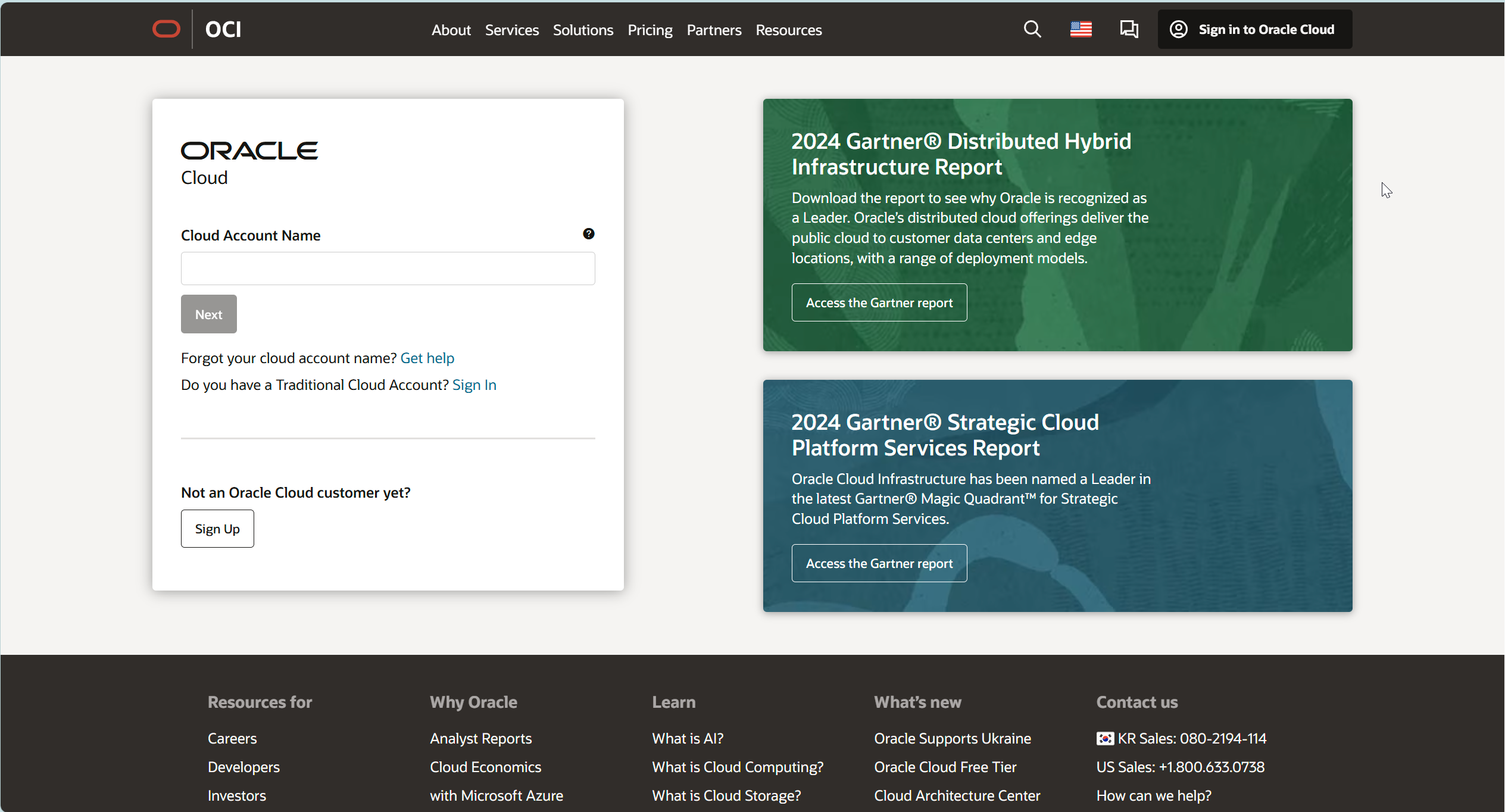
Creating Your Customer Secret Key
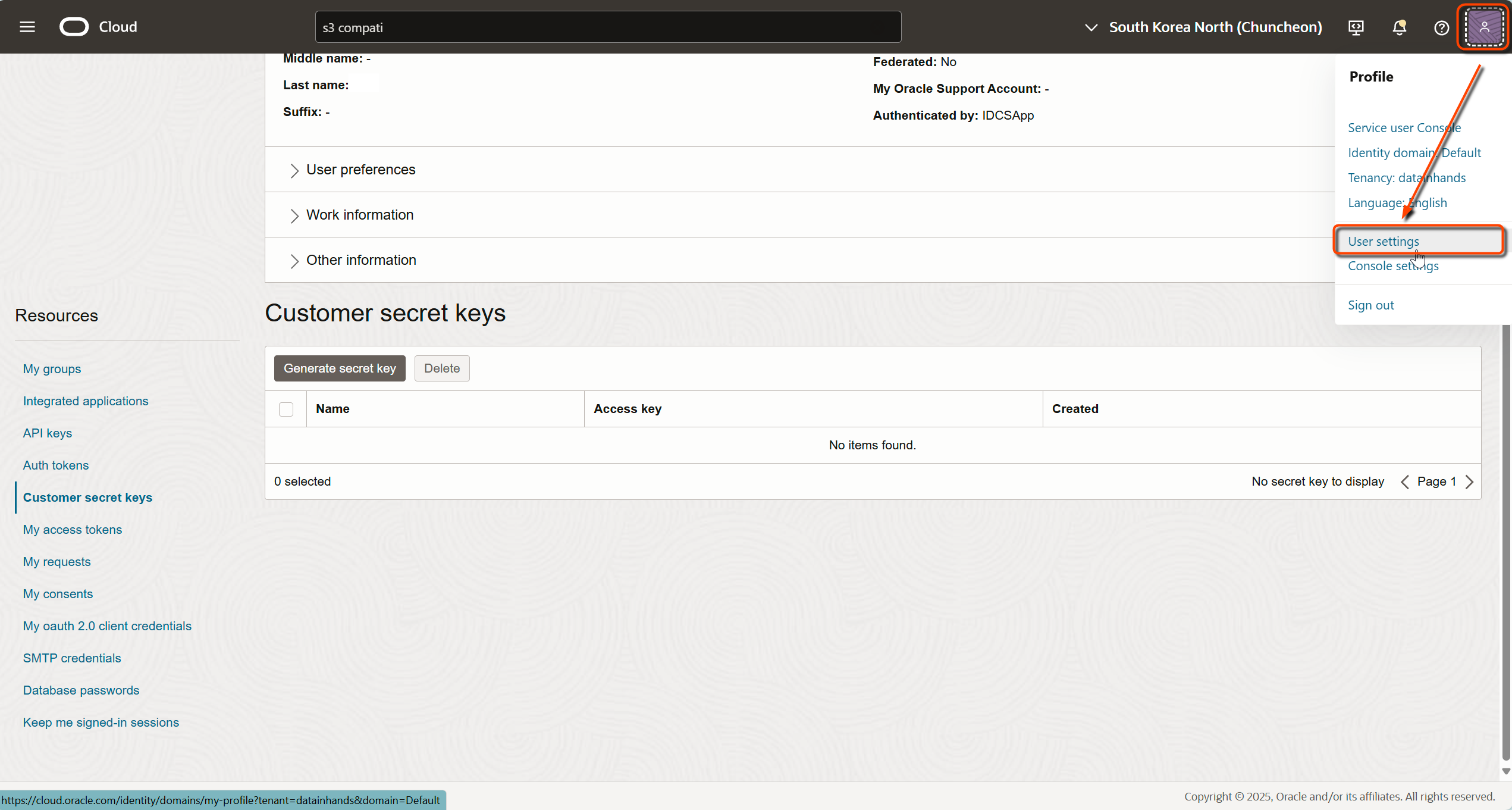
2. After logging in, locate and click your profile icon in the top-right corner
3. Select “User Settings” or “My Profile” from the dropdown menu
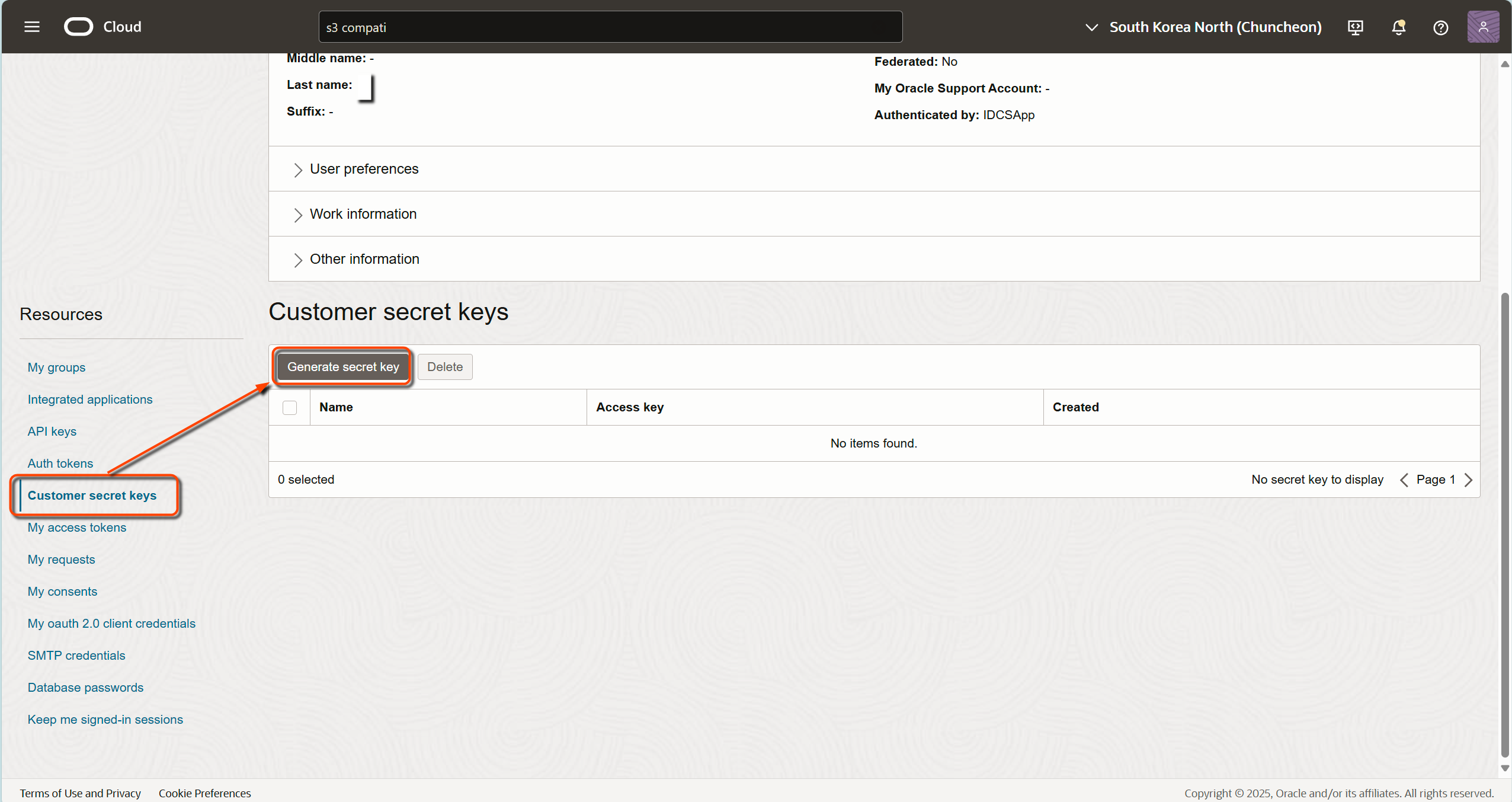
4. Find and click “Customer Secret Keys” in the left navigation panel
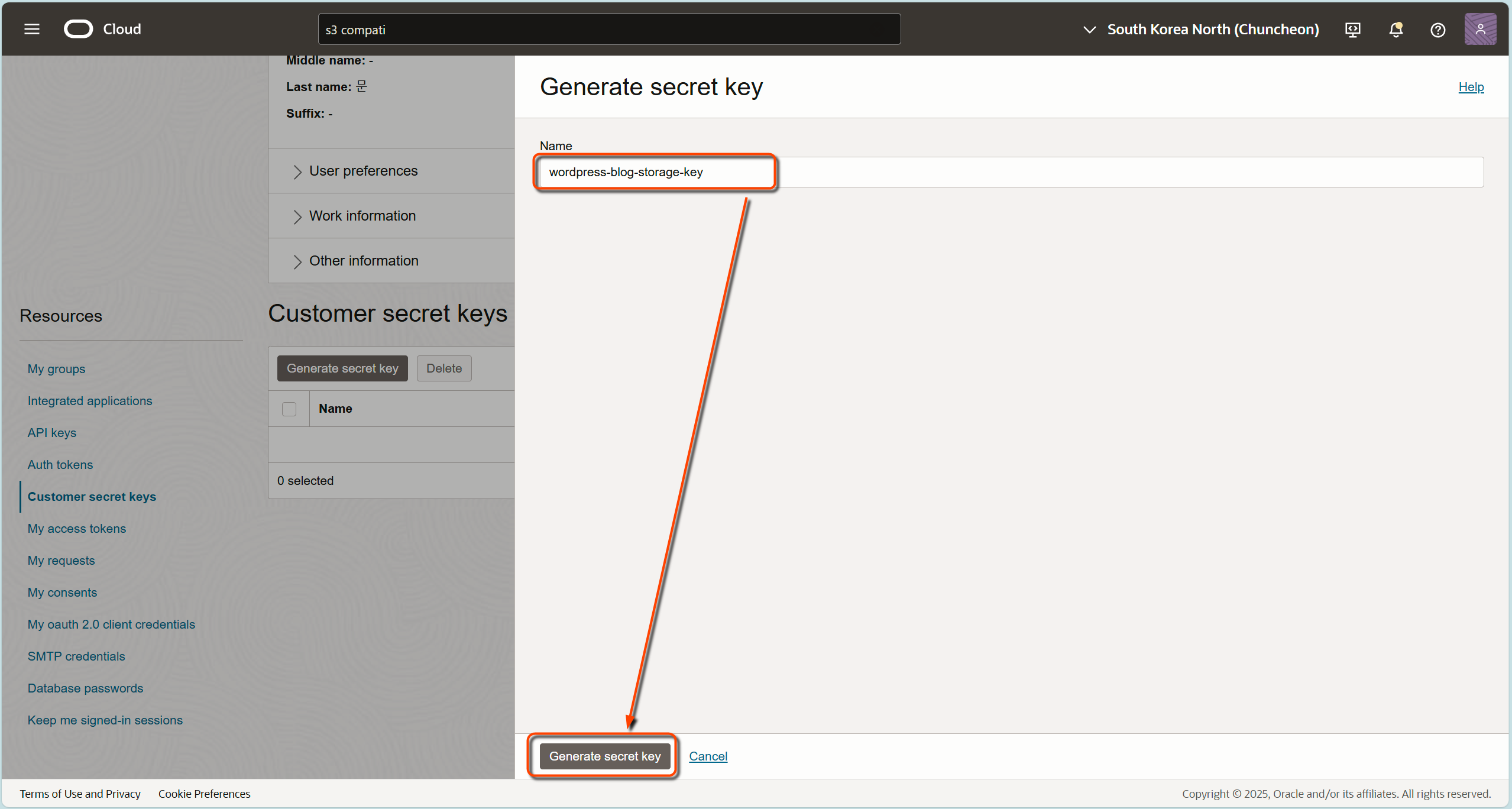
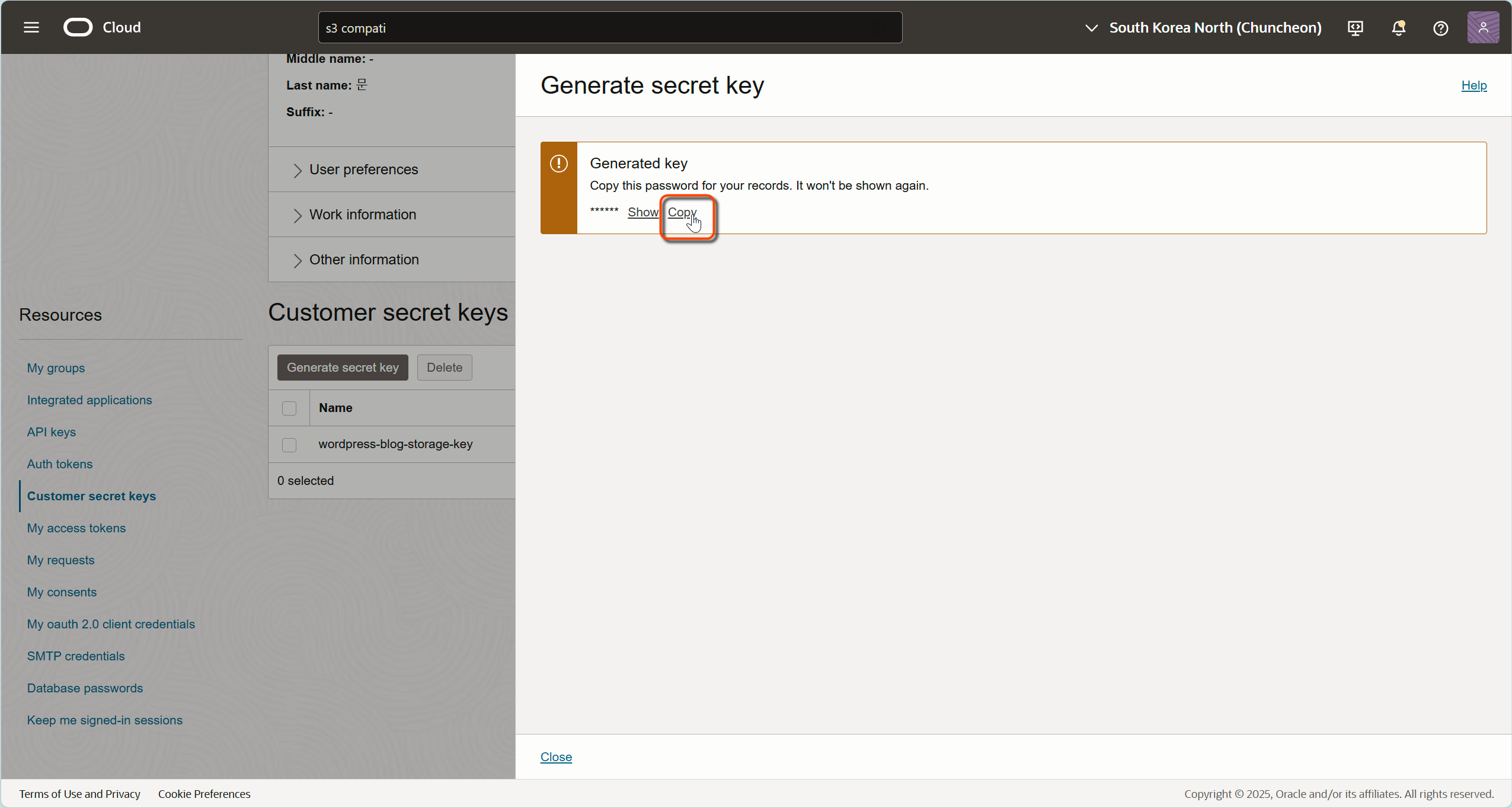
5. Click the “Generate Secret Key” button
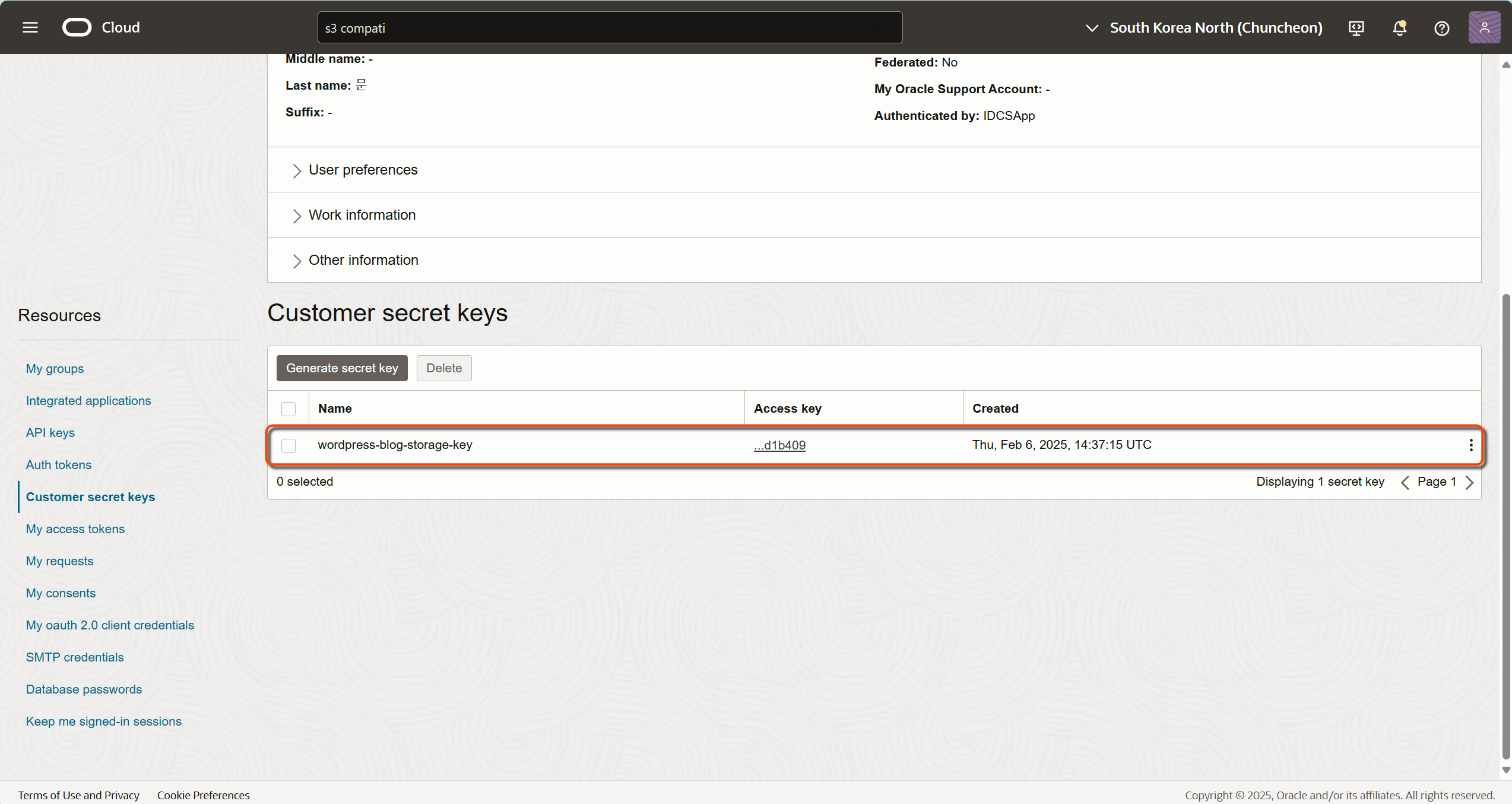
6. Provide a descriptive name (e.g., “wordpress-blog-storage-key”)
After generating the key, record the Access Key and Secret Key securely. Do not share screenshots containing either value. The OCI user’s IAM policies still determine permitted operations.
- Access Key: Save this carefully as you’ll need it for configuration
- Secret Key: This appears only once, so store it securely
Step 2: Creating Your Storage Bucket
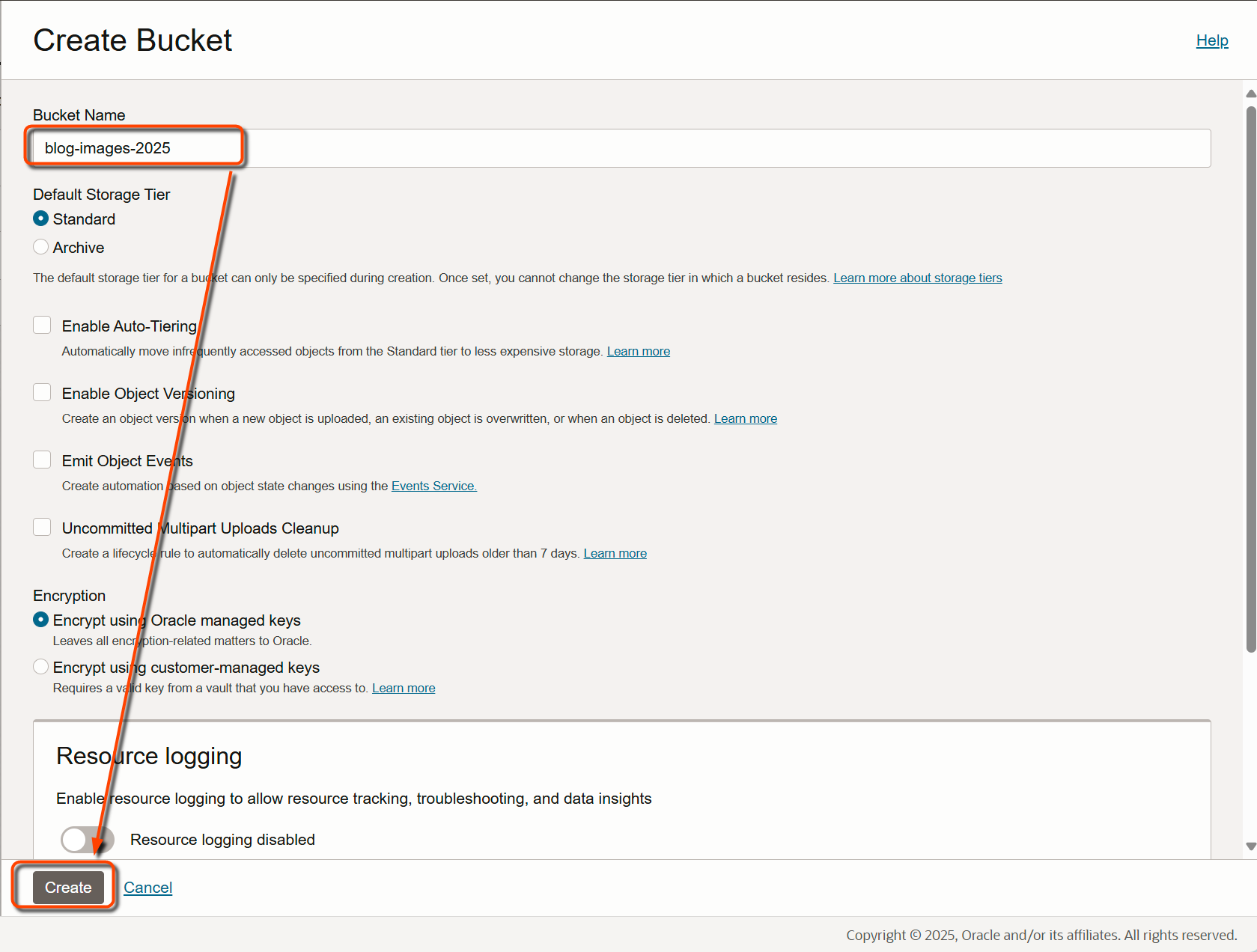
This example uses a bucket dedicated to public blog images. Buckets are private by default; do not publish a bucket containing backups or confidential files.
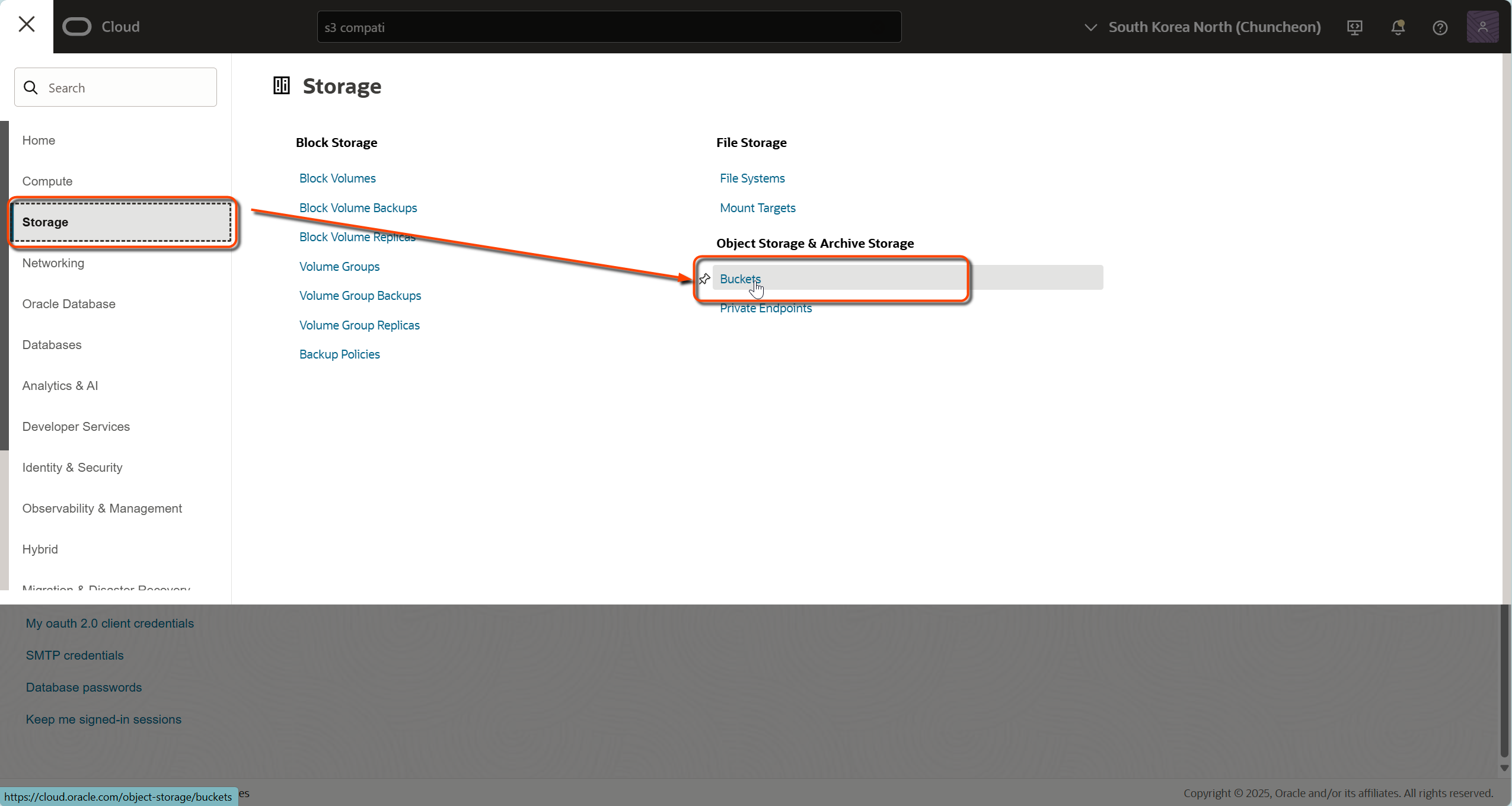
1. In the Oracle Cloud Console, navigate to:
Storage → Object Storage & Archive Storage
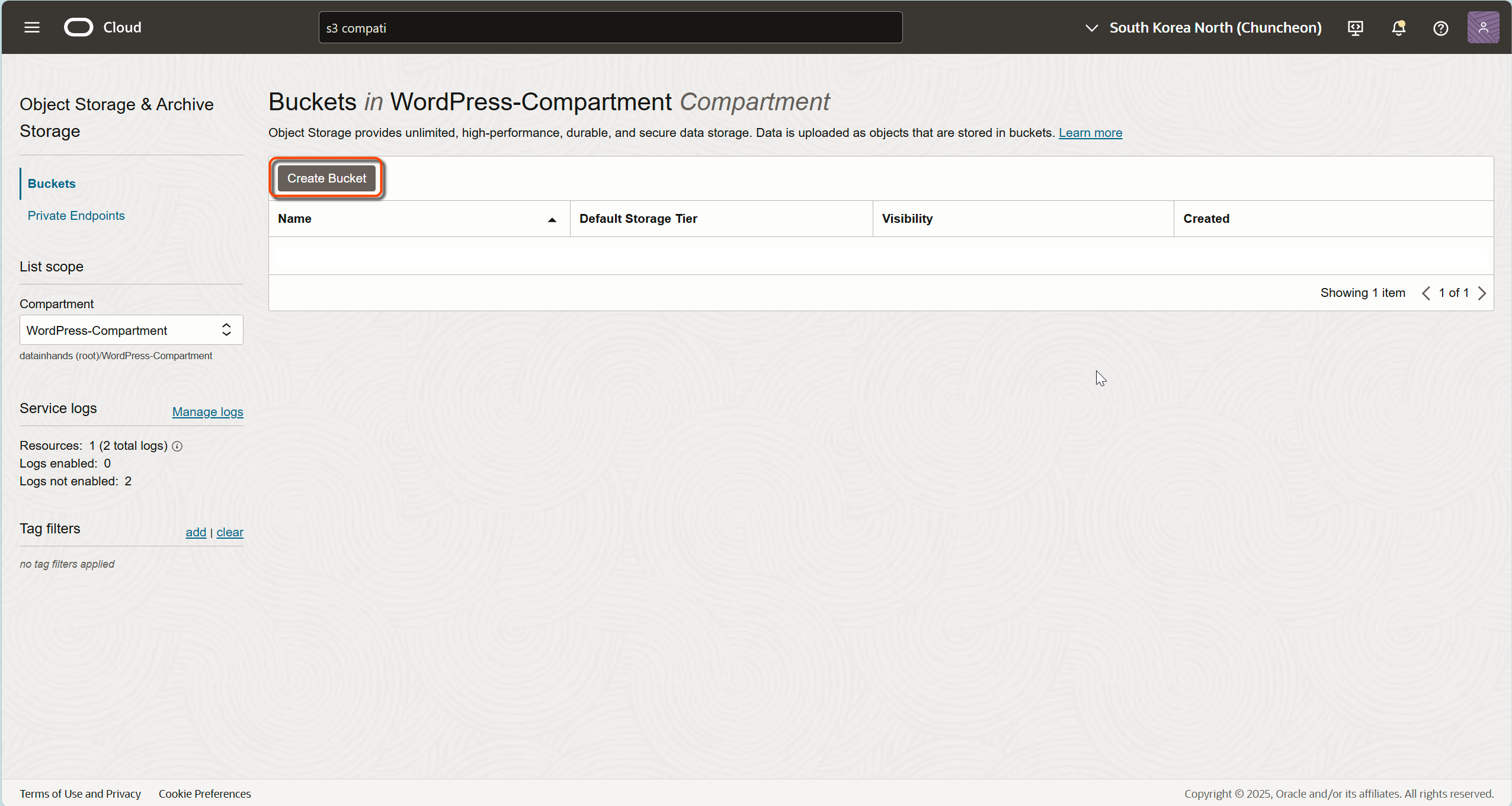
3. Configure your bucket:
- Name: Choose something meaningful like “blog-images-2025”
- Default Storage Tier: Standard
- Default Visibility: Private (we’ll change this later)
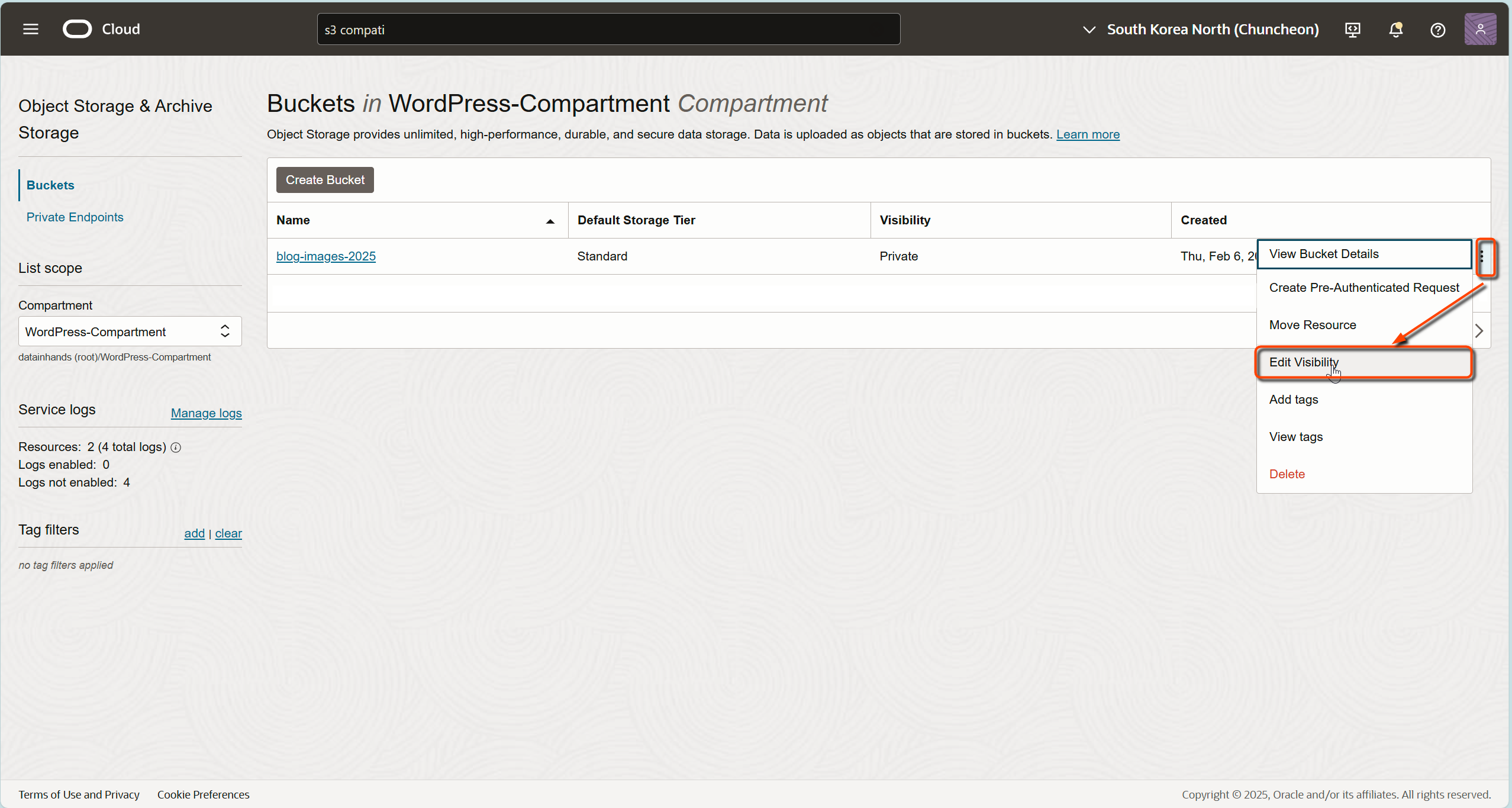
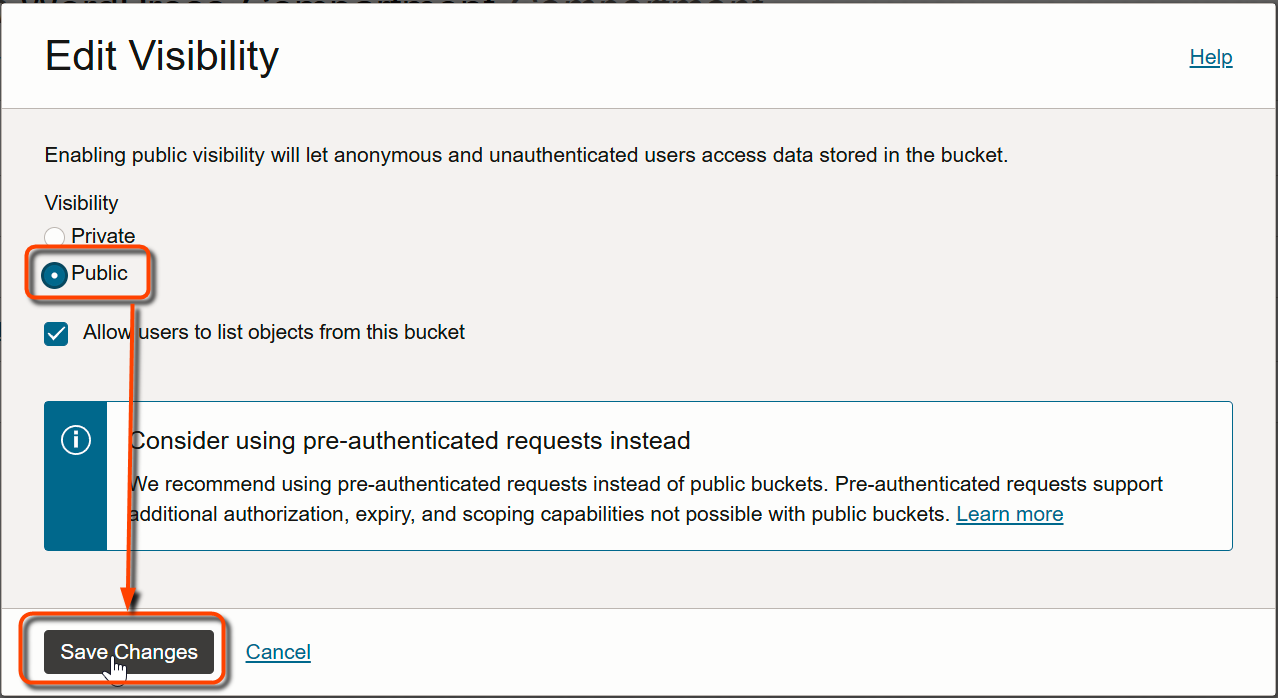
4. Making Your Bucket Public
Review public reads only if direct public image URLs are required. Object listing is a separate option and is not needed merely to display an image.
- Select your newly created bucket
Public bucket objects can be read without signing in. Check which images may be published and keep confidential files and backups in private storage. Public reads do not grant upload permission; obscuring filenames is not access control.
Important Note About OCI Namespace
The OCI namespace is a unique string that identifies your tenancy. This information is crucial when constructing Object Storage URLs. Here are two ways to find your namespace:
Method 1: Through Profile Settings
- Log in to the OCI Console
- Click the profile icon in the top right corner
- Click “Tenancy: [Your Tenancy Name]”
- Find your namespace under the Object Storage Namespace section
Method 2: Through Object Storage Console
- Navigate to “Storage” → “Object Storage & Archive Storage” in the OCI Console
- Click on your newly created bucket to view its details
- Look for the “Namespace:” label at the top of the Bucket Information’s General section
Your namespace is typically a string of letters and numbers, for example ‘axdf1g2x3’. This value is automatically assigned when your tenancy is created and cannot be changed.
Step 3: Installing the SFTPGo Server
SFTPGo is a file-transfer server with support for S3-compatible backends. WebAdmin manages configuration; WebClient lets users access files in a browser. This article runs SFTPGo locally, rather than installing a standalone SFTP client.
Download SFTPGo
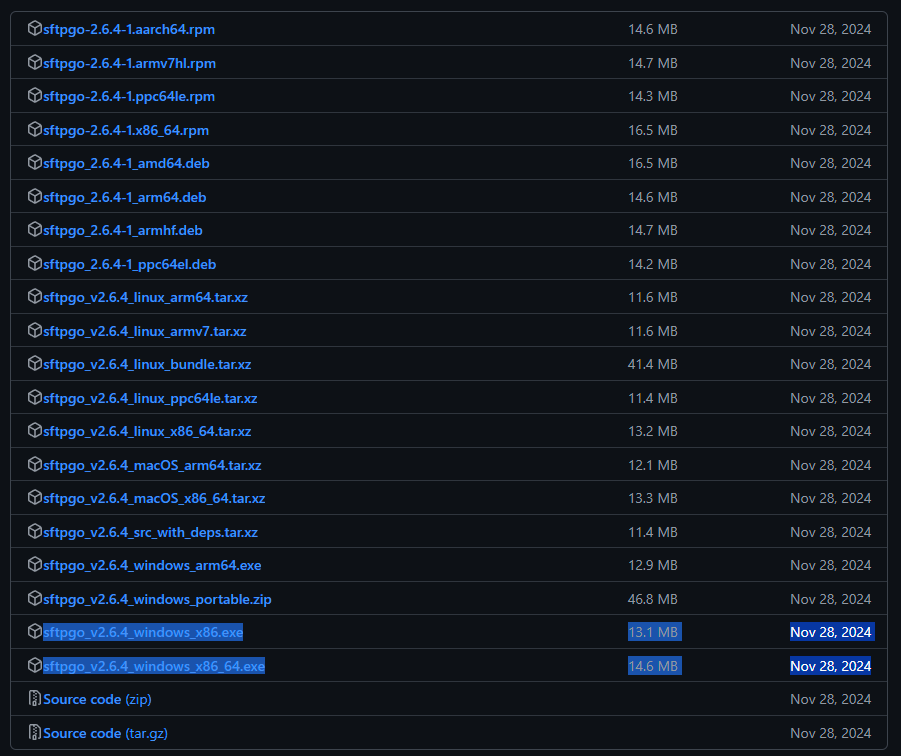
The v2.6.4 links below are historical examples, not a recommendation of the latest release. Before installation, check official SFTPGo releases for supported versions, security fixes, OS/CPU compatibility and upgrade instructions. Do not overwrite an existing installation based on this example alone.
- Visit https://github.com/drakkan/sftpgo/releases
- Download the appropriate version:
SFTPGo Initial Setup
- Extract the downloaded file
- For Windows users, run the installation program
- For macOS or Linux users, you may need to grant execution permissions in the terminal
Configuring the Admin Portal
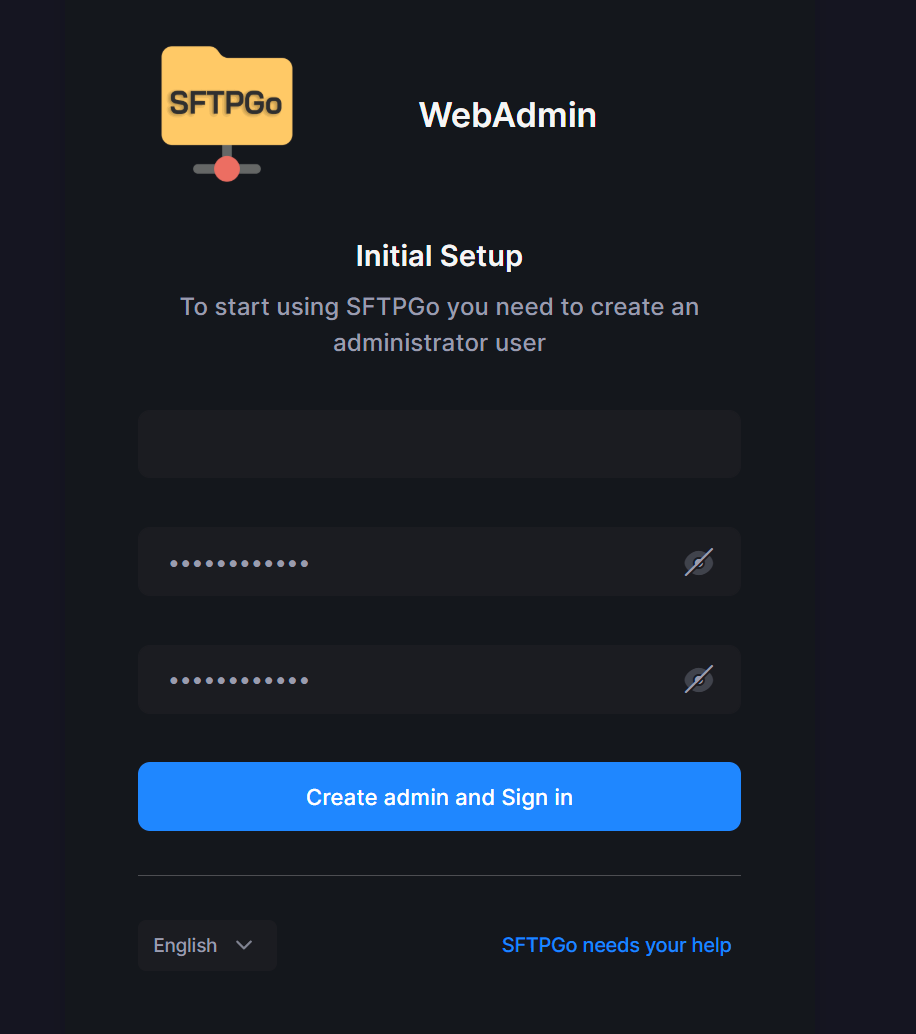
With the SFTPGo service running and the default local HTTP binding, open http://localhost:8080/web/admin on the same computer. The host and port depend on configuration; do not expose the admin interface to the internet without a separate security review.
In the initial setup screen:
- Set your administrator username (e.g., “admin”)
- Create a strong, distinct password and store it securely
- Click the ‘Create admin and Sign in’ button
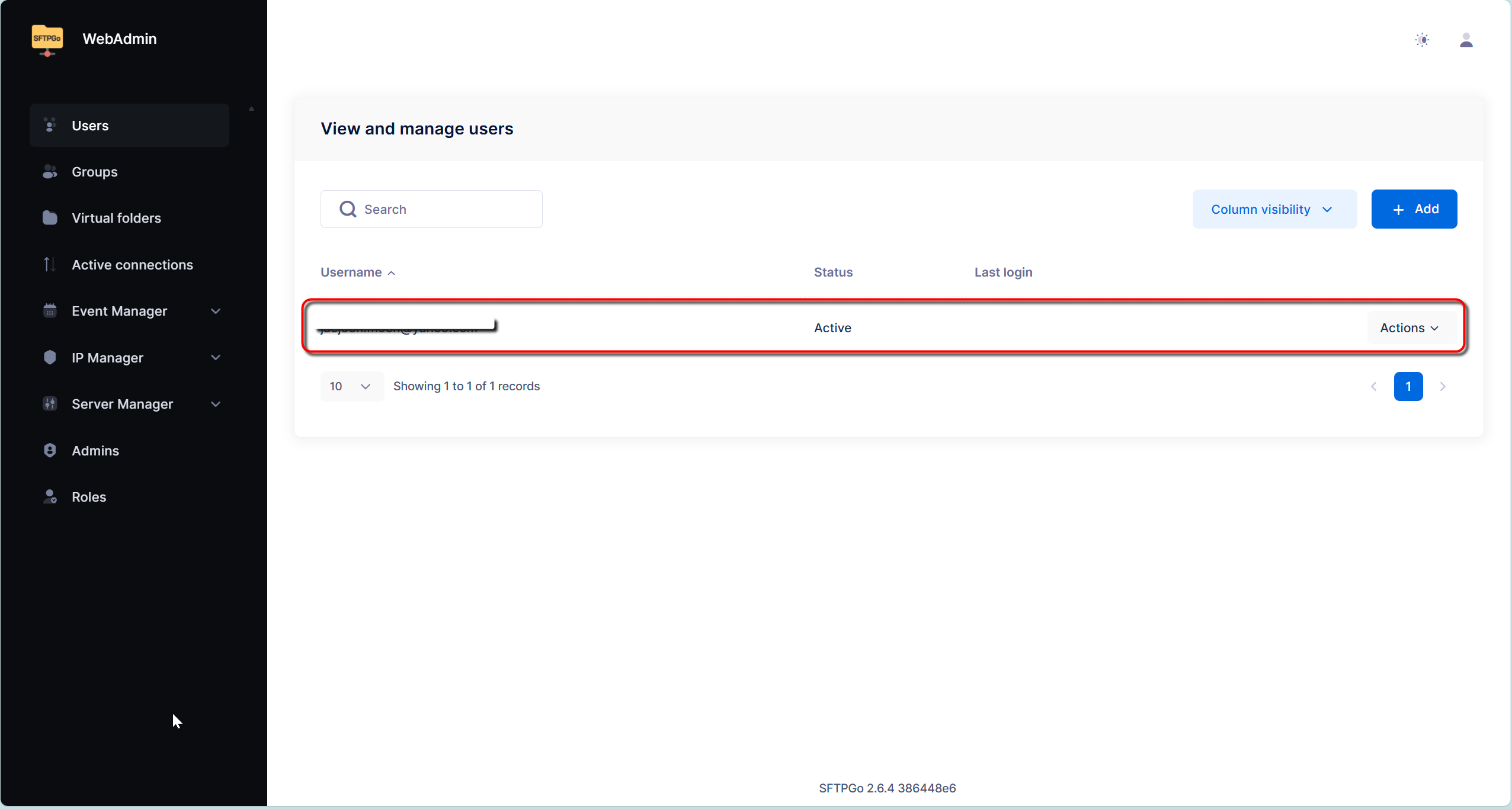
Adding an Object Storage Connection User
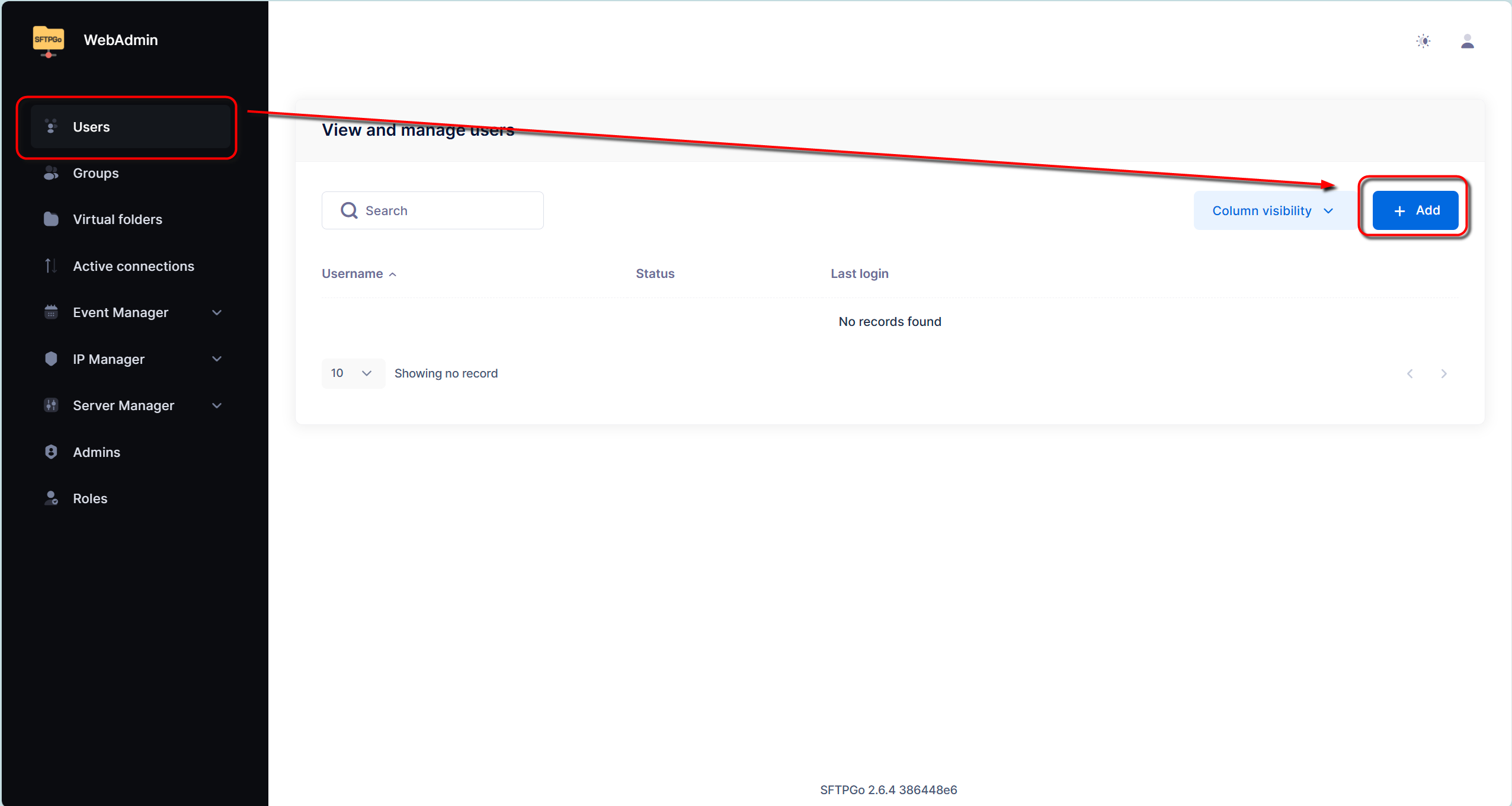
In WebAdmin, create a file-access user separate from the administrator. Grant only the required bucket, prefix and operations:
- Select “Users” from the left menu
- Click the Plus(+) button in the top right corner
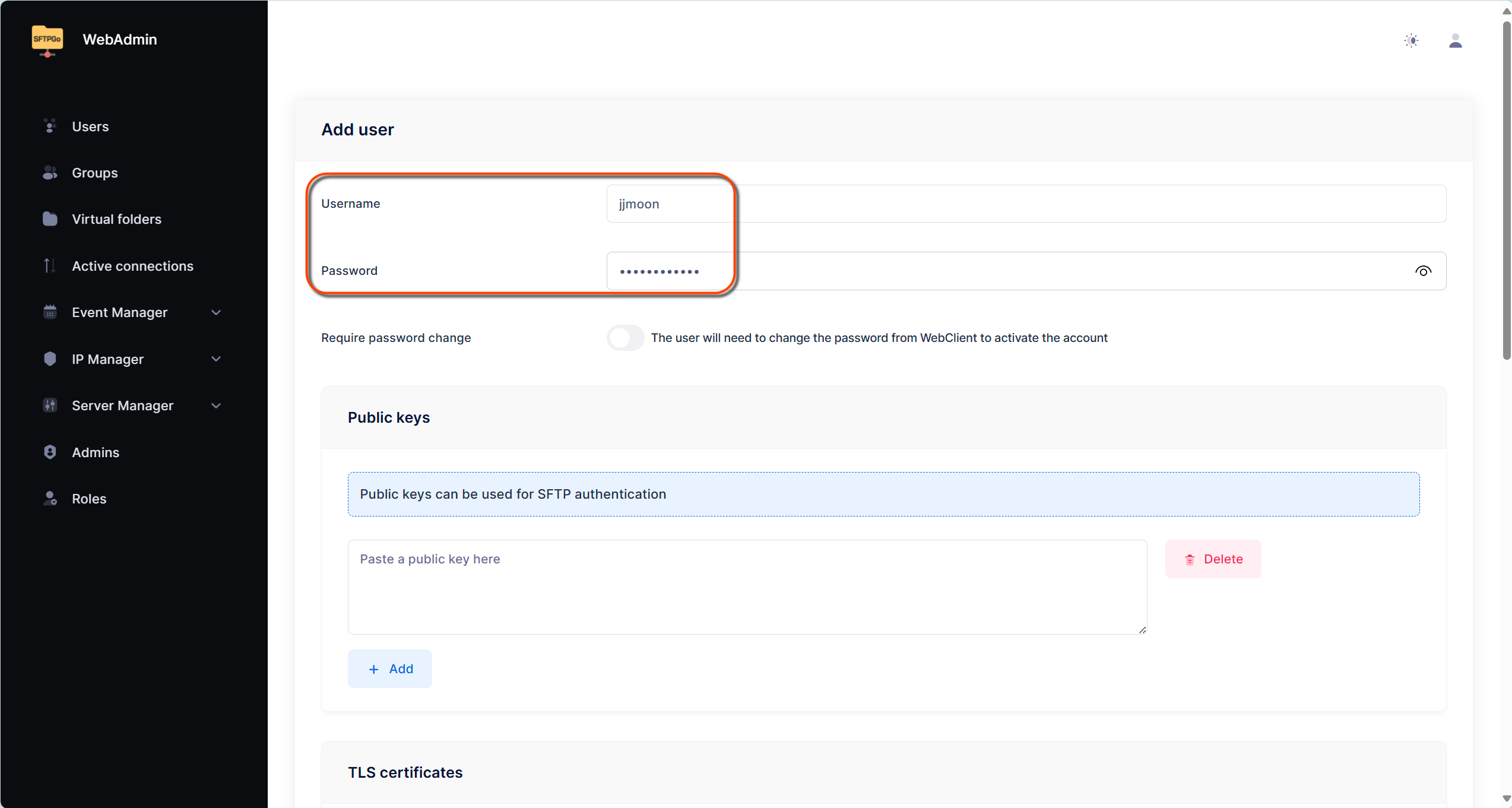
Basic Information Setup:
- Username: Choose your preferred username
- Password: Set a secure password
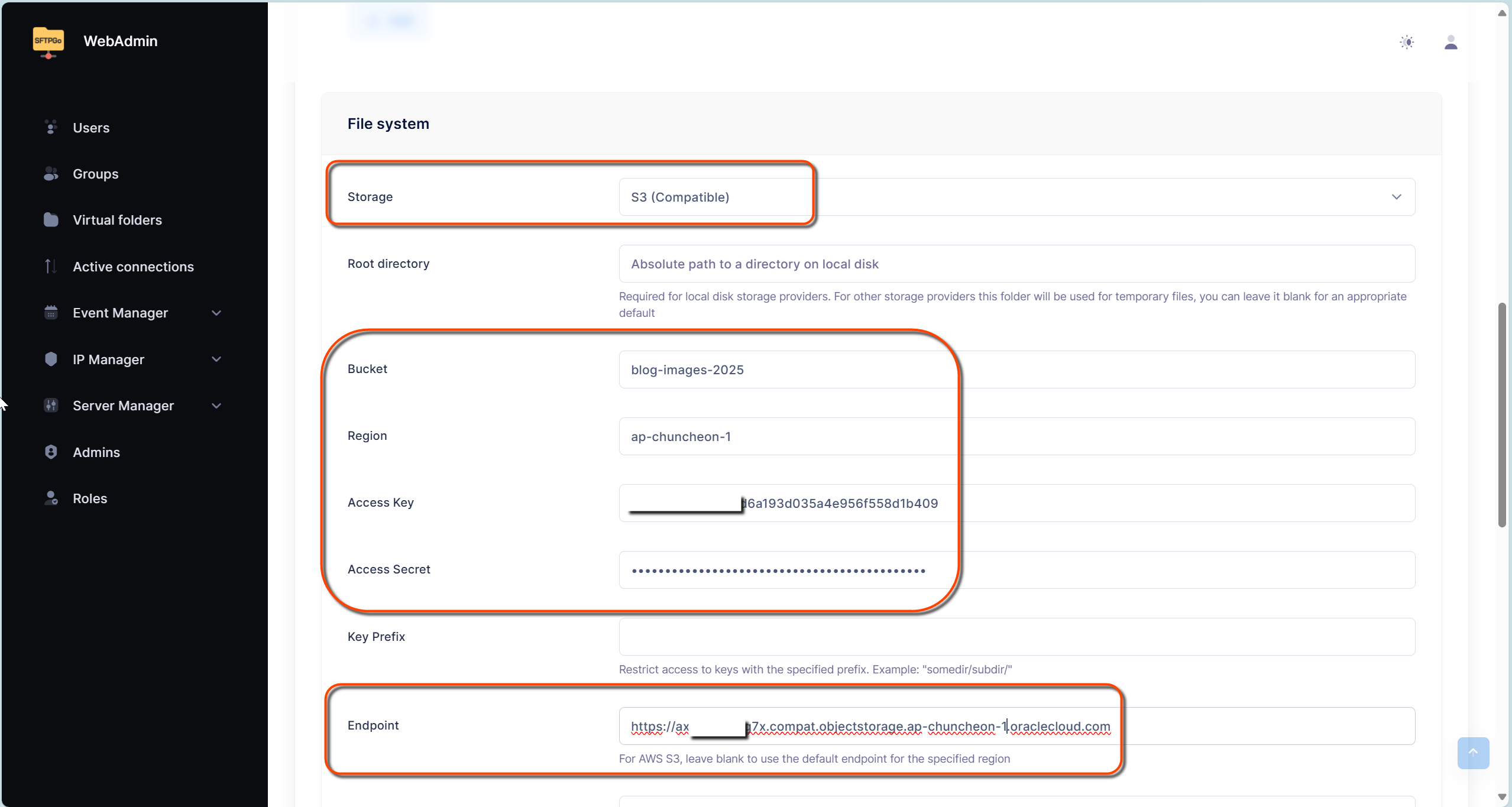
Storage Configuration (Critical Step):
- Select “S3 Compatible” from the Storage options
- Check the installed version’s root-directory and local temporary-file requirements. An object prefix is not a local filesystem path
- Enter your configuration details:
- Bucket: Enter your previously created bucket name
- Region: Your OCI region (e.g., ap-seoul-1)
- Access Key: The Access Key you noted earlier
- Secret Key: The Secret Key you saved
- Endpoint: Use this exact format:
https://{namespace}.compat.objectstorage.{region}.oraclecloud.com
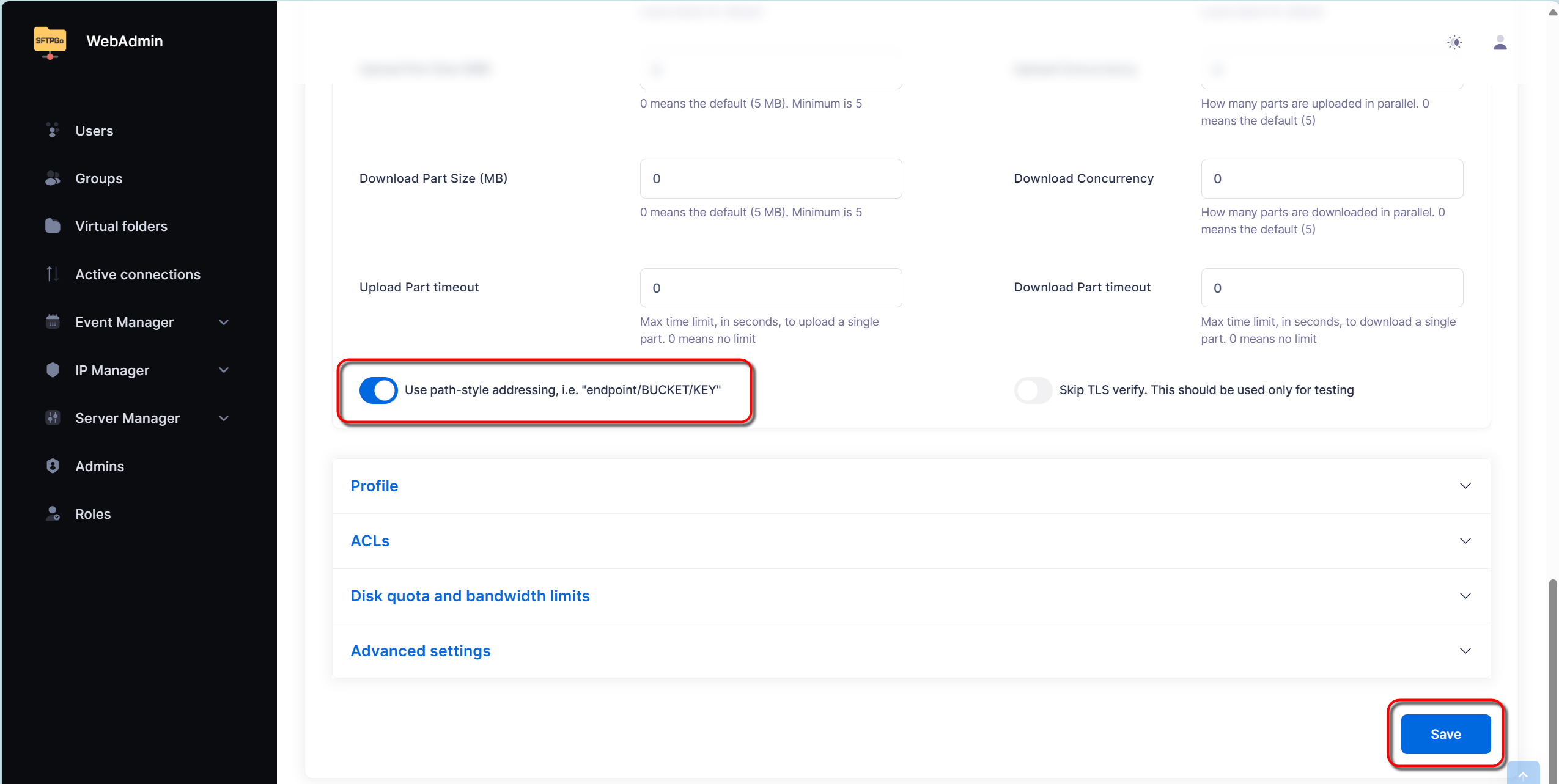
4. Enable the “Use path-style addressing” option at the bottom of the page
5. key_prefix sets the object prefix visible to this SFTPGo user. An empty prefix exposes the bucket root in this mapping. It does not restrict the OCI key outside SFTPGo or anonymous reads of public objects
6. Click the ‘Save’ button to complete the setup
Practical Usage Guide
Verify the expected listing and upload permissions separately. The localhost address below assumes SFTPGo runs on the same computer.
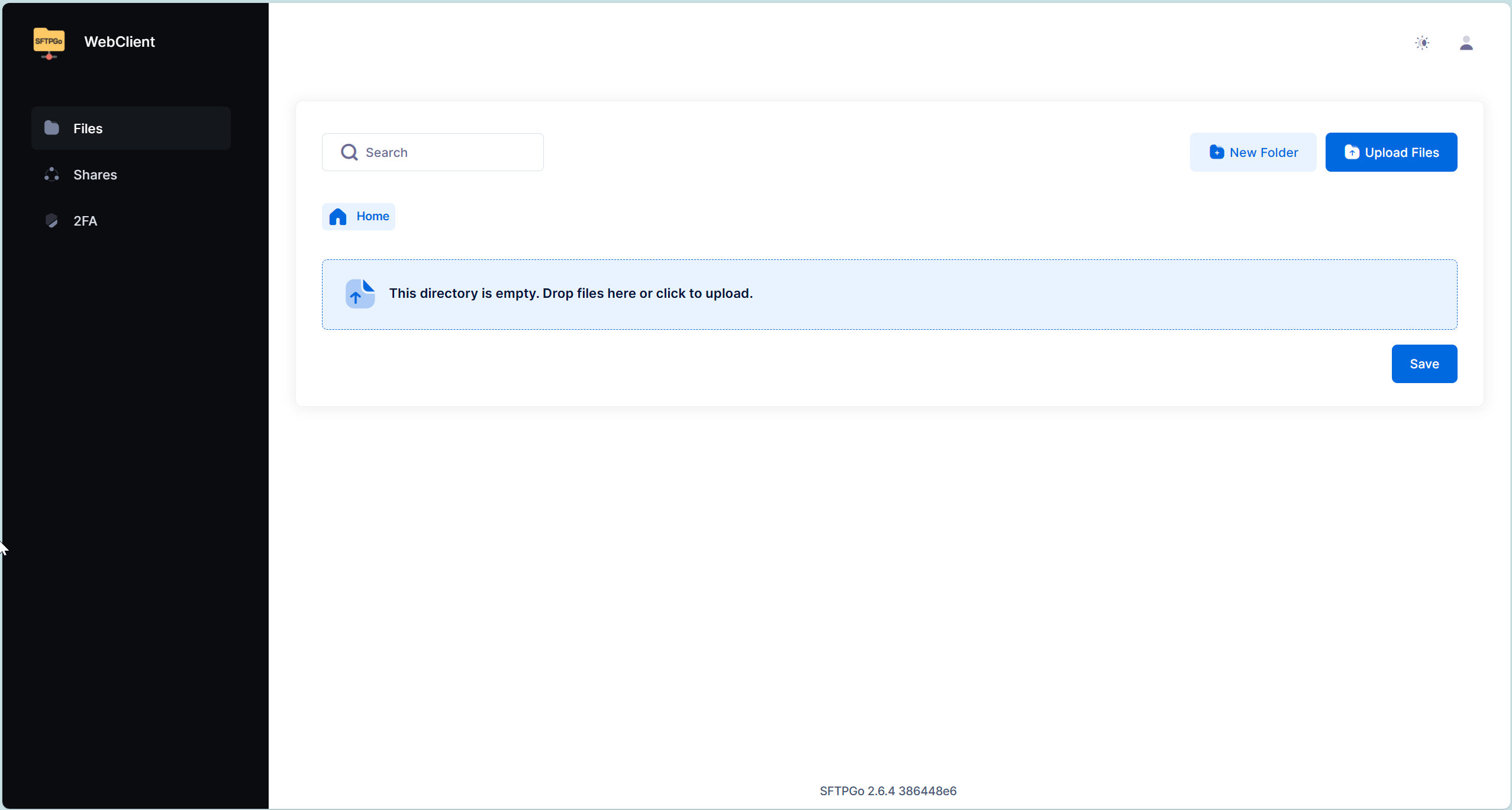
Connecting with SFTPGo WebClient
Let’s verify your setup:
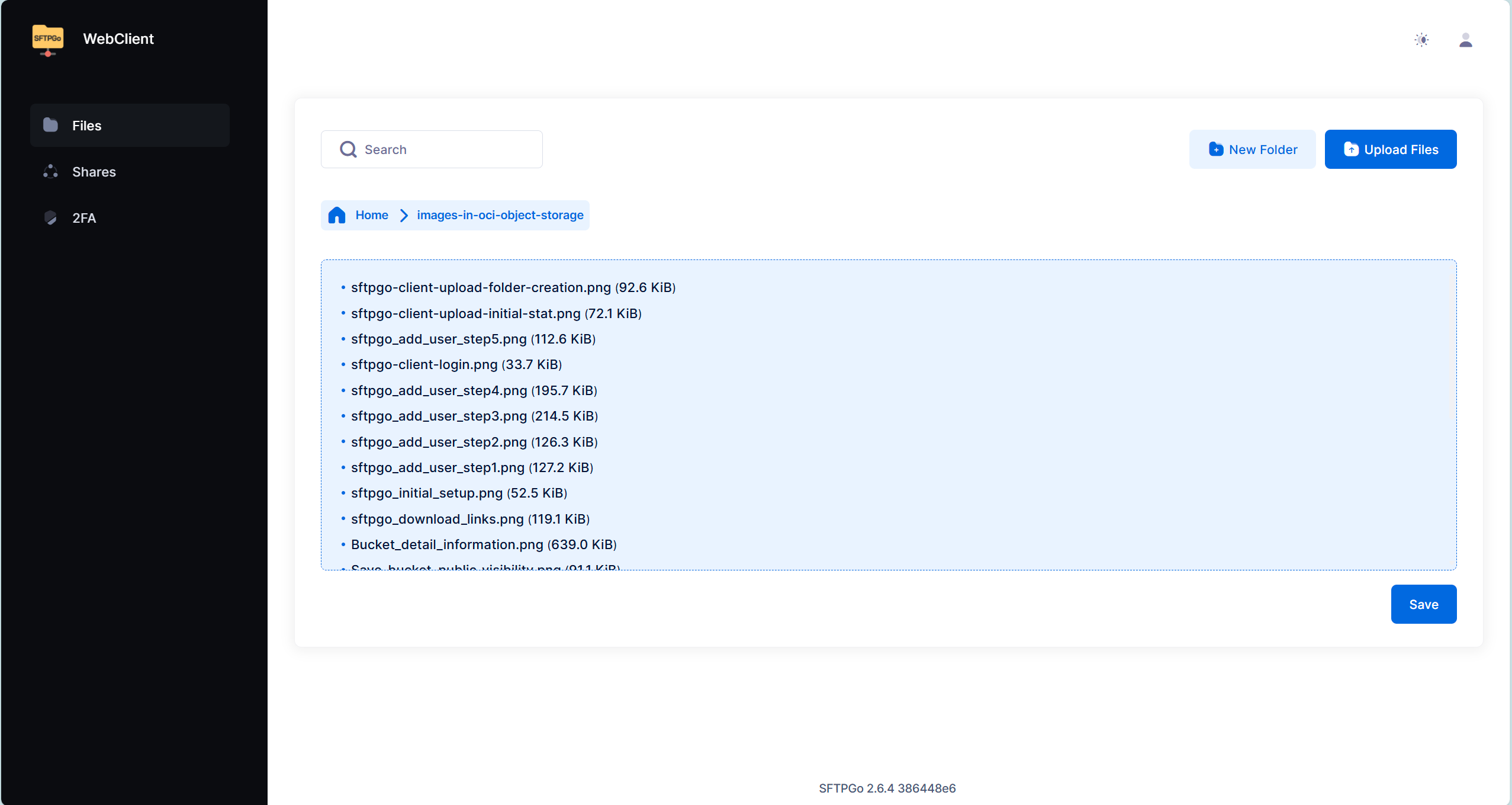
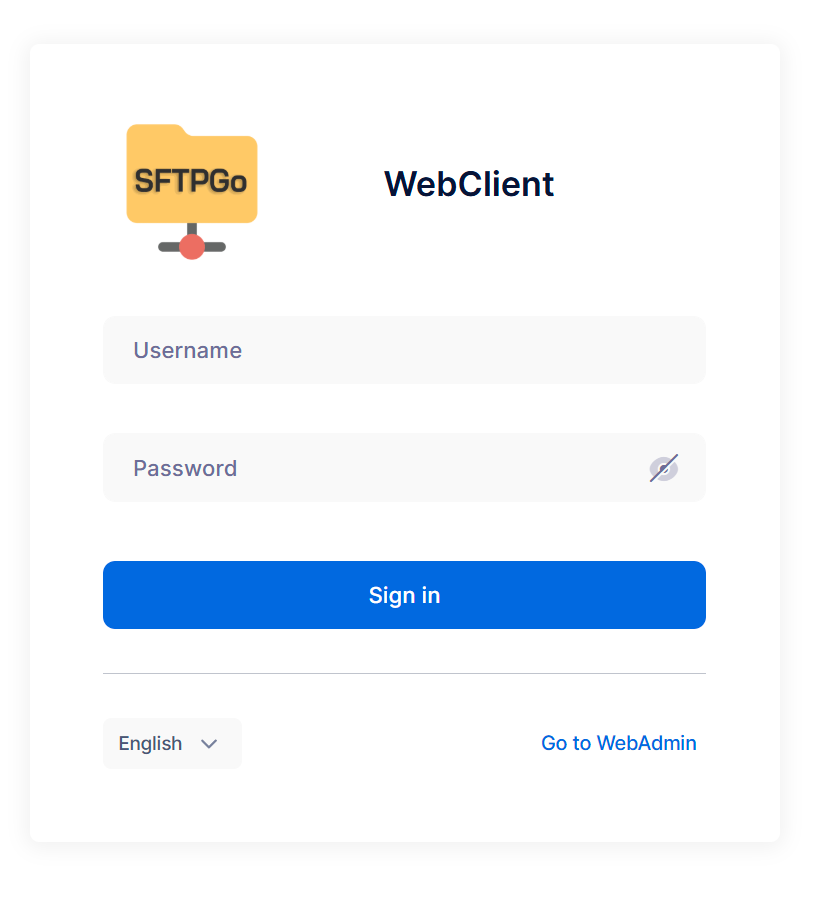
- Open http://localhost:8080/web/client in your web browser
- Log in with your newly created credentials:
- Username: Your configured username
- Password: Your configured password
3. Verify that you can see your bucket contents
Managing Your Files
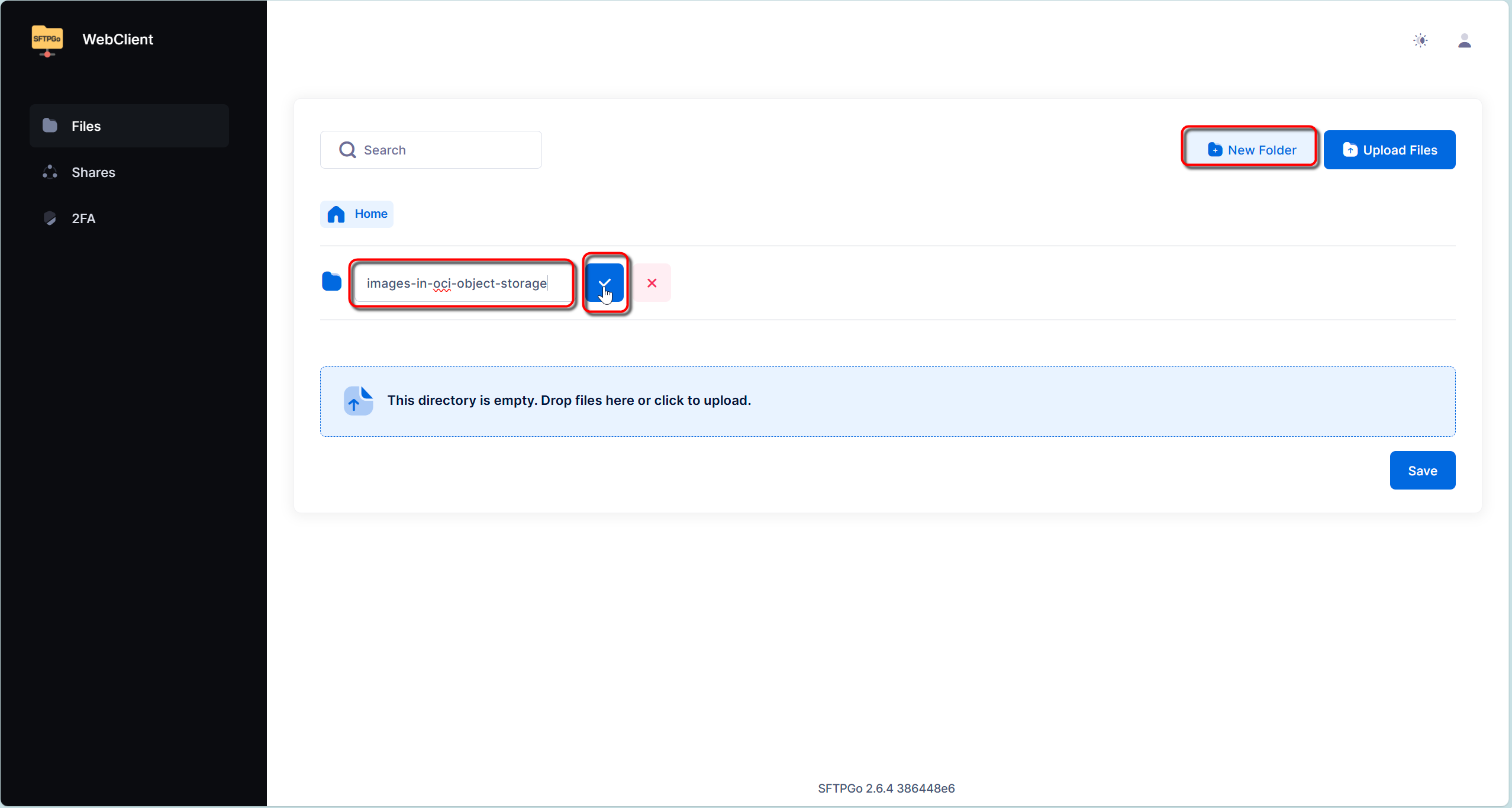
Folder Management:
- Create new folders using the New Folder button
- Check the move support for your version. S3 object renames may copy then delete; review existing image URLs and links before moving objects
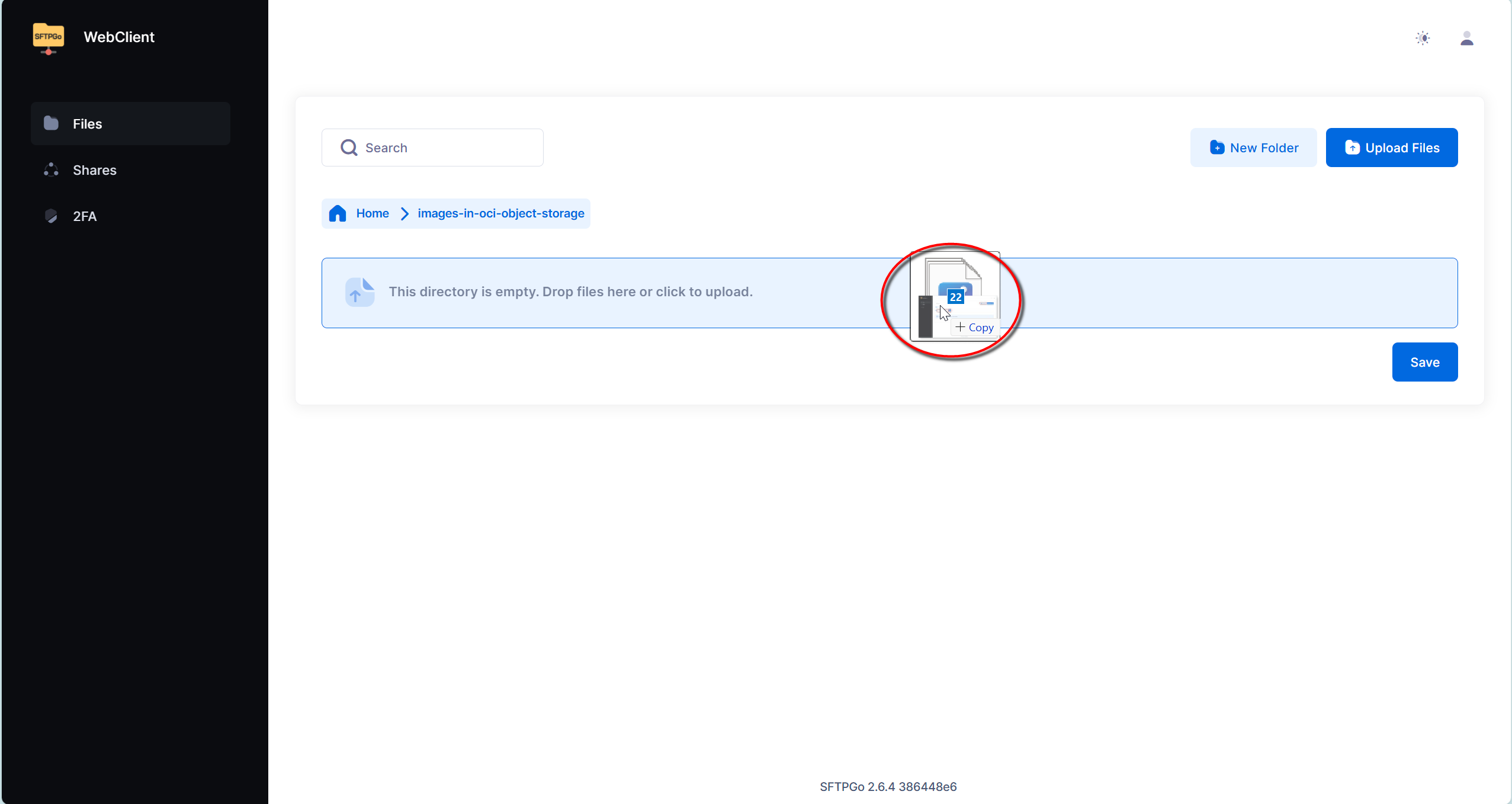
File Upload Process:
- Select files on your computer using the WebClient Upload button
- Where supported, drag files from your computer to the browser upload area
- Confirm upload completion and the destination object names
Using Your Uploaded Images
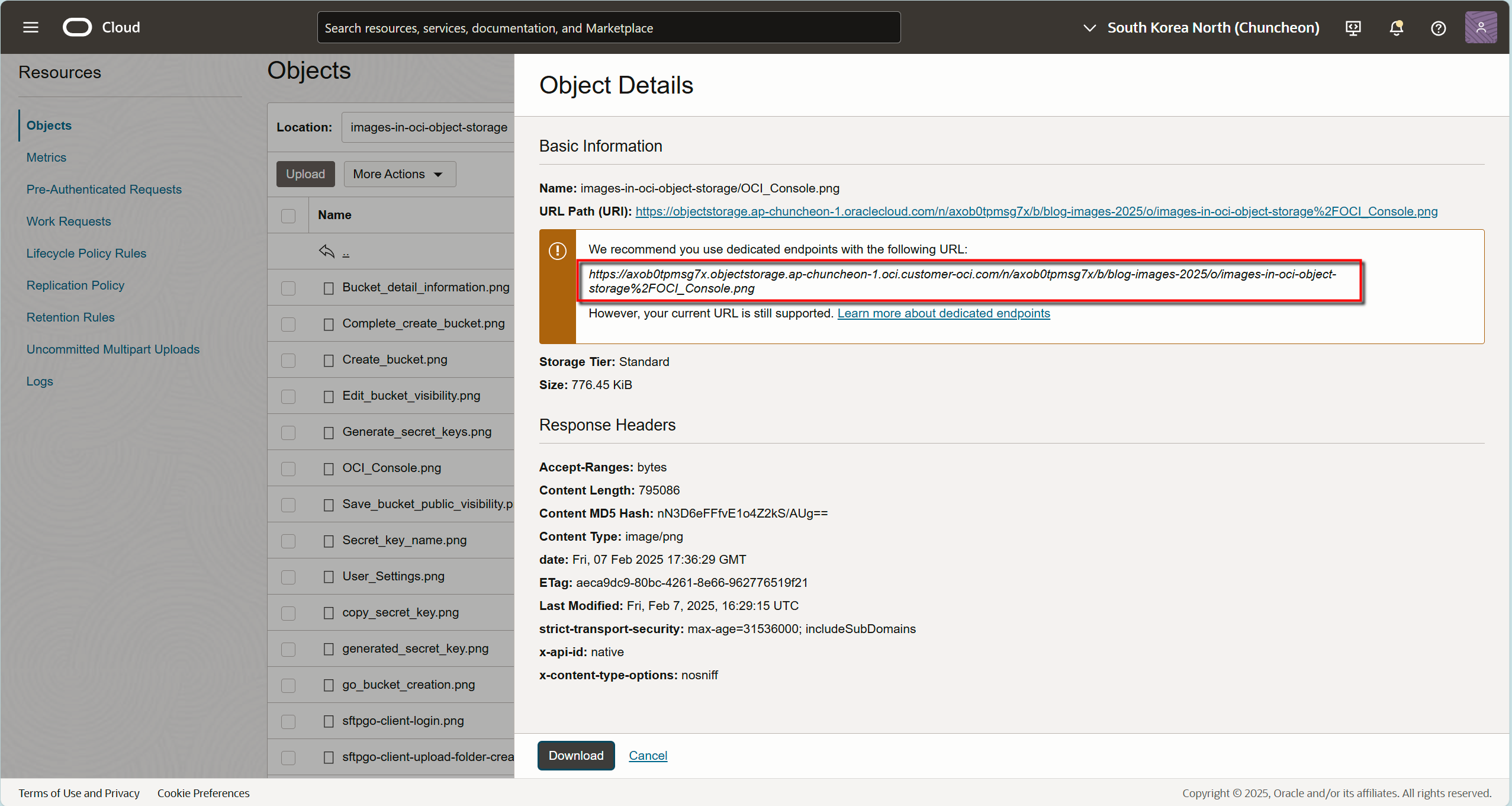
Verify read access for images in the dedicated public bucket before using their URLs. Uploading alone does not register them in the WordPress media library or replace images in existing posts. The following native endpoint is a template, not a working object URL:
https://objectstorage.{region}.oraclecloud.com/n/{namespace}/b/{bucket-name}/o/{image-name}
Understanding the URL structure:
- {namespace}: Your OCI tenancy namespace
- {region}: Your bucket’s region (e.g., ap-seoul-1)
- {bucket-name}: Your created bucket name
- {image-name}: The complete object name, including any folder-like prefix. Encode characters as required in a URL and do not double-encode an already encoded URI.
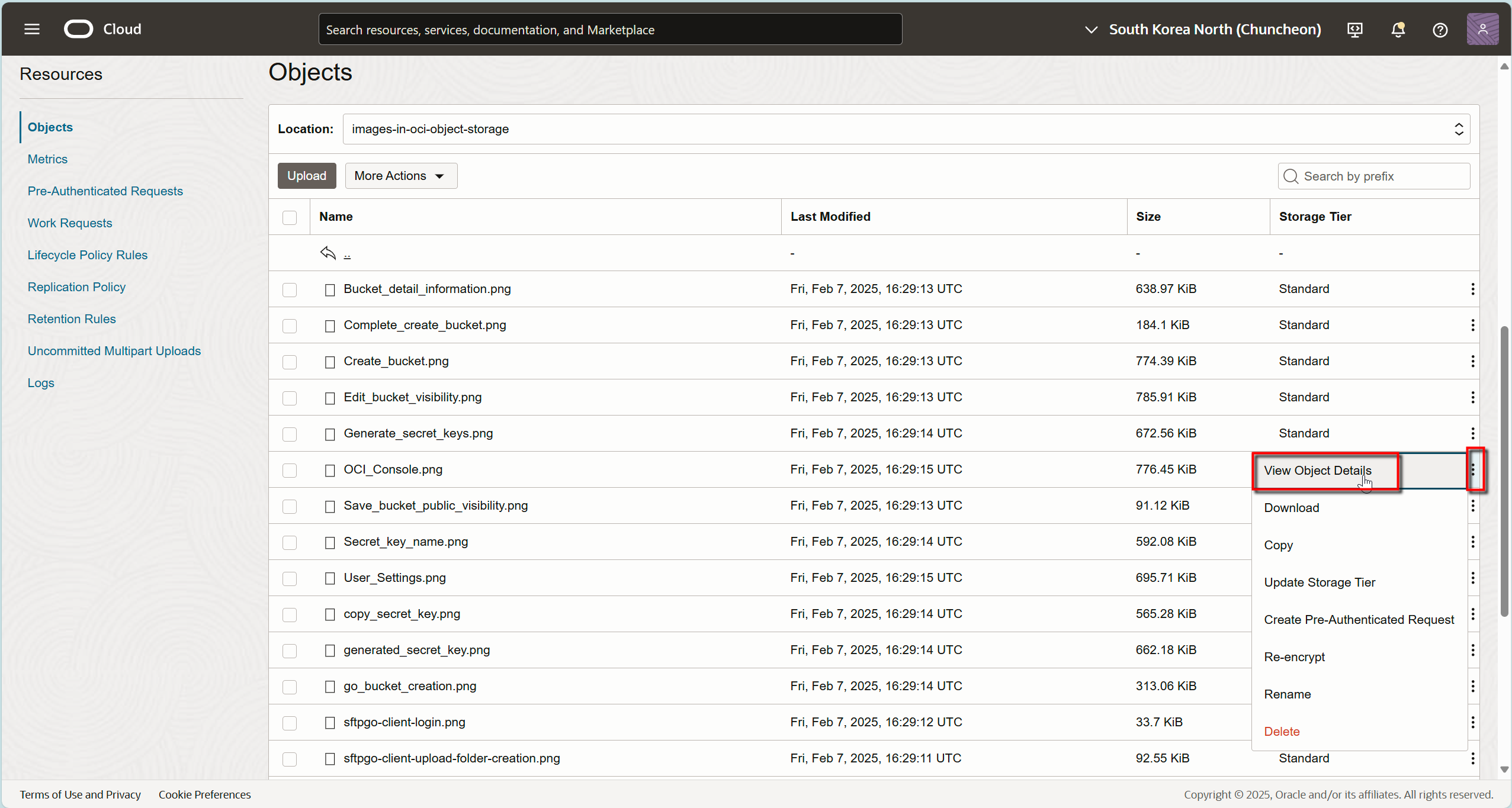
Prefer copying URL Path (URI) from Object Details in the OCI Console. Verify the actual bucket region, namespace and name, and preserve URI encoding. The example above uses the traditional native endpoint. In OC1, the dedicated native host is {namespace}.objectstorage.{region}.oci.customer-oci.com, distinct from the compat host used for S3-compatible configuration. Existing endpoints remain supported. Do not bulk-replace working image URLs with a template.
Checking URLs in OCI Console:
- Navigate to your bucket
- Click the desired image
- Find and copy the “URL Path (URI)” from the “Object Details” panel
Best Practices for Daily Usage
Organizing Your Images
Create a logical folder structure within your bucket:
- /year/month/ for chronological organization
- /category/ for content-based organization
- /size/ for different image dimensions
Image Optimization Before Upload
Optimize images before uploading, regardless of the available storage:
- Compress images without visible quality loss
- Use appropriate dimensions for your blog layout
- Consider converting to modern formats like WebP
Security Considerations
Protect your storage setup by following these guidelines:
- Regularly rotate your Customer Secret Keys
- Monitor access logs for unusual activity
- Implement proper backup procedures
- Never share access credentials
Conclusion
Separating image storage and delivery is an operational choice. Keep allowances, costs, public access, backups and URL stability under review. Test upload, display and recovery with a small set of images before expanding the setup.
For troubleshooting, include the SFTPGo version and the step that failed. Do not post Access Keys, Secret Keys or private access URLs in comments.