Reviewed October 23, 2026 · For WordPress sites publishing in Korean and English.
Pretendard is useful when a WordPress site needs Korean and Latin text in the same typographic family. This guide covers choosing the files, registering the font, applying it in Astra or Elementor, and checking the public page.
For a Latin-only site, compare your existing font with Pretendard Std before adding Korean font data. Std targets Latin, Greek and Cyrillic text; use a Korean-capable family for Hangul. Keep a fallback for characters outside the chosen file.
Choose a registration method for your WordPress setup
| Setup | Start here | Then check |
|---|---|---|
| WordPress 7.0 or later | Appearance → Fonts | Whether your theme and editor expose and apply the registered family |
| Astra or Elementor font picker | Custom Fonts plugin or the editor's own font feature | Installed integration, version and feature availability |
| Selected article content | @font-face and scoped CSS | Actual content selector and widget overrides |
The WordPress Font Library arrived in 6.5 and became globally available to classic themes as well as block themes in 7.0. Check Appearance → Fonts before installing another plugin. Registration does not guarantee that every Astra or Elementor control will use the family.
Choose files that include the characters you publish
The latest official release checked on October 23, 2026 was v1.3.9. Recheck the release page when you implement this. Keep the supplied LICENSE.txt and follow the SIL Open Font License when distributing the font.
| Type | Path in the v1.3.9 ZIP | Use |
|---|---|---|
| Full static WOFF2 | web/static/woff2/Pretendard-Regular.woff2 | Select only the weights you need; the CSS below uses this naming scheme |
| Static subset | web/static/woff2-subset/Pretendard-Regular.subset.woff2 | Check character coverage; the filename and coverage differ |
| Variable WOFF2 | web/variable/woff2/PretendardVariable.woff2 | Several weights in one file; compare actual transferred bytes |
A dynamic-subset distribution has multiple font pieces and accompanying unicode-range rules. Preserve that CSS and its relative paths when hosting it locally. Registering one piece as a complete font can leave characters missing. A single static subset and a dynamic-subset bundle are different choices.
For a Korean-and-English site, test Korean syllables, English punctuation, numerals and the weights used by your content. Add WOFF only if a target browser requires it; WOFF2 plus WOFF is not mandatory for every site.
Apply the registered family in Astra and Elementor
- Upload through the WordPress Font Library or the font feature you selected.
- Match static files to their actual weight: Regular 400, Bold 700. For variable files, confirm support and the permitted range.
- In Astra, inspect the body and heading Typography controls in the Customizer.
- In Elementor, inspect site settings and widget-level Typography. Disable default fonts only when you intend to inherit the theme's styling. Font setup does not require changing color settings.
- Compare editor previews with the logged-out public page, including Korean and English text.
Custom Fonts by Brainstorm Force is a separate plugin. Its controls will not appear when it is not installed. Elementor's own Custom Fonts feature is a different path; check your installed version and plan before relying on a menu shown in another guide.

Open full-size Font Library screenshot
Use scoped CSS for article content
This example uses full static WOFF2 files for weights 400 and 700. Replace both URLs with your real file locations. The CSS alias DIH Pretendard helps separate this example from existing theme declarations.
@font-face {
  font-family: 'DIH Pretendard';
  src: url('/wp-content/uploads/fonts/pretendard/Pretendard-Regular.woff2') format('woff2');
  font-style: normal;
  font-weight: 400;
  font-display: swap;
}
@font-face {
  font-family: 'DIH Pretendard';
  src: url('/wp-content/uploads/fonts/pretendard/Pretendard-Bold.woff2') format('woff2');
  font-style: normal;
  font-weight: 700;
  font-display: swap;
}
.entry-content {
  font-family: 'DIH Pretendard', system-ui, sans-serif;
  font-weight: 400;
}
.entry-content :is(h2, h3, h4, strong, b) {
  font-weight: 700;
}
.entry-content is an example selector. Elementor may use another container, and an individual widget can override an inherited family. Inspect the actual page instead of applying !important to every element: that can replace code, icon or form fonts too. The location of an Additional CSS control also depends on your theme and WordPress version.
If you choose the variable file
Use this declaration instead of duplicating the static example. Declare the weight range as well as the correct file.
@font-face {
  font-family: 'DIH Pretendard Variable';
  src: url('/wp-content/uploads/fonts/pretendard/PretendardVariable.woff2') format('woff2');
  font-style: normal;
  font-weight: 100 900;
  font-display: swap;
}
.entry-content {
  font-family: 'DIH Pretendard Variable', system-ui, sans-serif;
}
font-display: swap allows fallback text to appear before the font is available. Font replacement can change wrapping and element heights, so inspect layout shifts. A variable font is not automatically smaller or faster than a few selected static weights.
Diagnose failed uploads without disabling safeguards
Find the failed request in DevTools Network and inspect its status and response body. Media uploads may use async-upload.php; the Font Library or a plugin may use another endpoint. A 200 response alone does not prove that registration succeeded.
- Unsupported format: verify the file's source and actual format, the feature's accepted types, and the user's upload permissions.
- 403: match the request time and URI with WAF, server and security-plugin logs. Do not assume a particular ModSecurity rule caused it.
- 413 or timeout: inspect proxy and PHP upload/request-size limits.
- Uploaded but unused: check the font URL, MIME type, cross-origin response, cache and CSS overrides.
Do not force file-validation results to pass based only on the extension, or remove WAF rules to follow this guide. Investigate the relevant layer before considering a separately reviewed exception.
curl -I 'https://example.com/wp-content/uploads/fonts/pretendard/Pretendard-Regular.woff2'
curl -I -H 'Origin: https://www.example.com' \
  'https://fonts.example.com/Pretendard-Regular.woff2'
Check for Content-Type: font/woff2. If the font is served from another origin, check the CORS response for the requesting site. Same-origin hosting does not need an arbitrary cross-origin exception. Choose the required origin instead of starting with a wildcard.
Use WP-CLI only through an approved server workflow
wp media import creates media attachments. It still depends on file validation, plugins and filesystem permissions. Follow the official WP-CLI installation instructions if it is not already installed.
The example assumes a prepared staging folder with the two font files and a confirmed PHP execution account named apache. Change these values for your server; PHP-FPM and the web server can run under different accounts. Check access to the parent directories. There is no need to move the original folder to a shared /tmp/fonts path or recursively change its ownership.
WP_ROOT=/var/www/html/wordpress
FONT_DIR=/srv/font-staging/pretendard
WP_USER=apache

sudo -u "$WP_USER" /usr/local/bin/wp core version --path="$WP_ROOT"
sudo -u "$WP_USER" test -r "$FONT_DIR/Pretendard-Regular.woff2"
sudo -u "$WP_USER" /usr/local/bin/wp media import \
  "$FONT_DIR/Pretendard-Regular.woff2" \
  "$FONT_DIR/Pretendard-Bold.woff2" \
  --path="$WP_ROOT" --porcelain
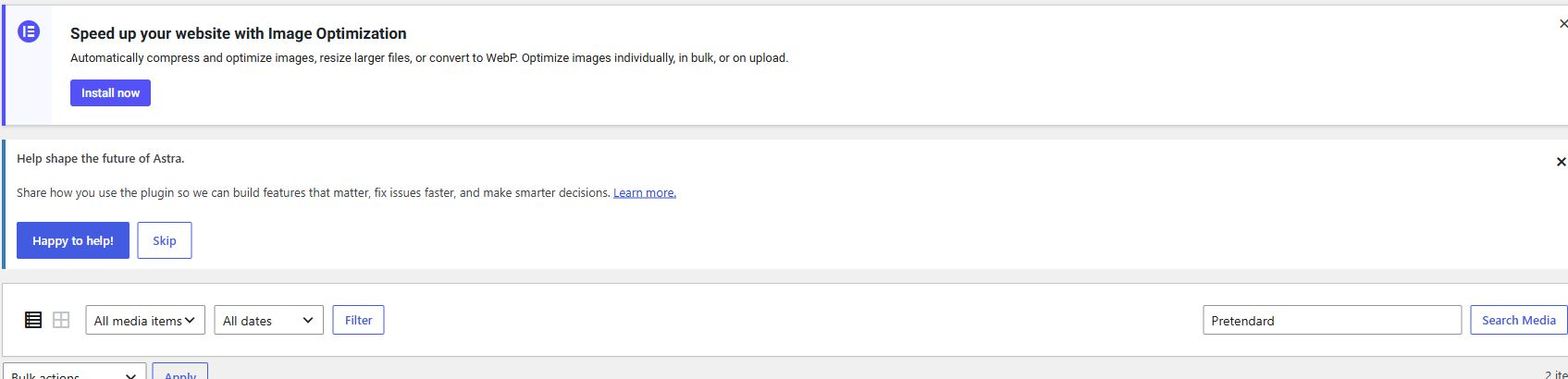
Inspect the returned attachment IDs and media URLs, then connect those files through your chosen font-registration feature. Importing media alone does not register a family in a font picker. Check for existing attachments before repeating the command.
Open full-size Media Library screenshot
Verify the public Korean and English pages
- Inspect the browser's rendered-font information for Korean, English and numerals. A computed
font-familydeclaration alone is not proof that the file rendered. - Inspect WOFF2 requests, response headers and transferred bytes. Test text that uses both 400 and 700.
- Compare article text, headings, buttons and code on desktop and mobile. Check wrapping and confirm that icons and code fonts are unchanged.
- Refresh the relevant theme, Elementor and page caches, then recheck the logged-out page.
- Consider preload only for a file actually needed above the fold. Avoid duplicate requests and preloading an unnecessary full Korean font.
If the change breaks the page, restore the previous CSS or font selection and refresh the cache. Deleting font files first can break other pages that share them.